How to Update Your Personal Information in Allie
Last updated: October 16, 2026
🩺 Keeping your personal information up to date ensures we have the correct details for your care. You can update your name, date of birth, address, and more directly within the Allie app at any time.
🧭 Step-by-Step Instructions
Open the Allie app on your device.
Tap Settings ⚙ located at the bottom right corner of your screen.
Select Personal Information.
Tap the Pencil icon ✏ on the right-hand side of the screen to edit your information.
Update any of the following fields as needed:
Name
Date of Birth
Address
Phone Number
Email Address
Other personal details listed
Once you’ve made your changes, tap Next to move through the sections.
Continue tapping Next until the screen closes.
Your updates will automatically save once you exit the editing screen.
❌ Want to Exit Without Saving?
If you’d like to stop editing at any time, tap Cancel in the top left corner of the screen. This will discard any unsaved changes.
✅ Tip
Double-check your information after saving to ensure everything appears correctly. If you notice an error, you can return to the same screen and make additional edits.
Contact Support with Allie
We recommend using the Allie app if you need assistance or have questions by following the steps below.
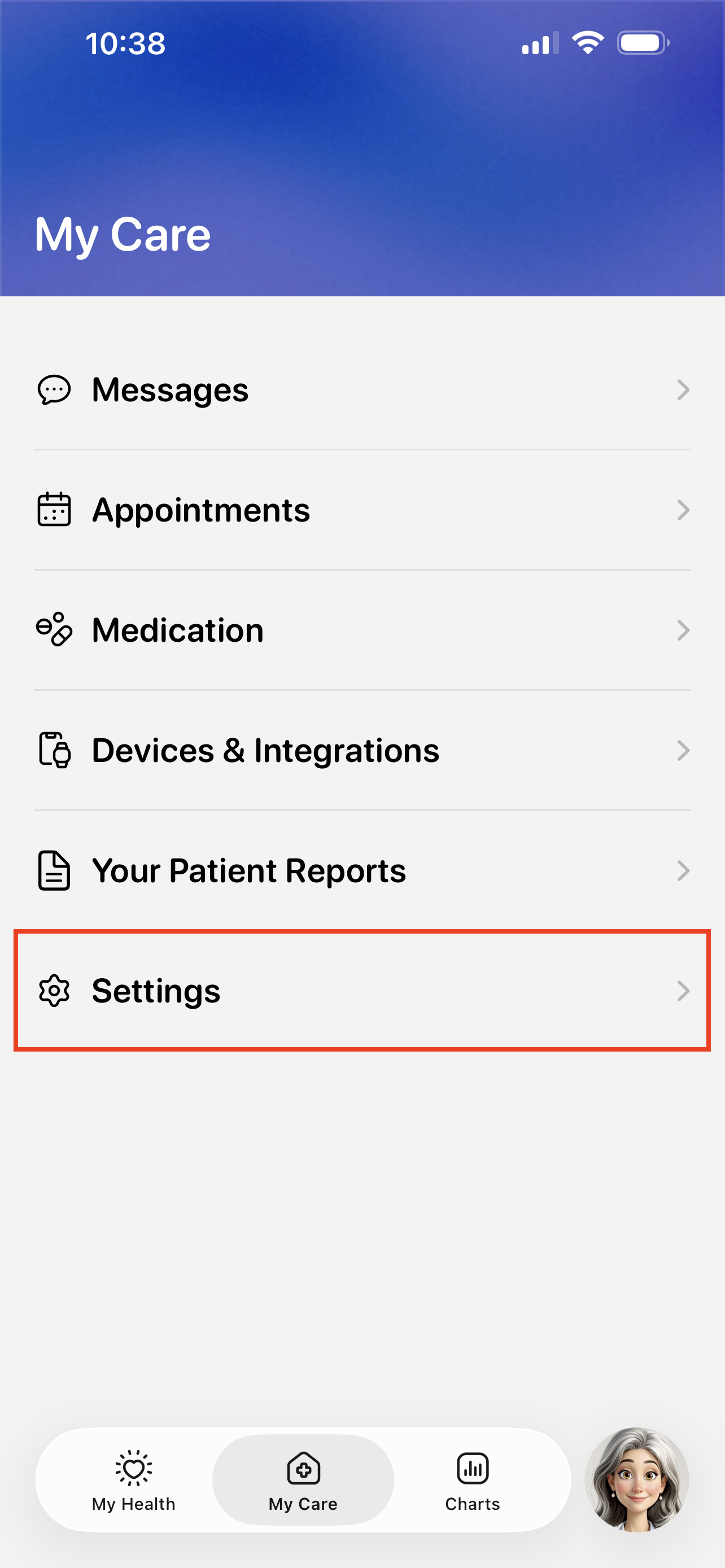
Visit the My Care > Settings.
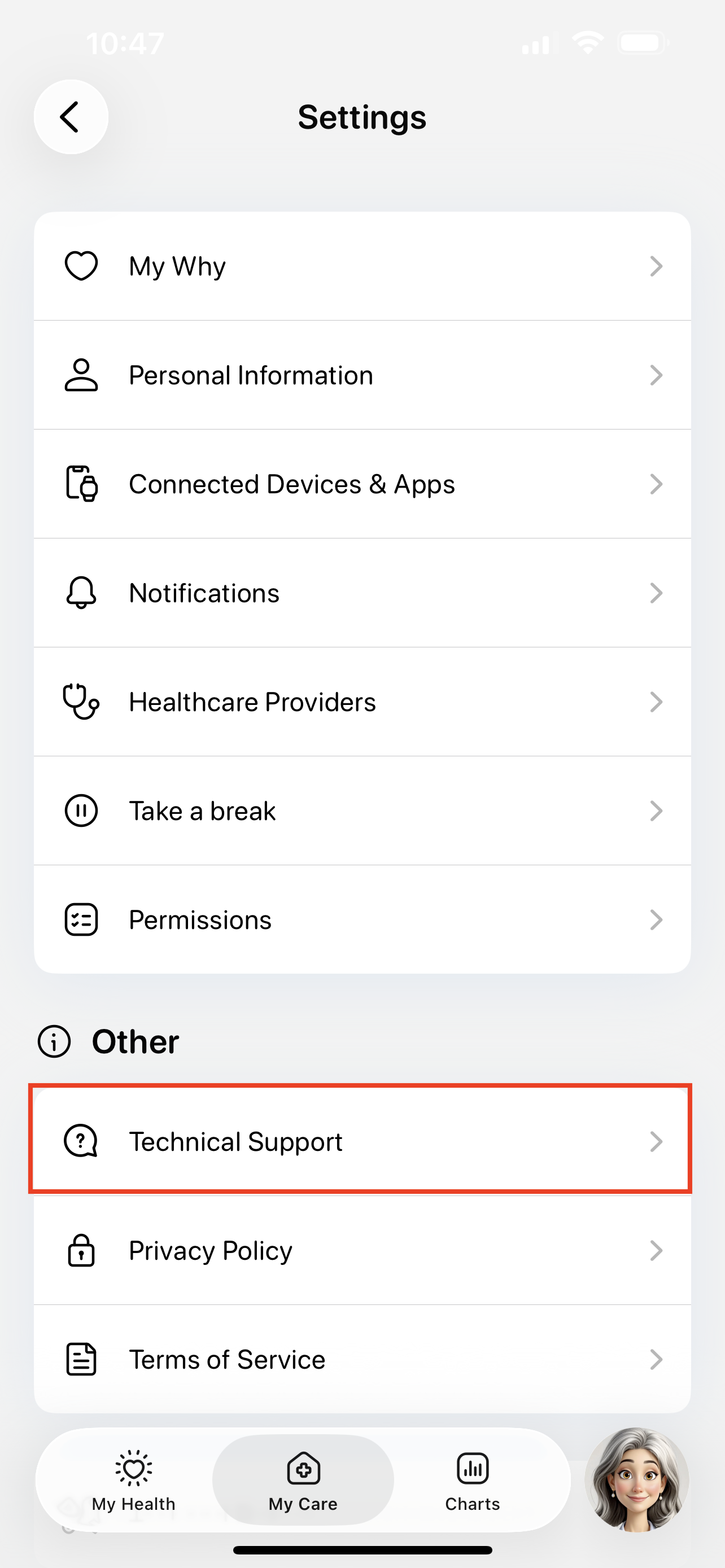
Tap the Technical Support button.
Tap the Issue button to start submitting a support ticket.
You can also use this page to search for existing guides, like how to troubleshoot device errors.

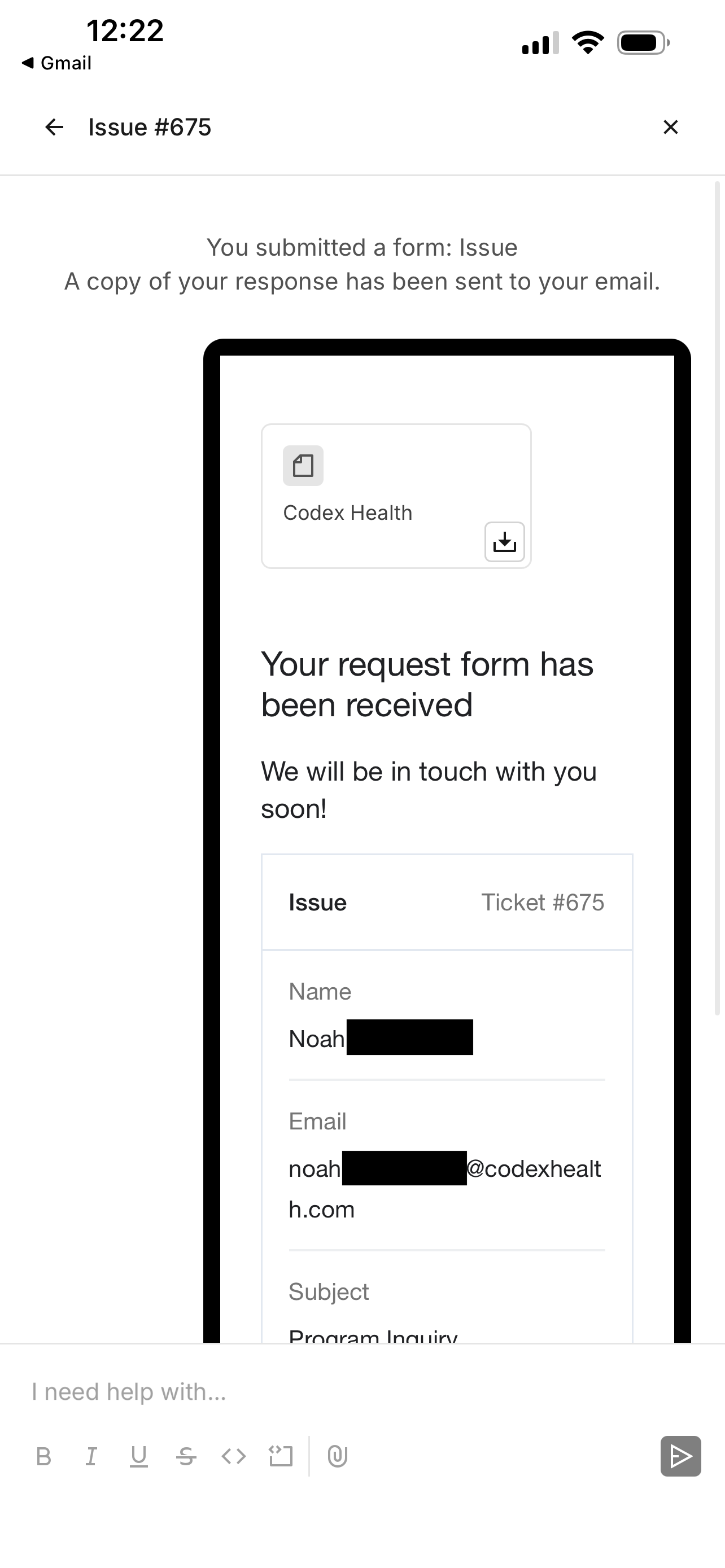
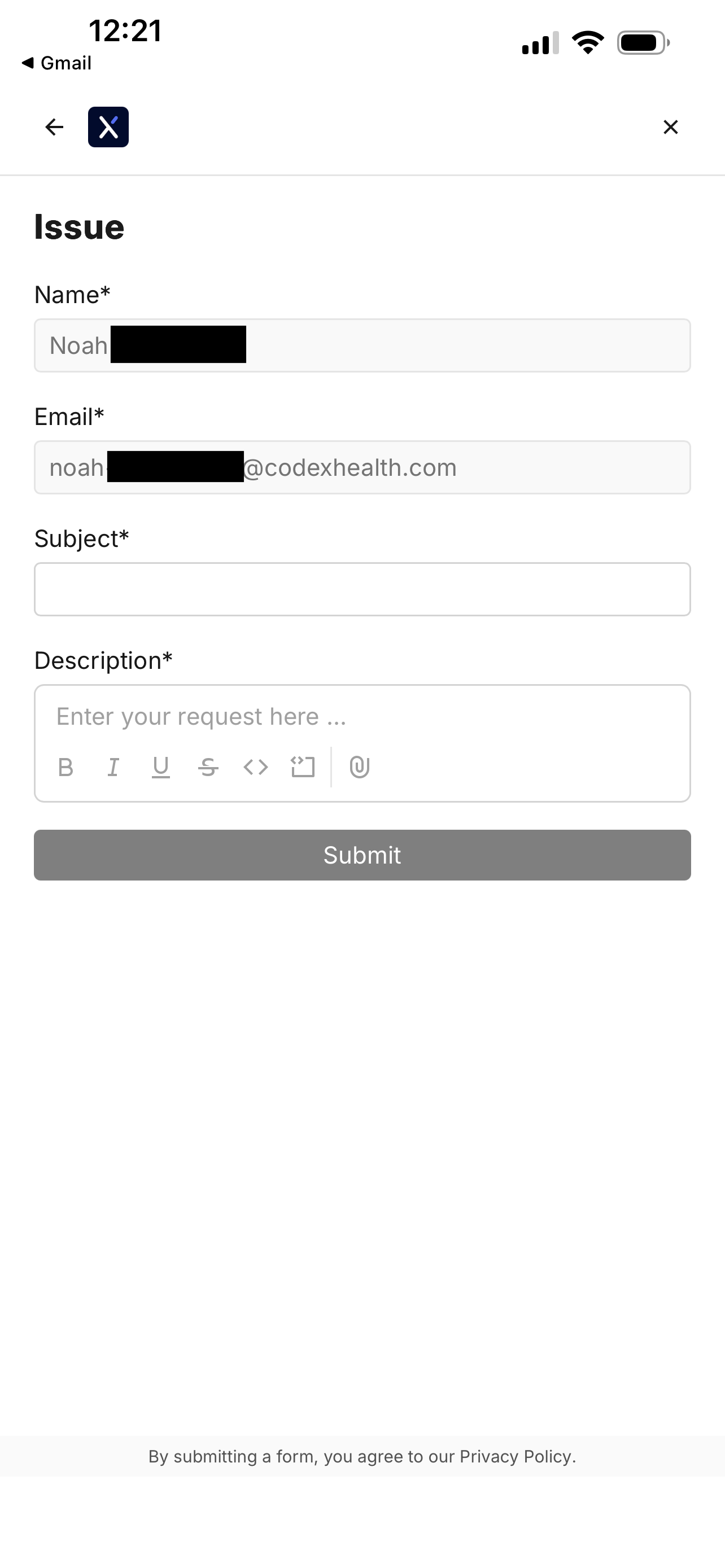
Fill out the support ticket and tap Submit.
You will see a confirmation screen when your ticket is filed.
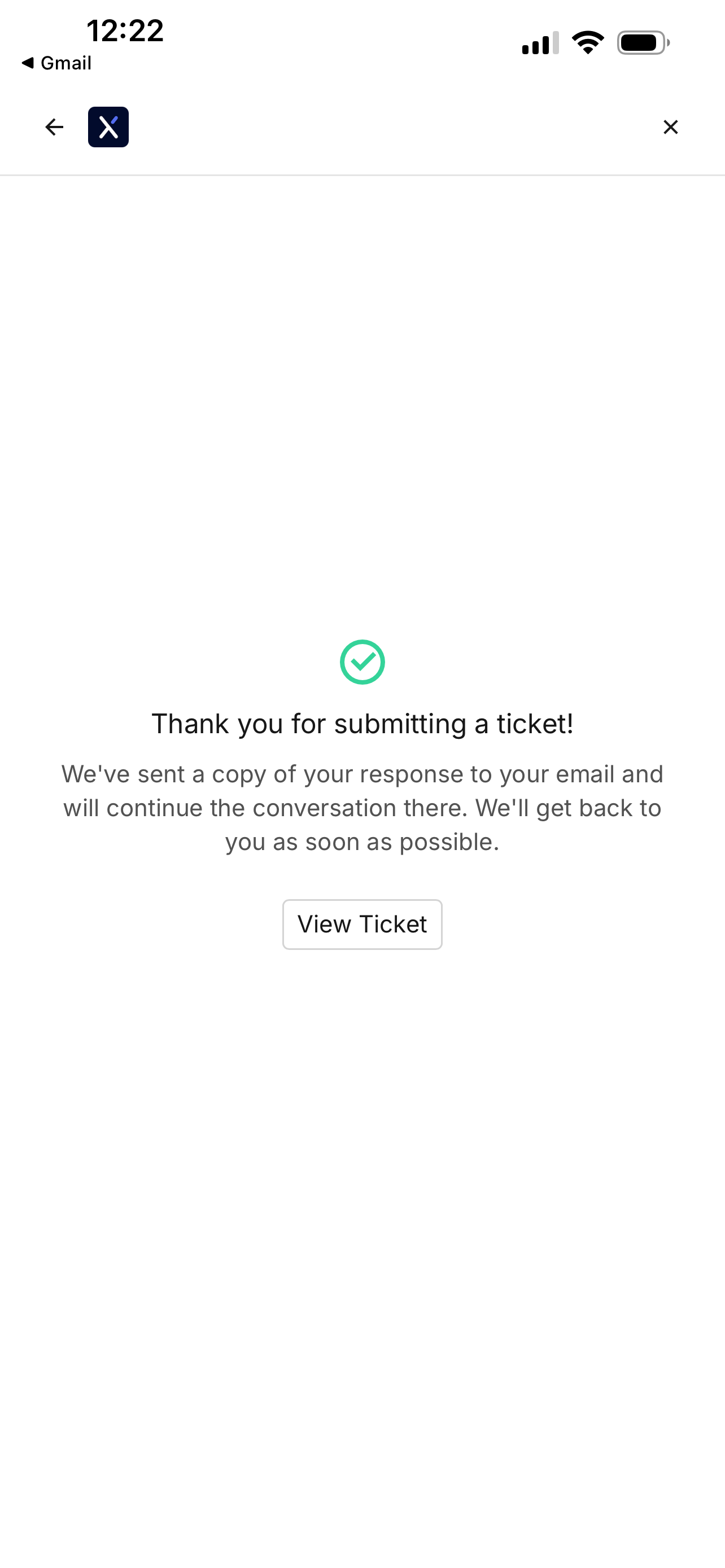
Revisiting the file ticket page will show your previous support tickets.

Tapping on a ticket will show any updates.