Withings Cellular Devices
Last updated: October 26, 2026
Withings devices connect over cellular service and are pre-activated before they ship. You do not pair these devices to Allie via Bluetooth. Once you receive your cellular device(s), you can follow the installation guide included in the kit (i.e. holding a power button) and your readings will automatically flow into Allie.
Supported Devices
BPM Pro 2 (blood pressure monitor)
Body Pro (weight scale)
Order & Delivery Tracking
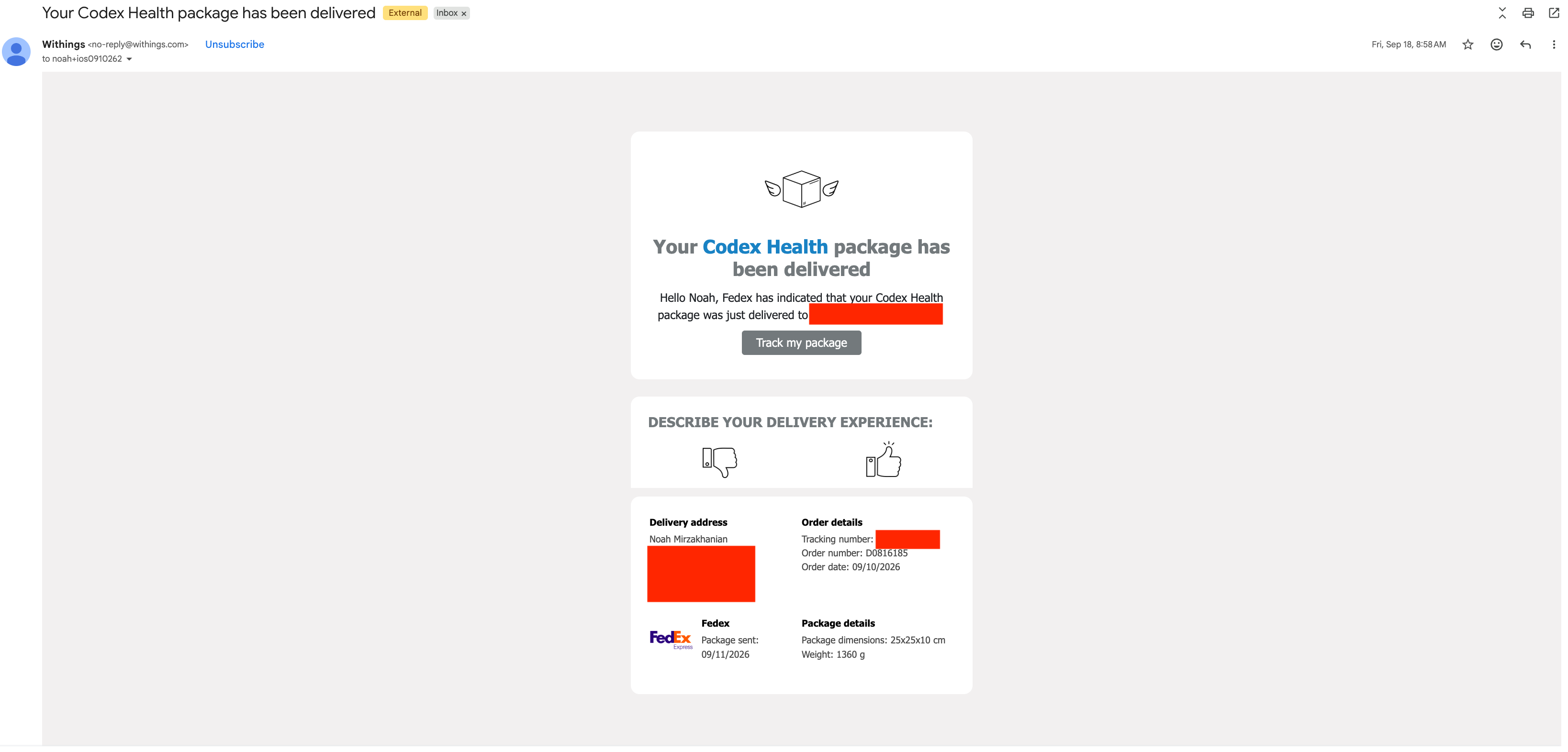
Allie will provide tracking updates at each stage of your order:
Order Placed — Withings is processing the order.
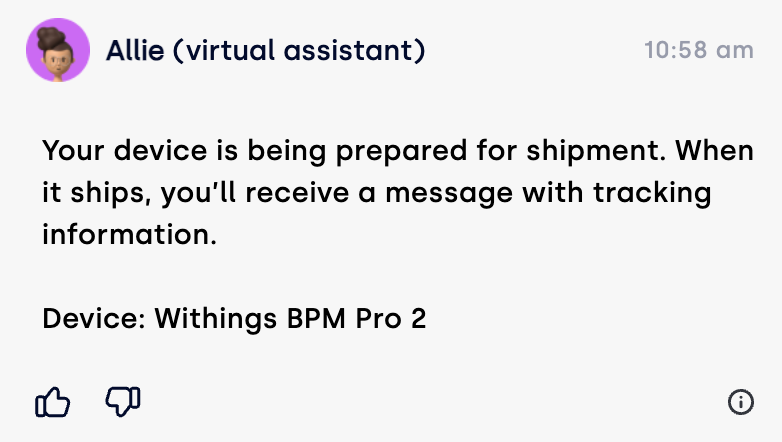
Patient Assistant: Order Placed Order Shipped — Withings has transmitted the device to a shipping carrier.
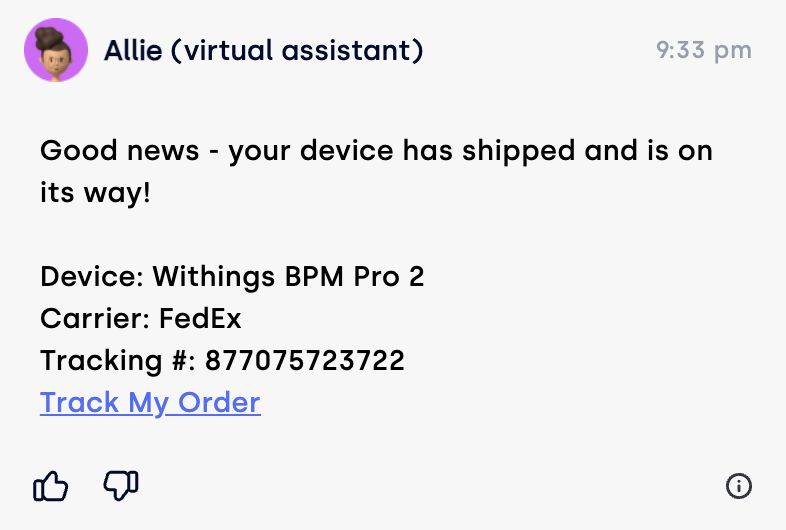
Patient Assistant: Order Shipped Order Delivered — The shipping carrier delivered the device.
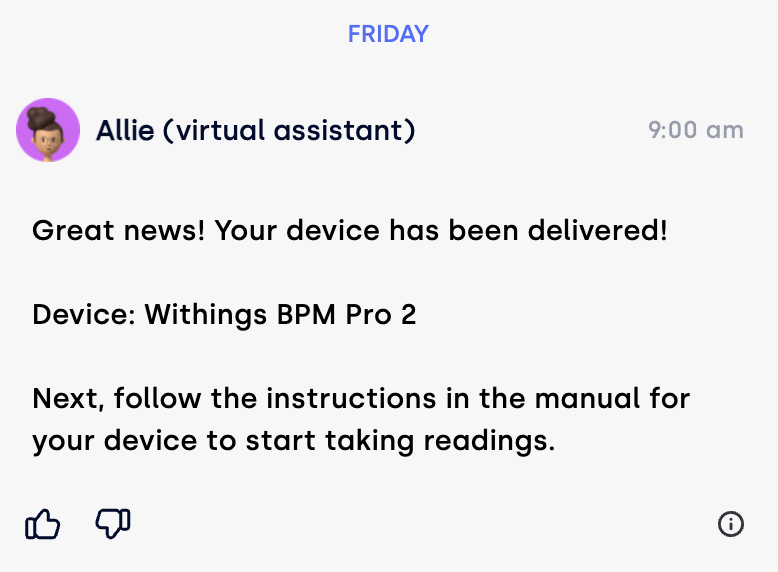
Patient Assistant: Order Delivered 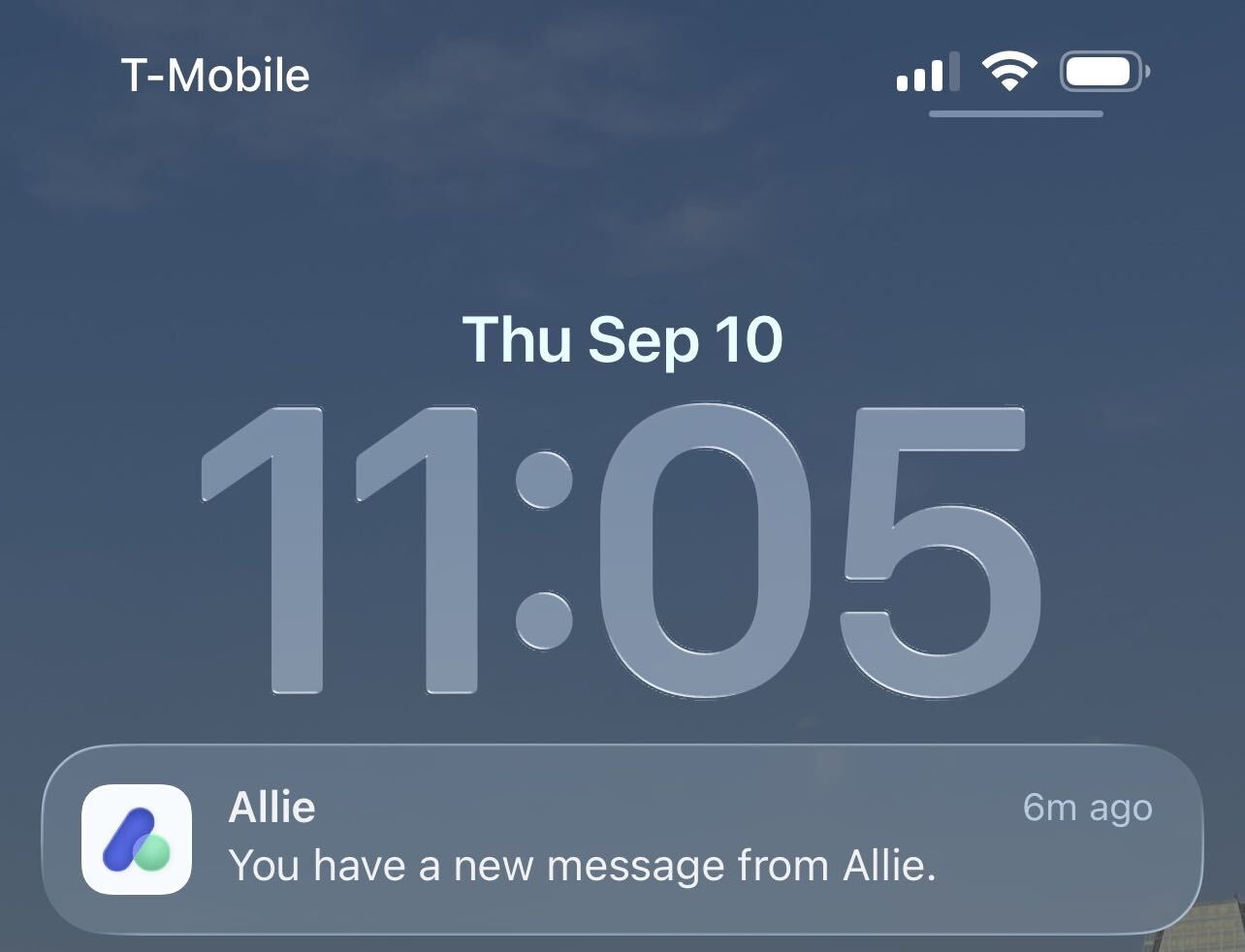
Ask Allie Notification
It can take up to 10 days from when your order is placed to receive your device(s). Allie will keep you updated until you receive it!
While Allie provides these in-app updates, Withings also sends email notifications on tracking updates to the same email address you created your Allie account with.
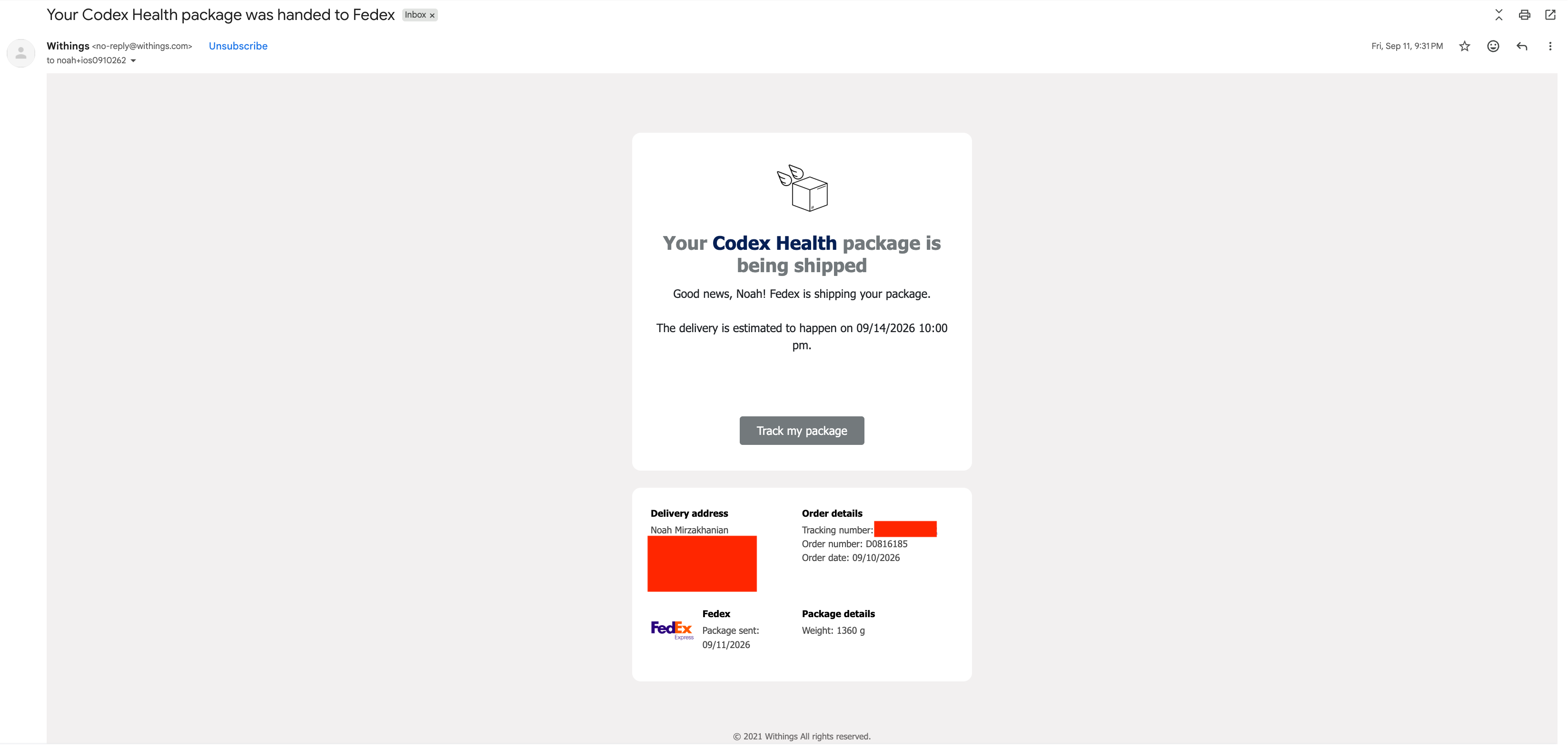
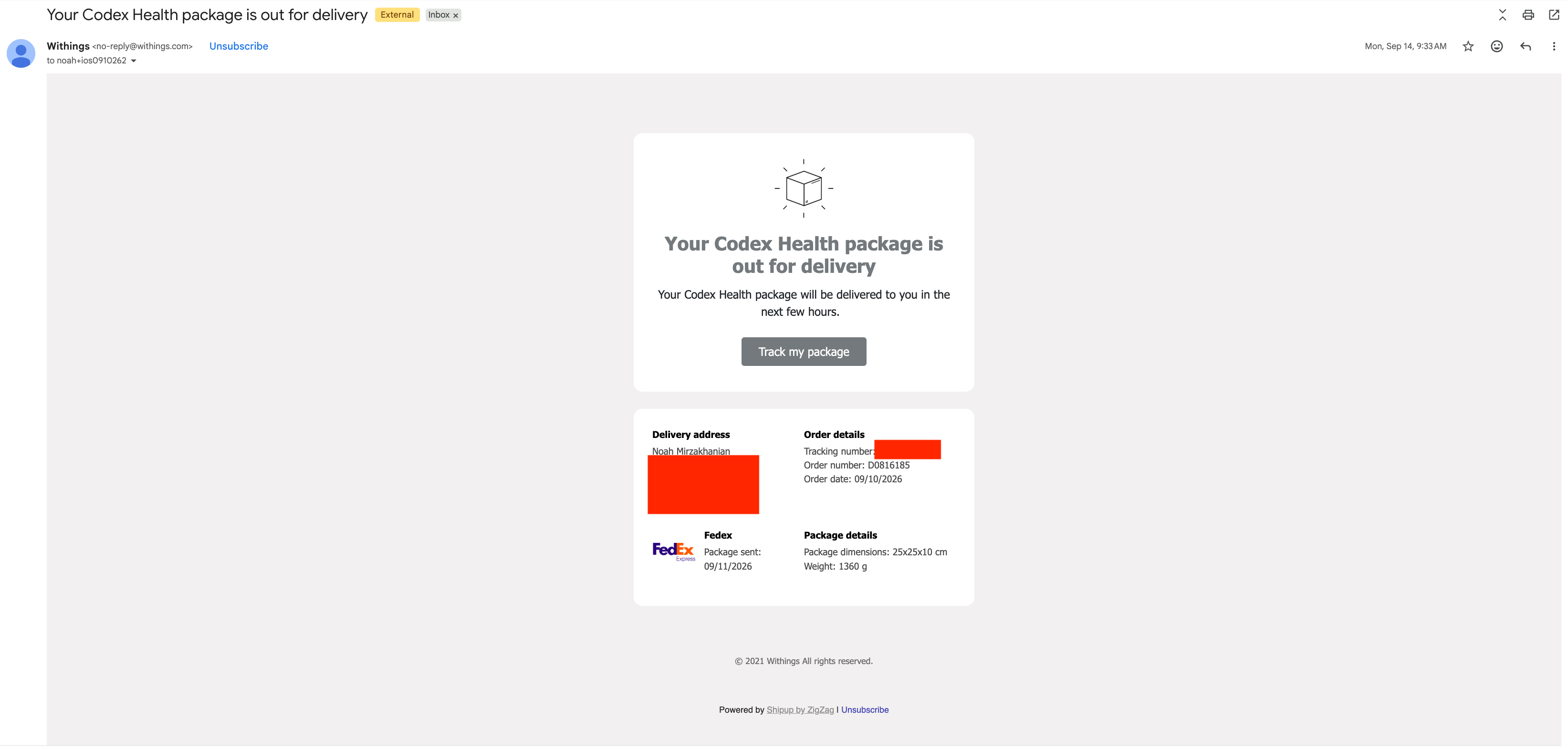
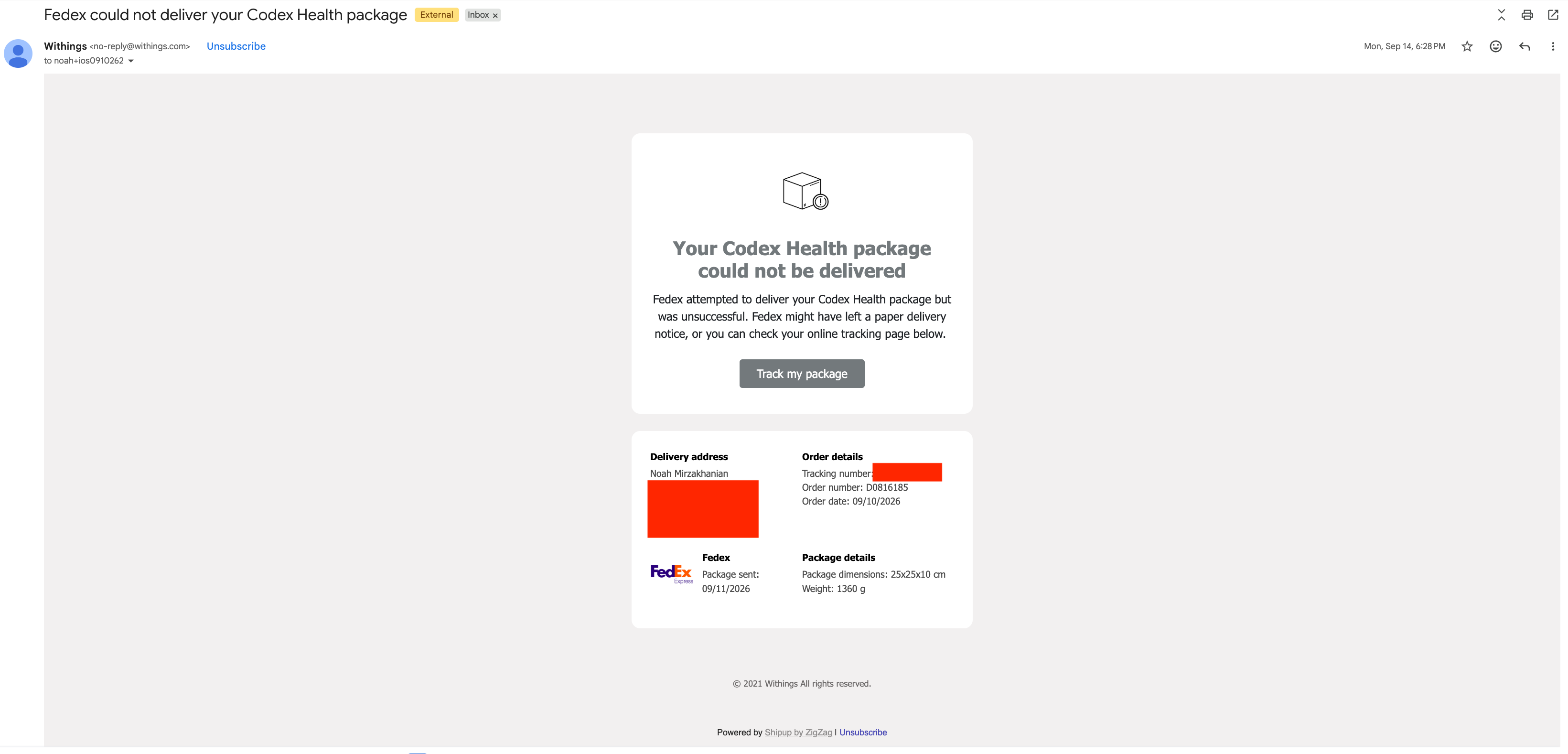
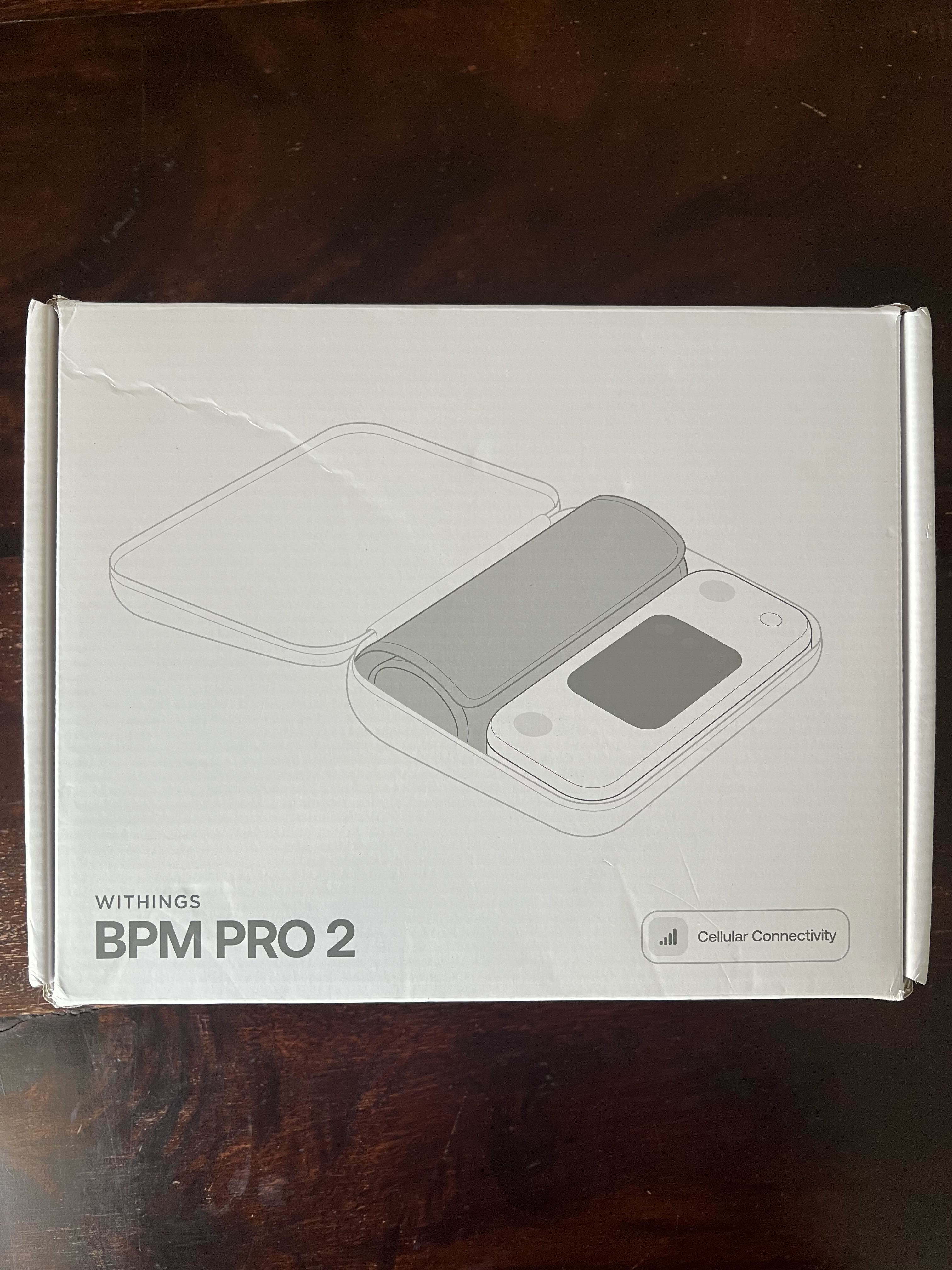
Unboxing & Installation
Cellular devices already arrive "connected" to Allie. The physical device still has a brief setup step to establish a cellular connection. A Withings installation guide is included in each device kit and often just requires you to press/hold a power button.
The examples below are for the BPM Pro 2, but the Body Pro follows similar steps. For any device, the instructions provided in your Withings device kit will have up-to-date instructions on setup and taking your first reading.
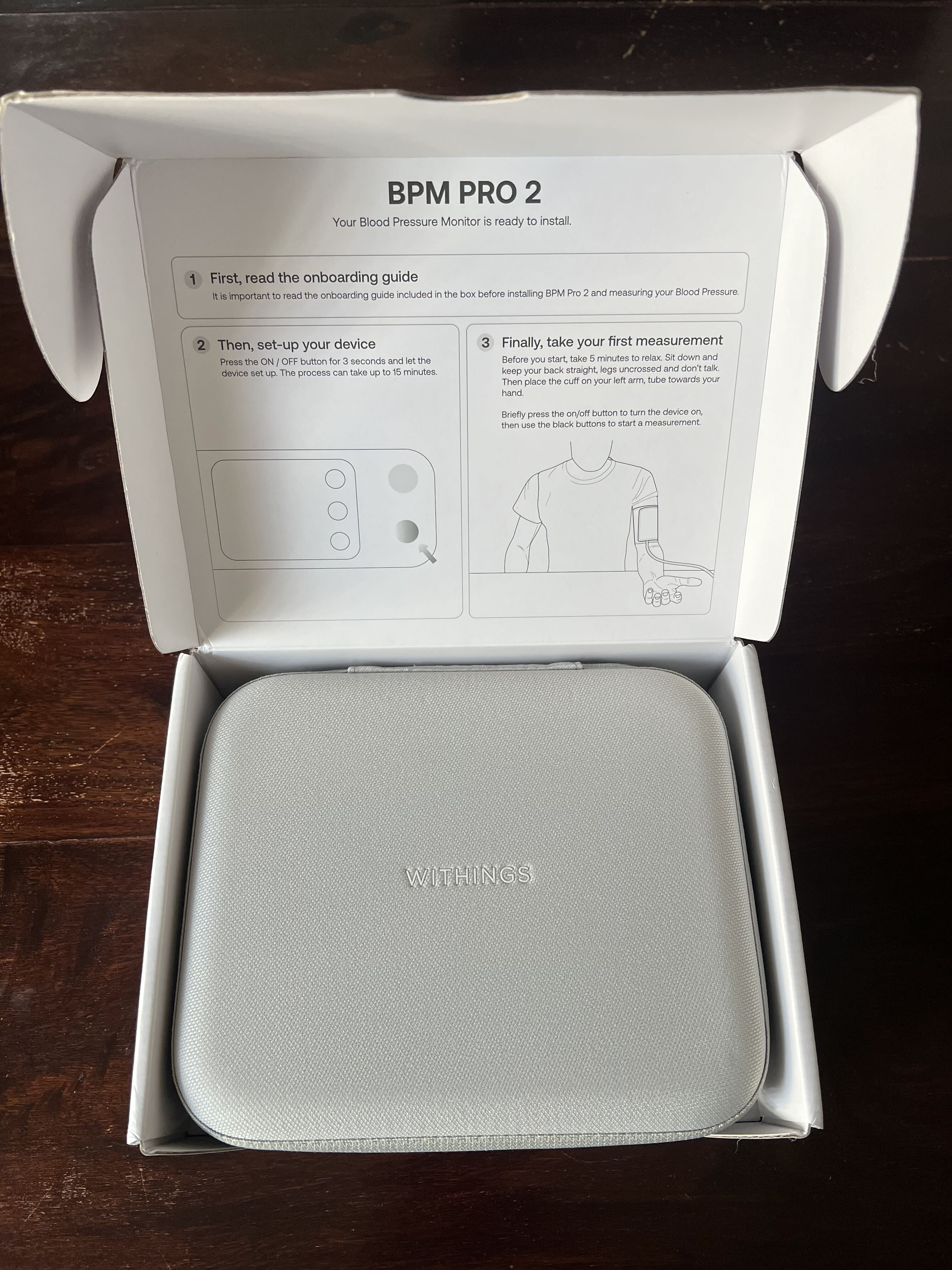
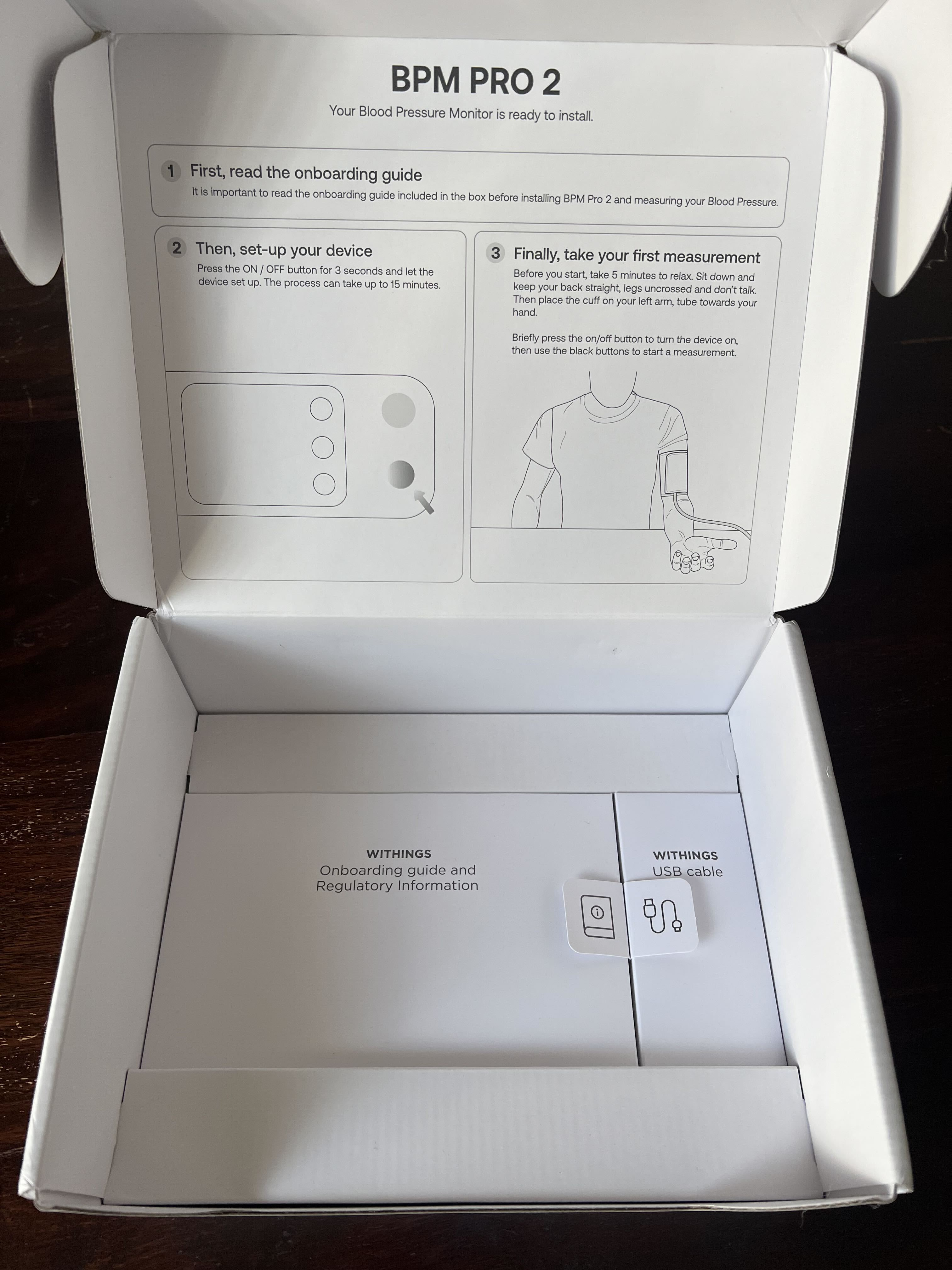
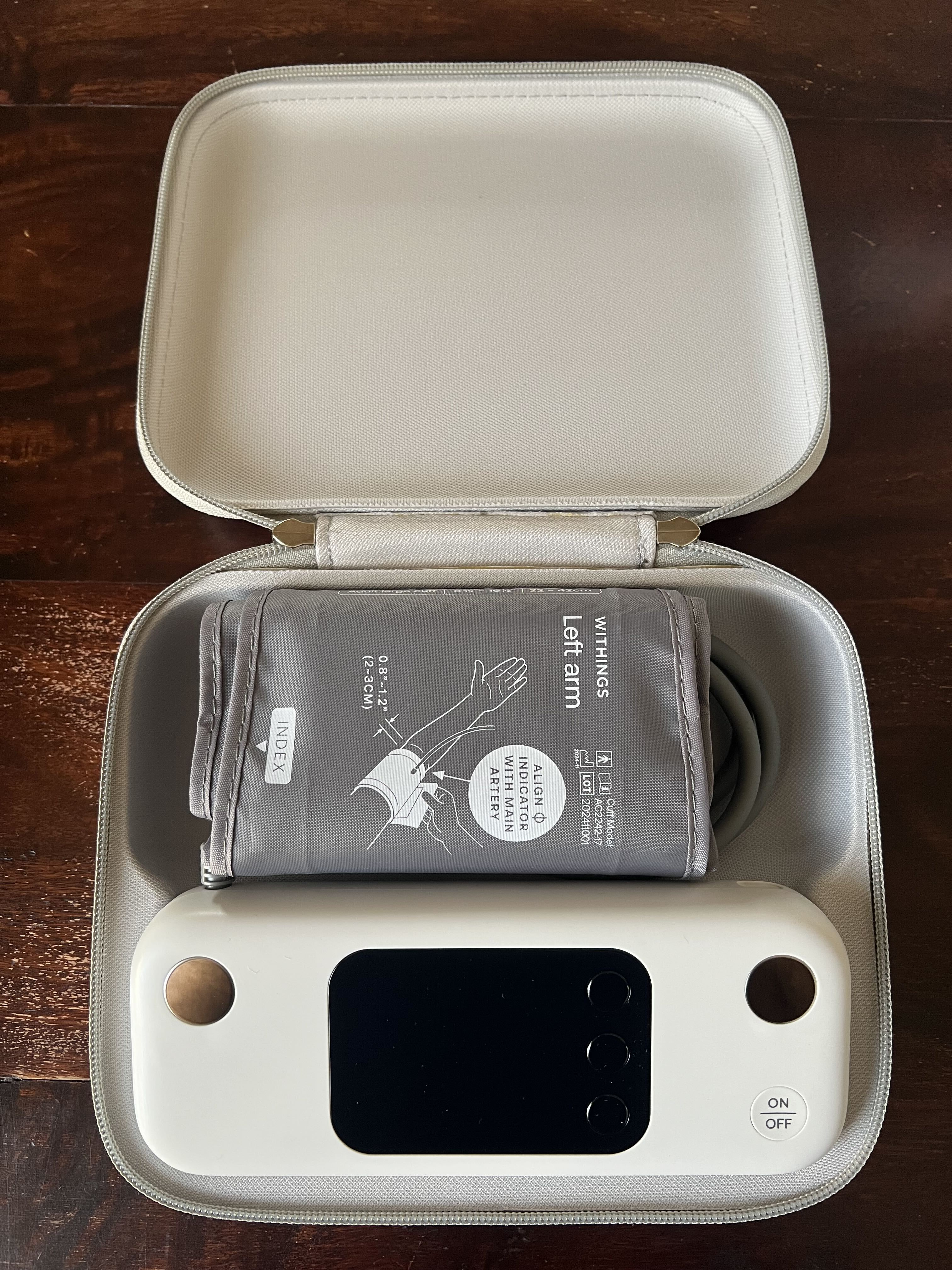
Press and hold the ON/OFF button until the device says it is connecting. This is establishing a cellular connection; the video shows real-time how this can take a while.
Device turns on automatically after installation. The same screen is shown any time you turn on your device.
Taking a blood pressure reading for the first time. The steps on how to take a blood pressure reading only show up the first time you take a reading.
Blood pressure reading is complete, showing the resulting measurements. Blood pressure readings will be uploaded to Allie in the next few minutes automatically without needing to open the app. You will receive a notification when the app has received the reading.
Reading Sync Timing
Readings are automatically synced to Allie.
My Health — The blood pressure widget is shown below, but the same applies for other measurements.
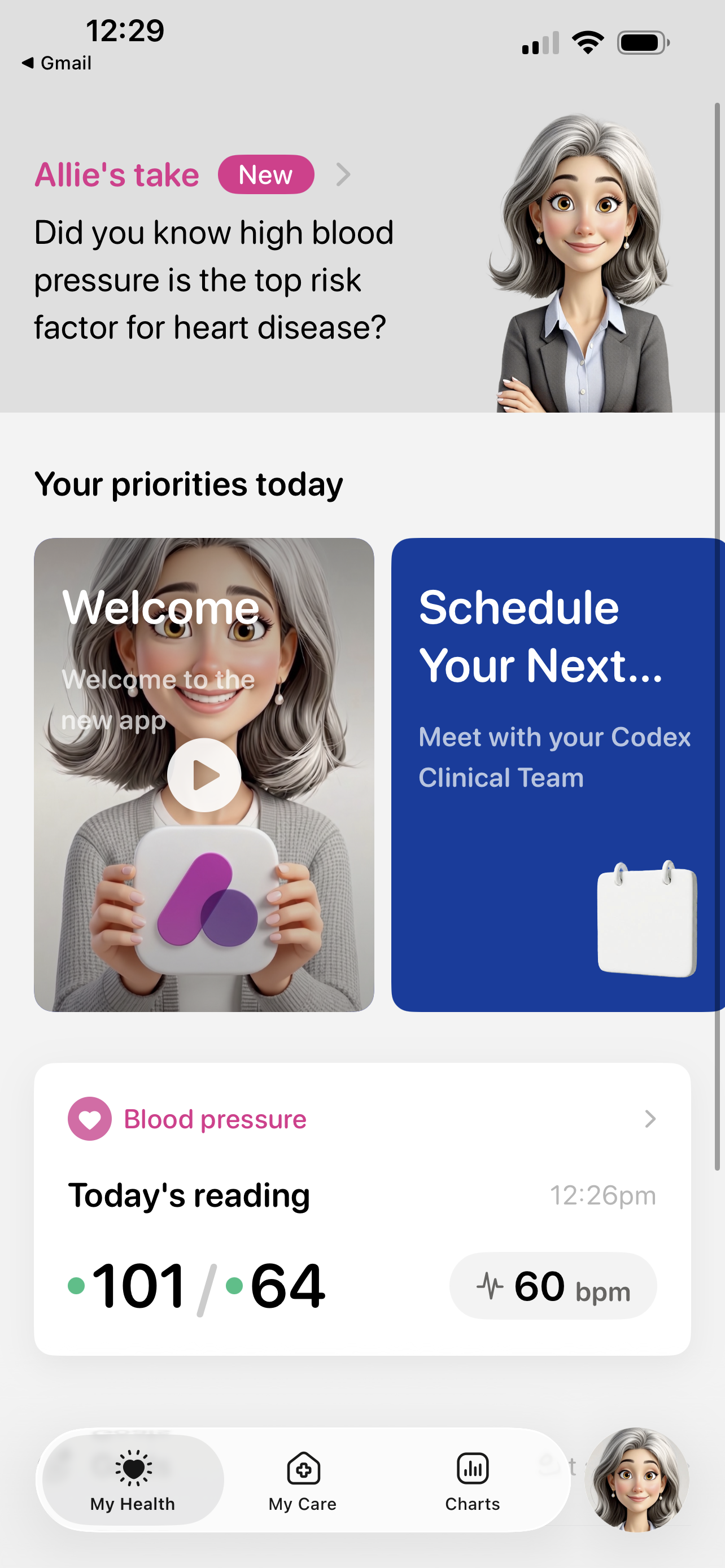
My Health: Blood Pressure Widget Charts — The blood pressure chart is shown below, but the same applies for other measurements.
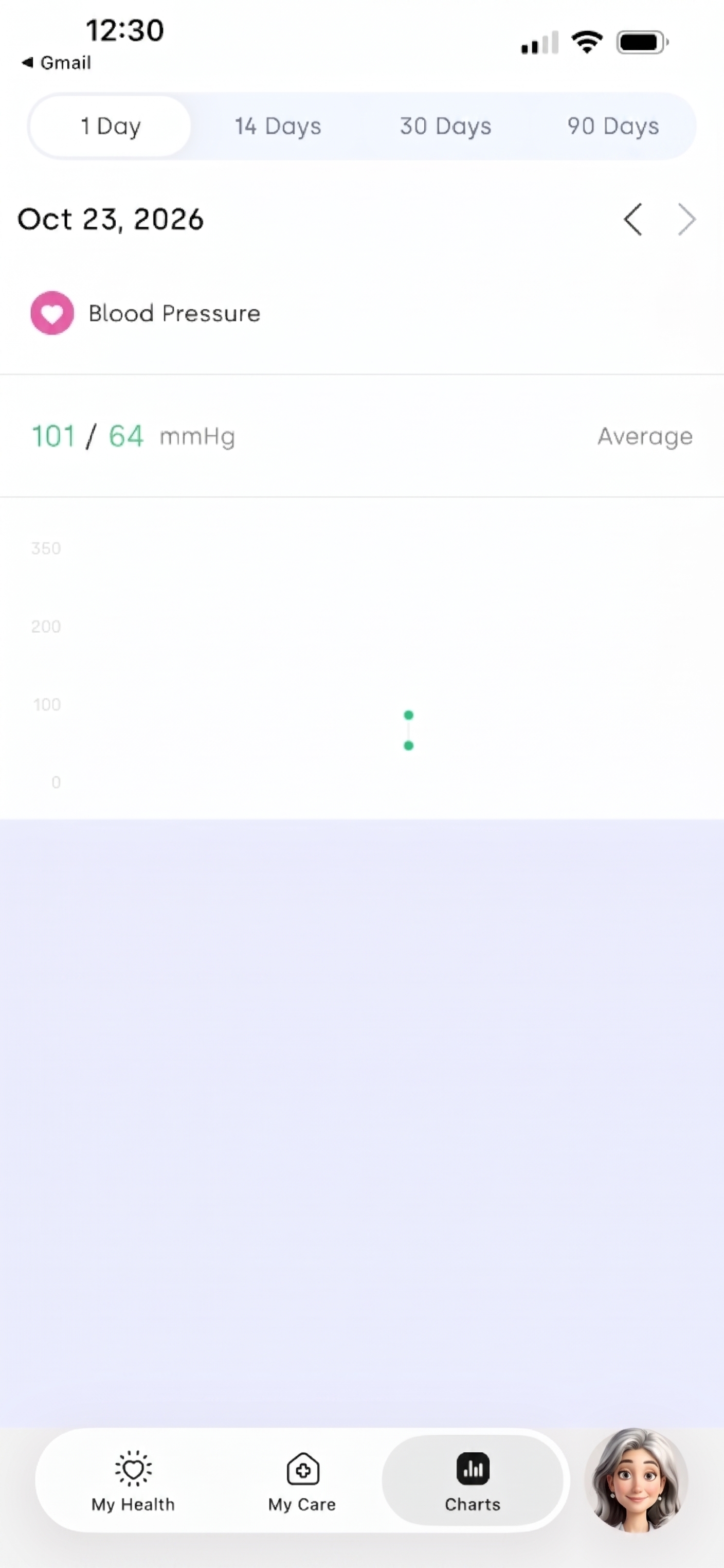
Charts: Blood Pressure
Readings typically sync to Allie within a couple of minutes of being taken, though it can take longer.
Allie does NOT need to be open while taking a reading. A notification will be sent when Allie receives the reading.
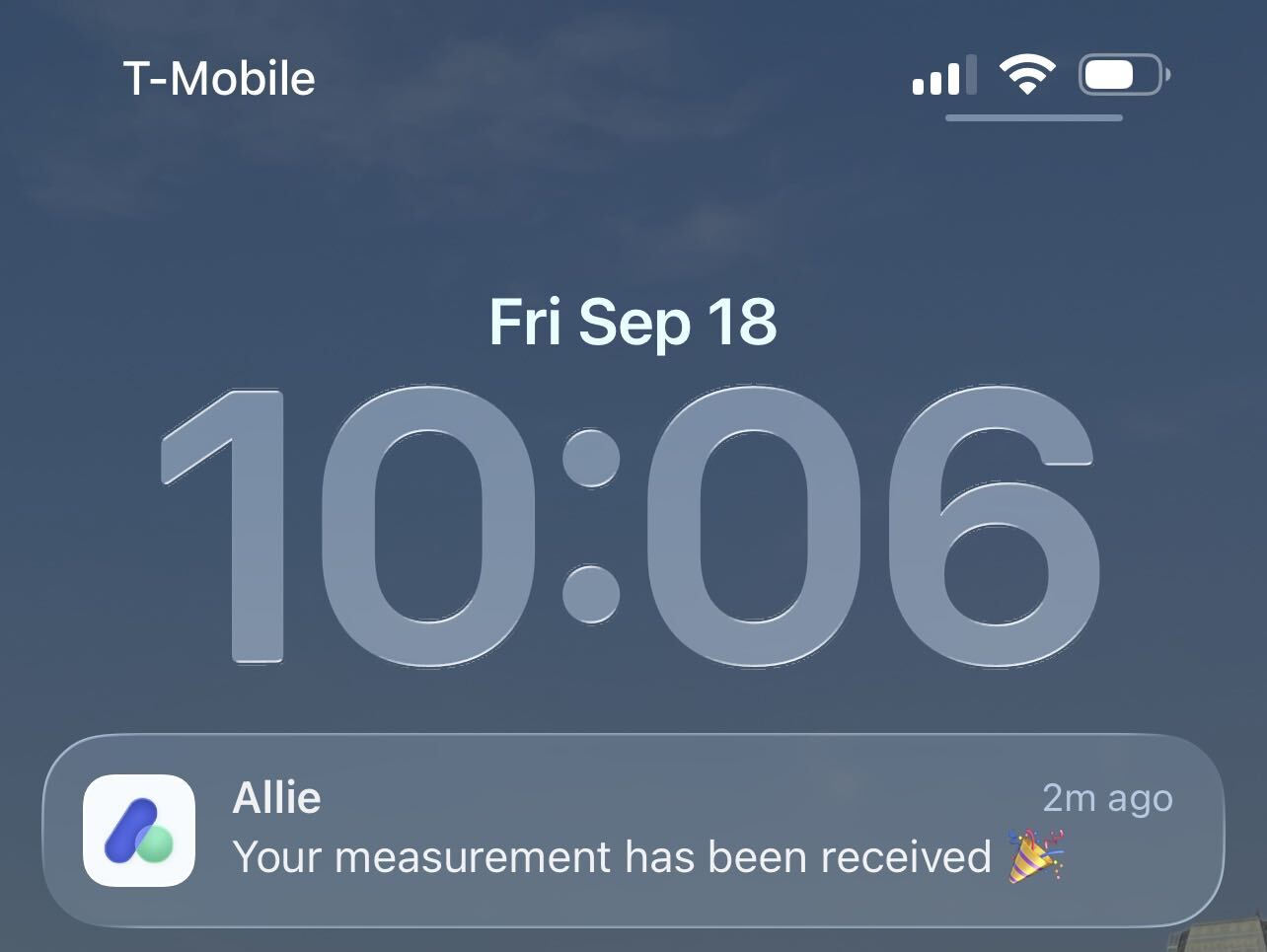
Notification: Reading Received
Connected Devices
Withings devices show up as connected when shipped.
In Allie, visit My Care > Devices & Integrations.
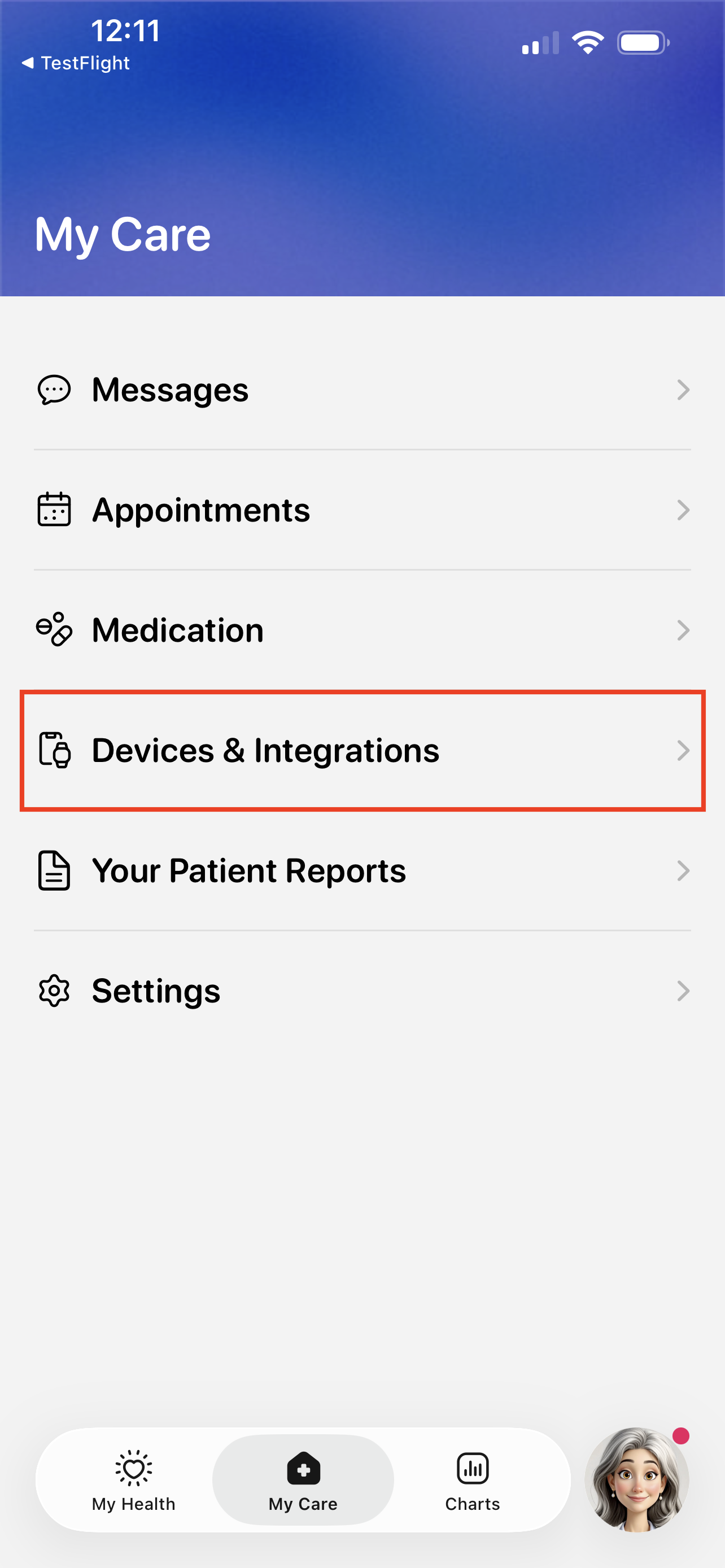
My Care > Devices & Integrations Button Your connected devices are shown at the top of the screen.
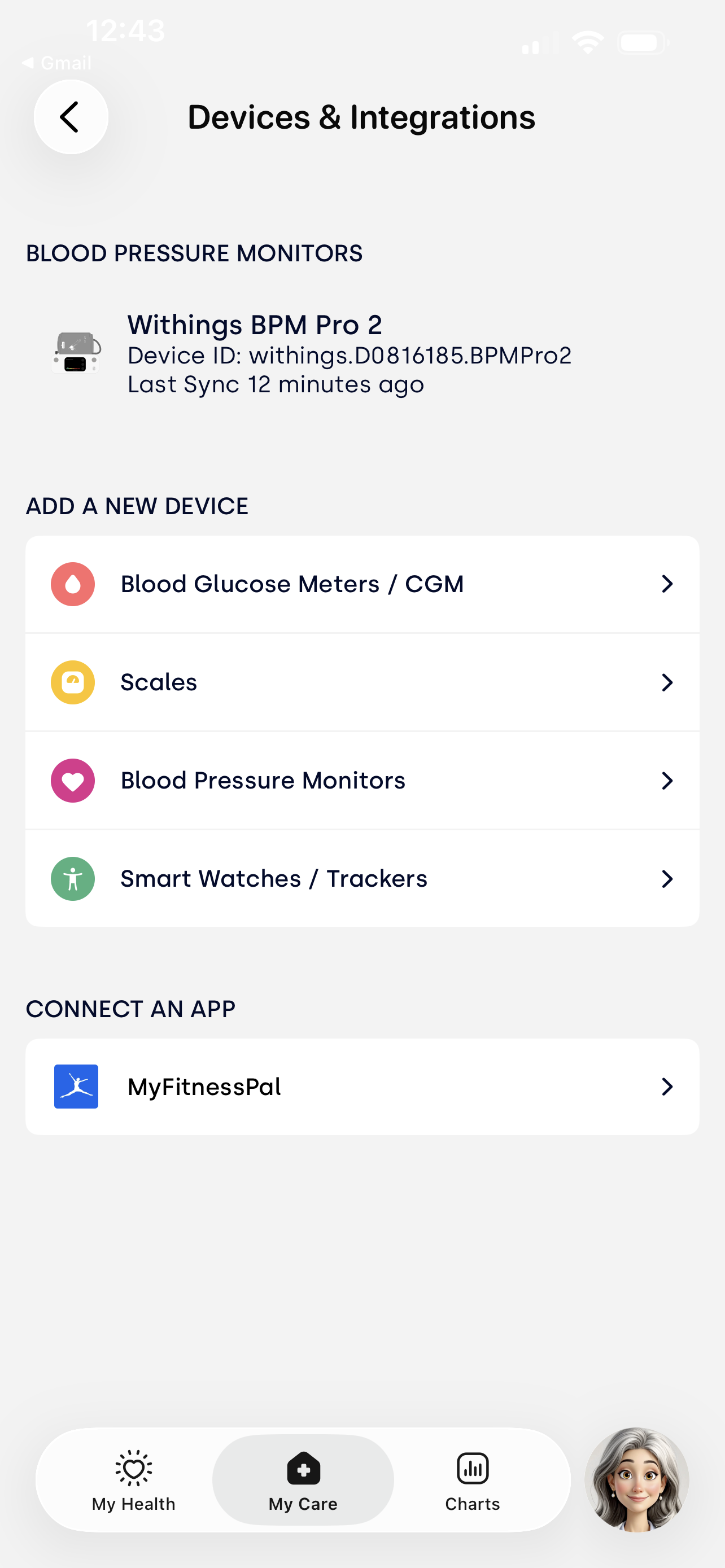
Devices & Integrations: Connected Devices
Troubleshooting
Withings devices may show error codes with little explanation on how to resolve them.
The Product Guide included with each device kit has a Troubleshooting section elaborating on error codes and their descriptions. See the screenshots below, though the steps below them will likely be more useful.
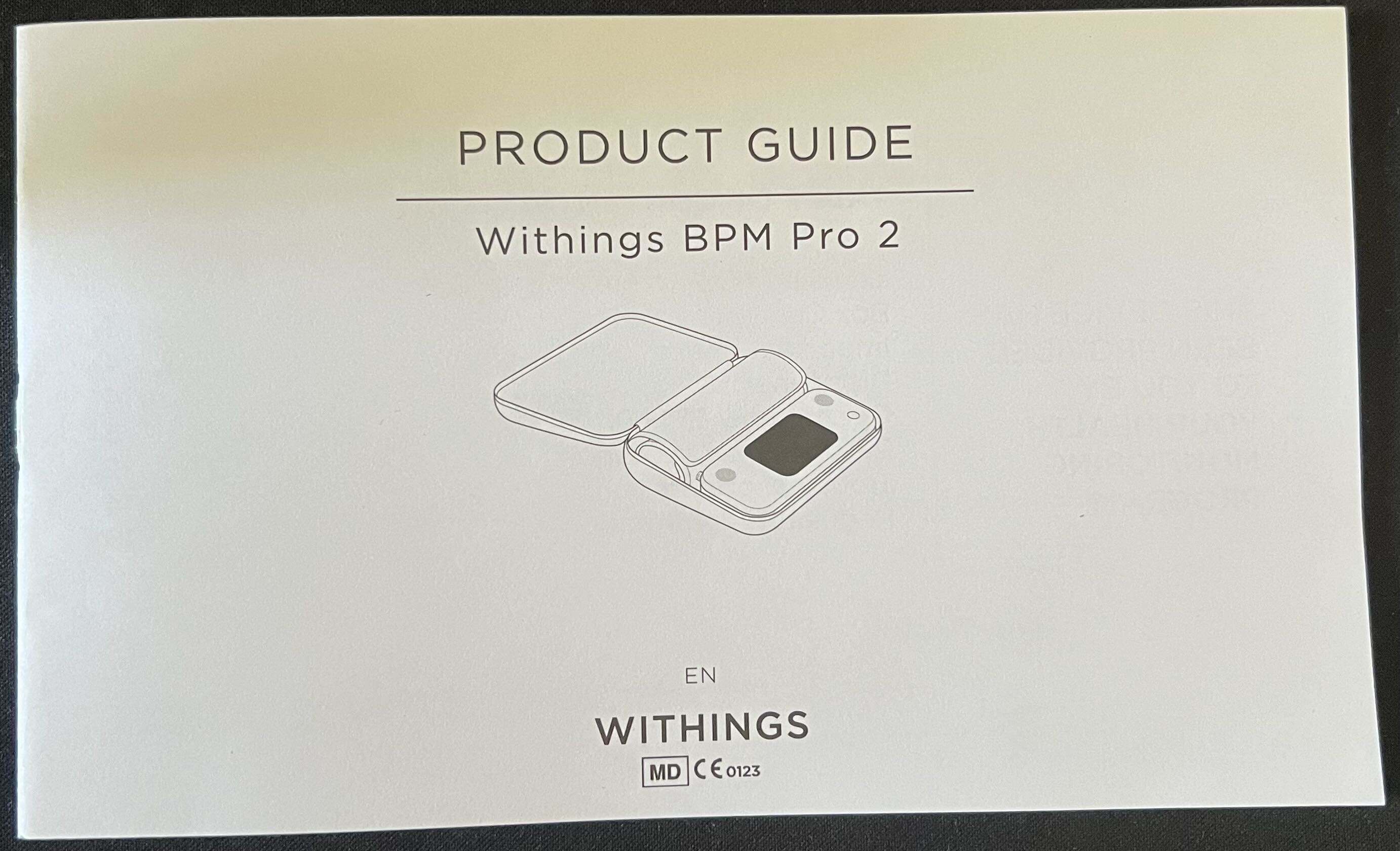
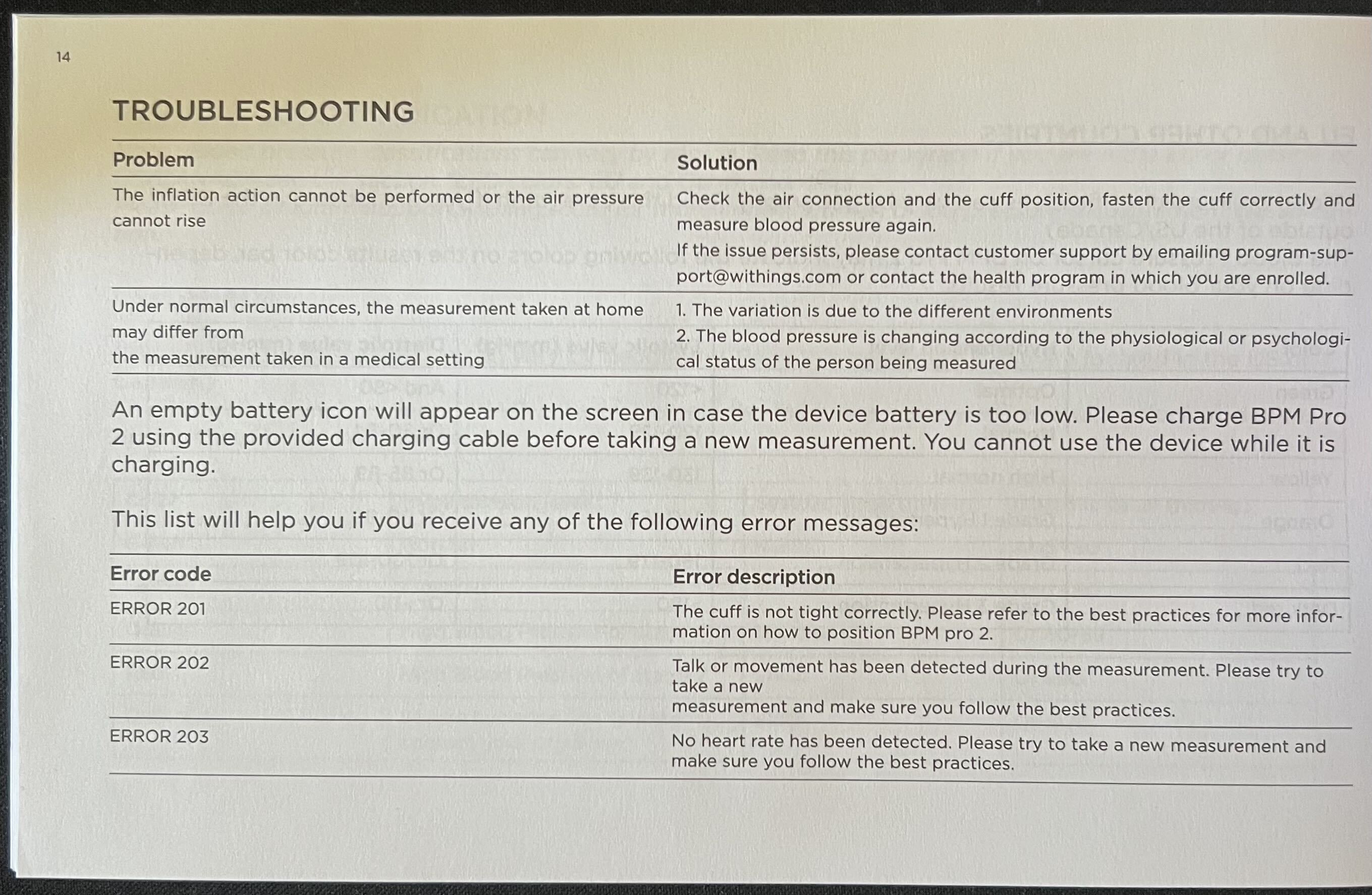
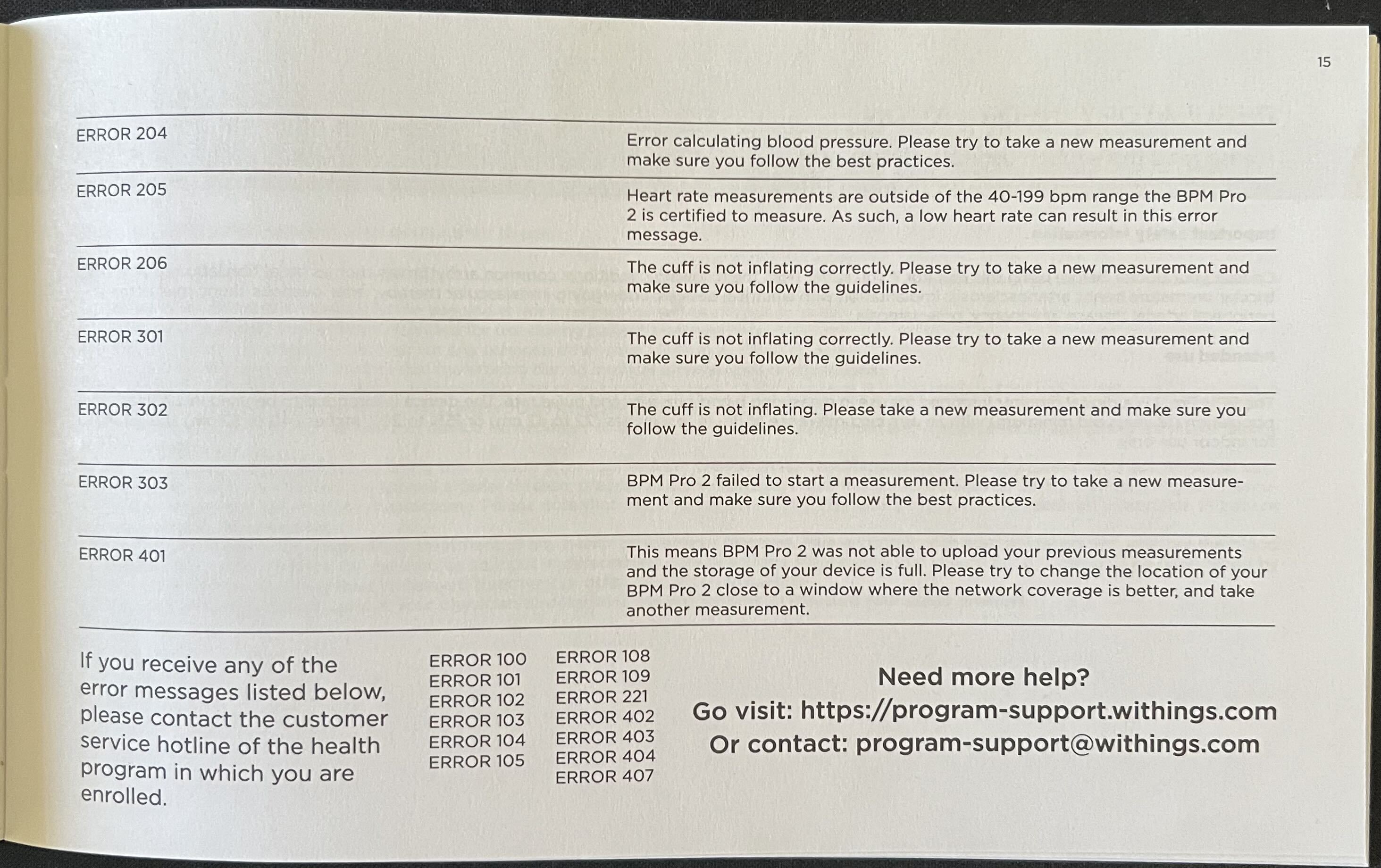
If you see a
404error code, try physically moving your device to a location with better cellular reception.Your readings may take minutes to show up in Allie. You do not need to keep Allie open while taking a reading and will receive a notification when Allie receives it.
If you do not receive this notification, see this reading in Allie after 30 minutes, or see any other error codes or issues, please follow the steps below to contact support.
Contact Support with Allie
We recommend using the Allie app if you need assistance or have questions by following the steps below.
Visit the My Care > Settings.
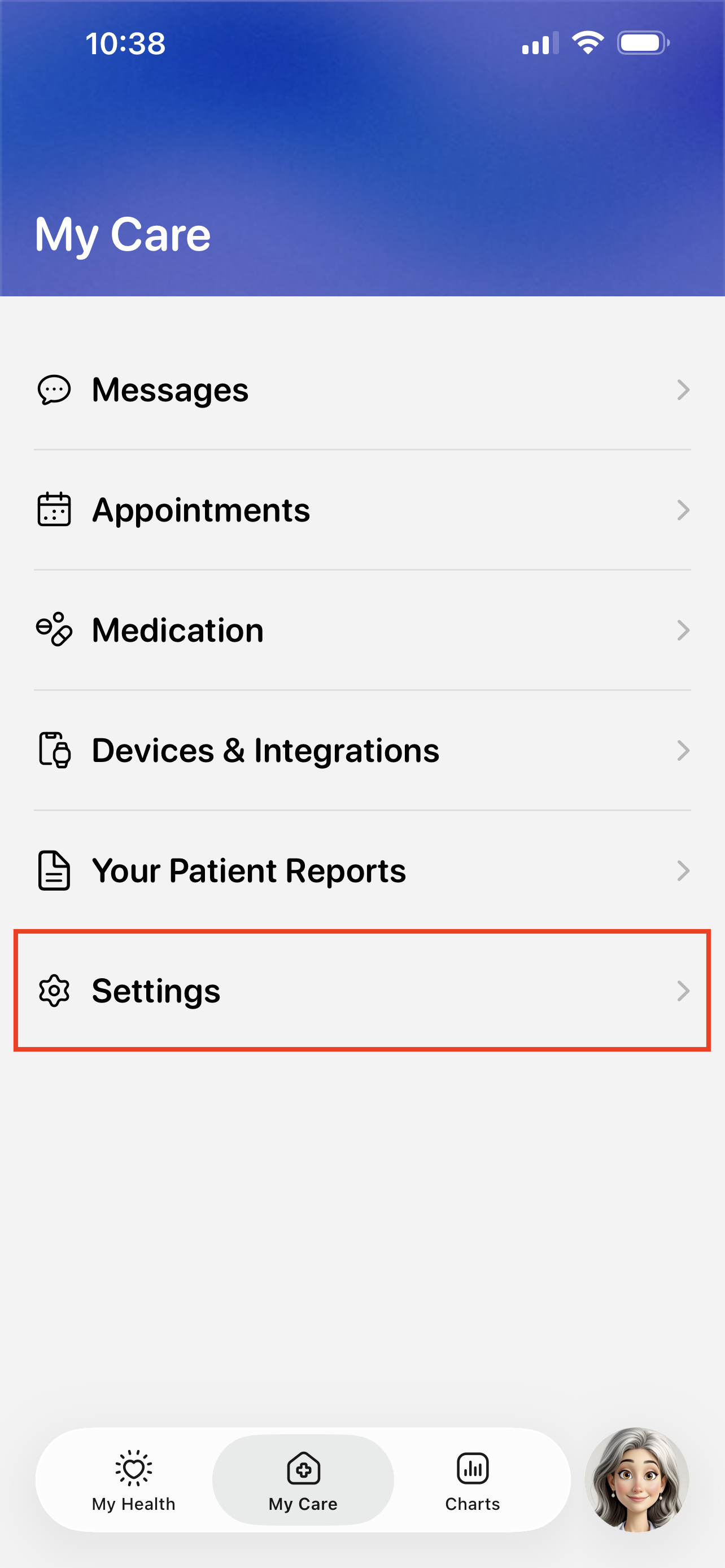
Tap the Technical Support button.
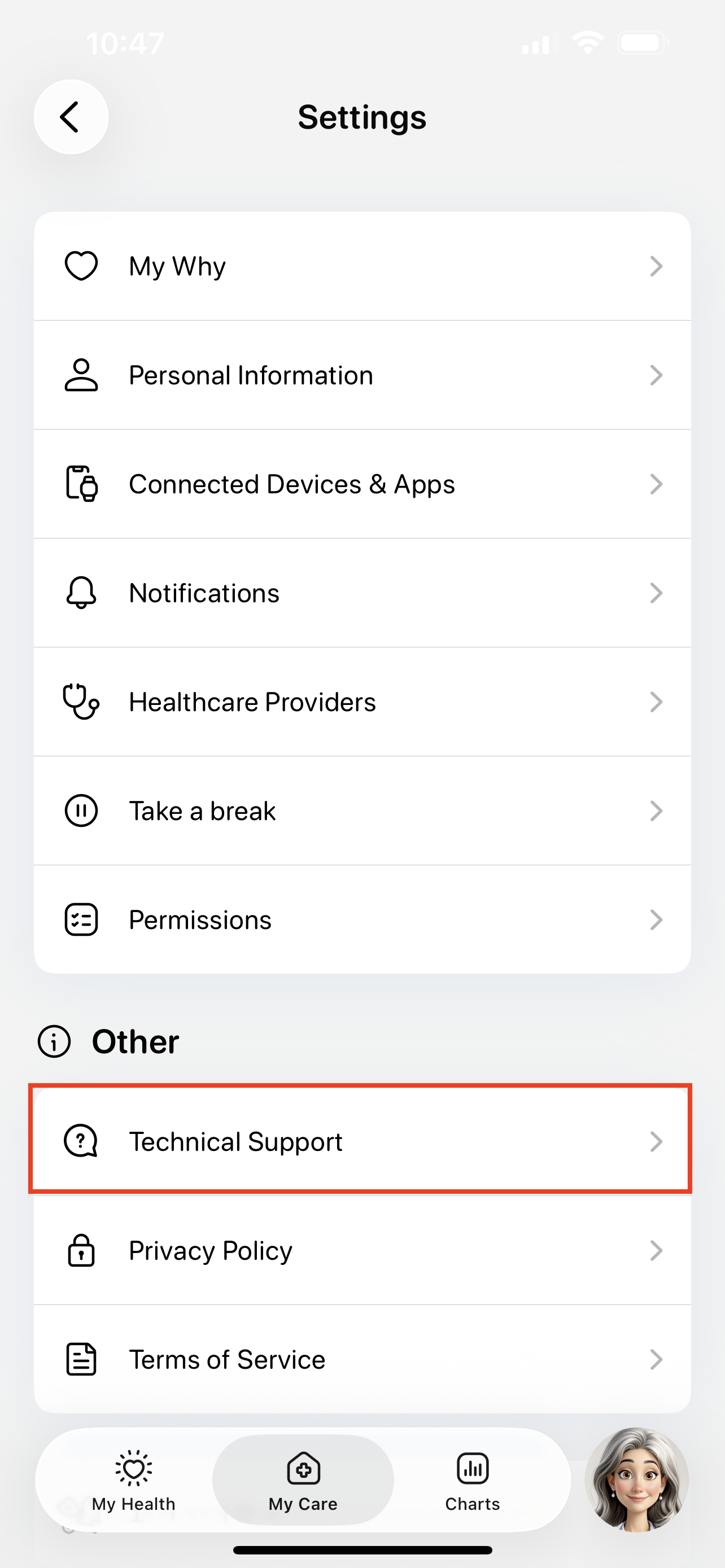
Tap the Issue button to start submitting a support ticket.
You can also use this page to search for existing guides, like how to troubleshoot device errors.

Fill out the support ticket and tap Submit.
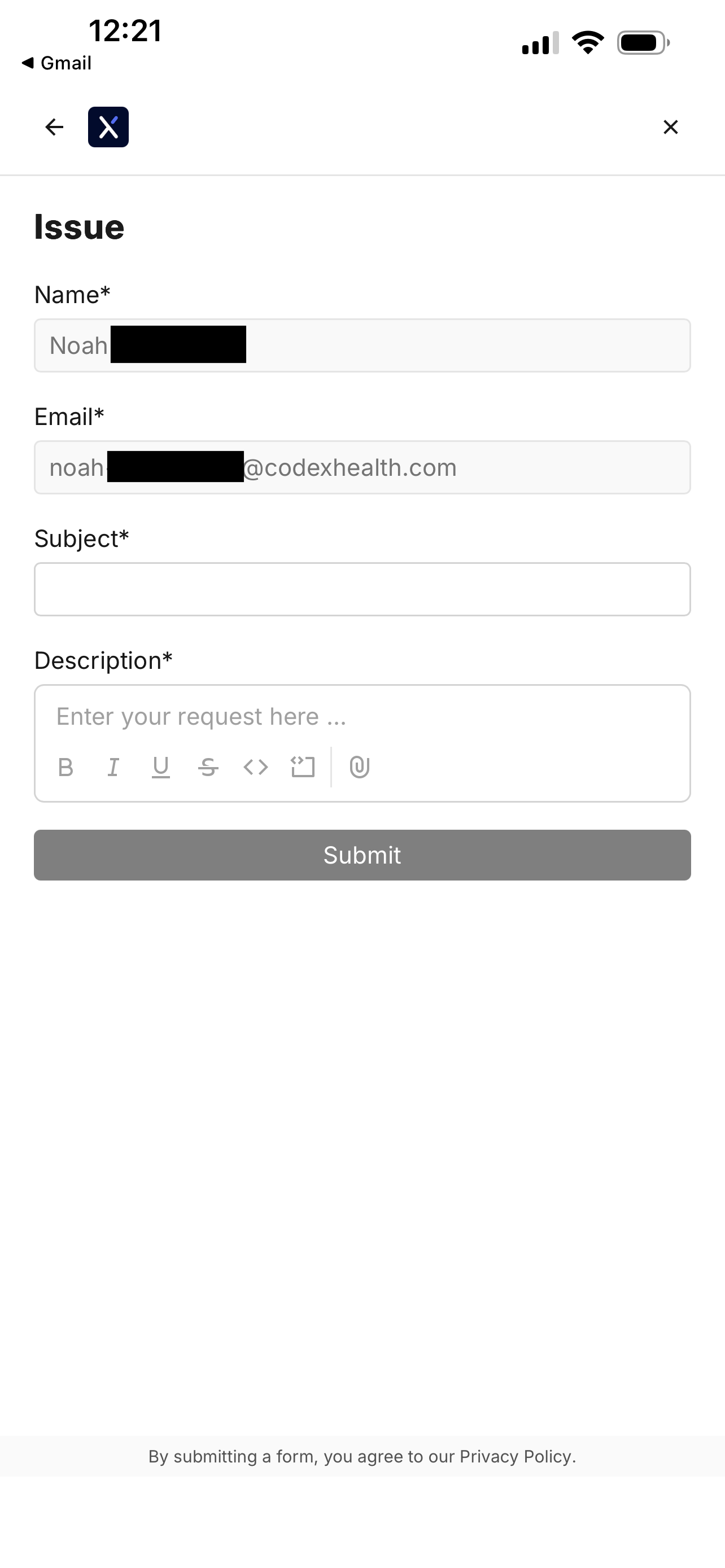
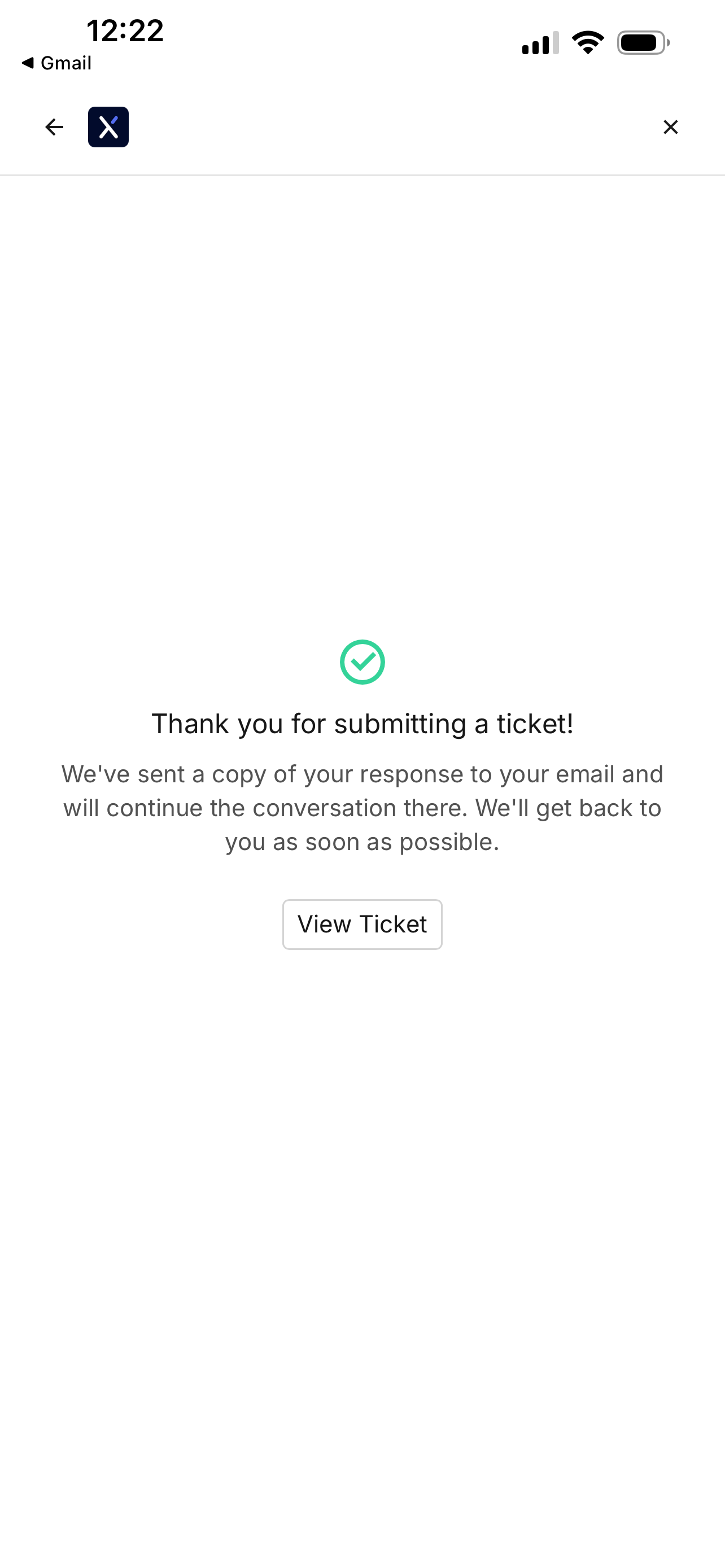
You will see a confirmation screen when your ticket is filed.
Revisiting the file ticket page will show your previous support tickets.
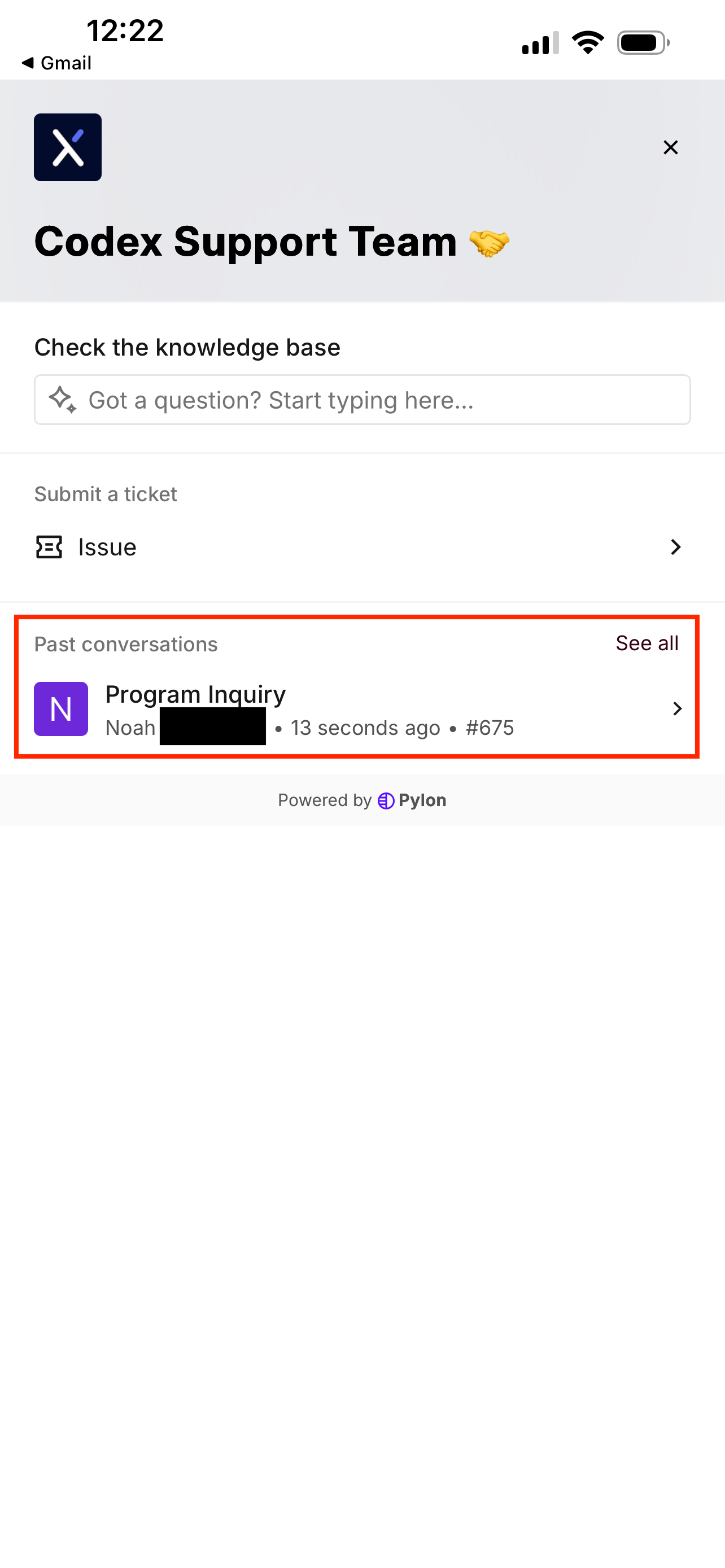
Tapping on a ticket will show any updates.