Ask Allie: Threads
Last updated: November 5, 2026
We are excited to announce Ask Allie now supports creating multiple threads!
This article walks through the new layout and how to use threads in Allie.
For the purposes of this document, a thread is a single conversation (chat) between a patient and Allie, in the Ask Allie part of the app.
Threads
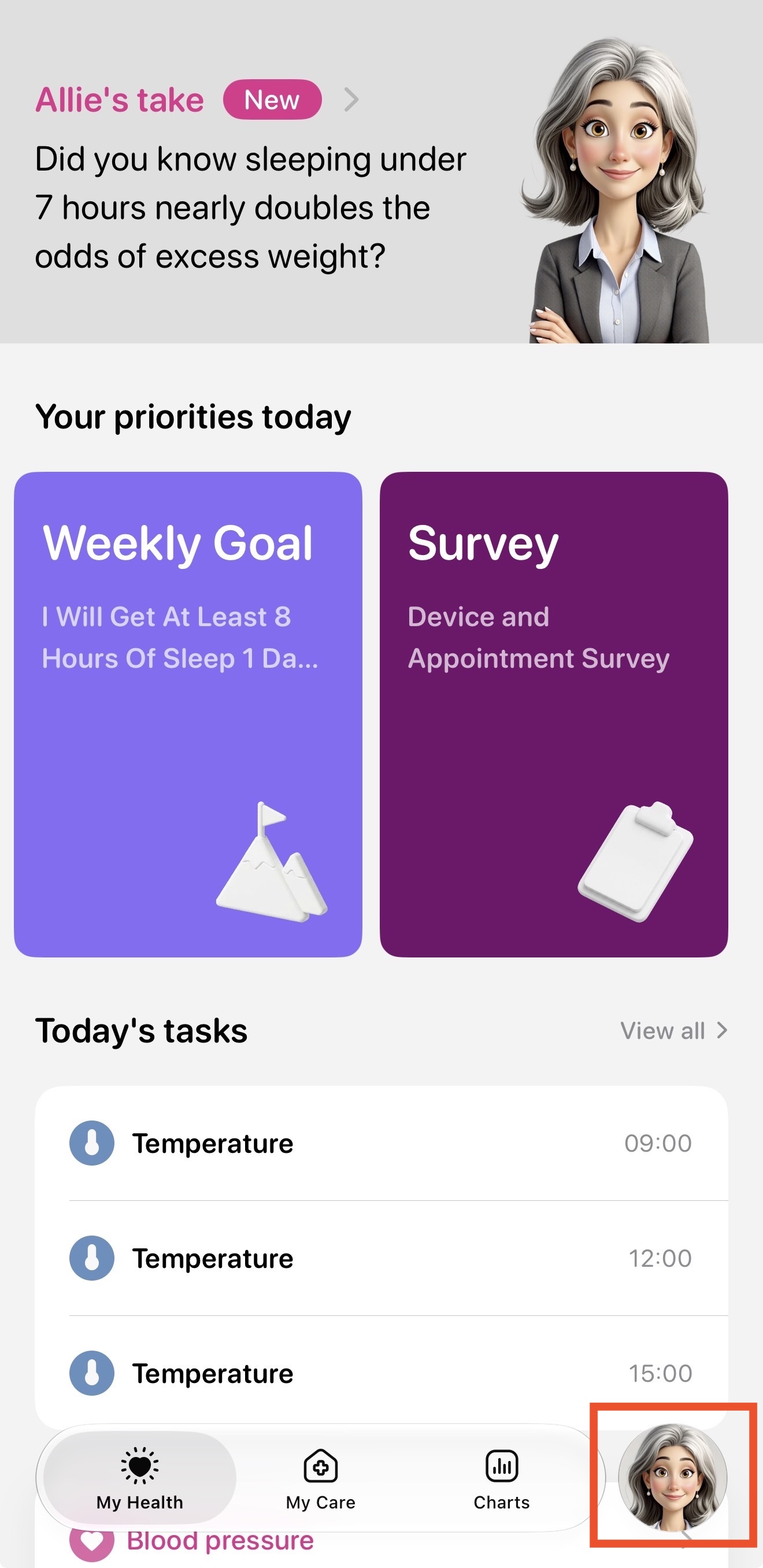
To view threads in Allie, simply tap the Allie icon in the bottom right corner of your app (right next to Charts). This will open up your most recent thread or the list of threads (which ever was last viewed).
 | 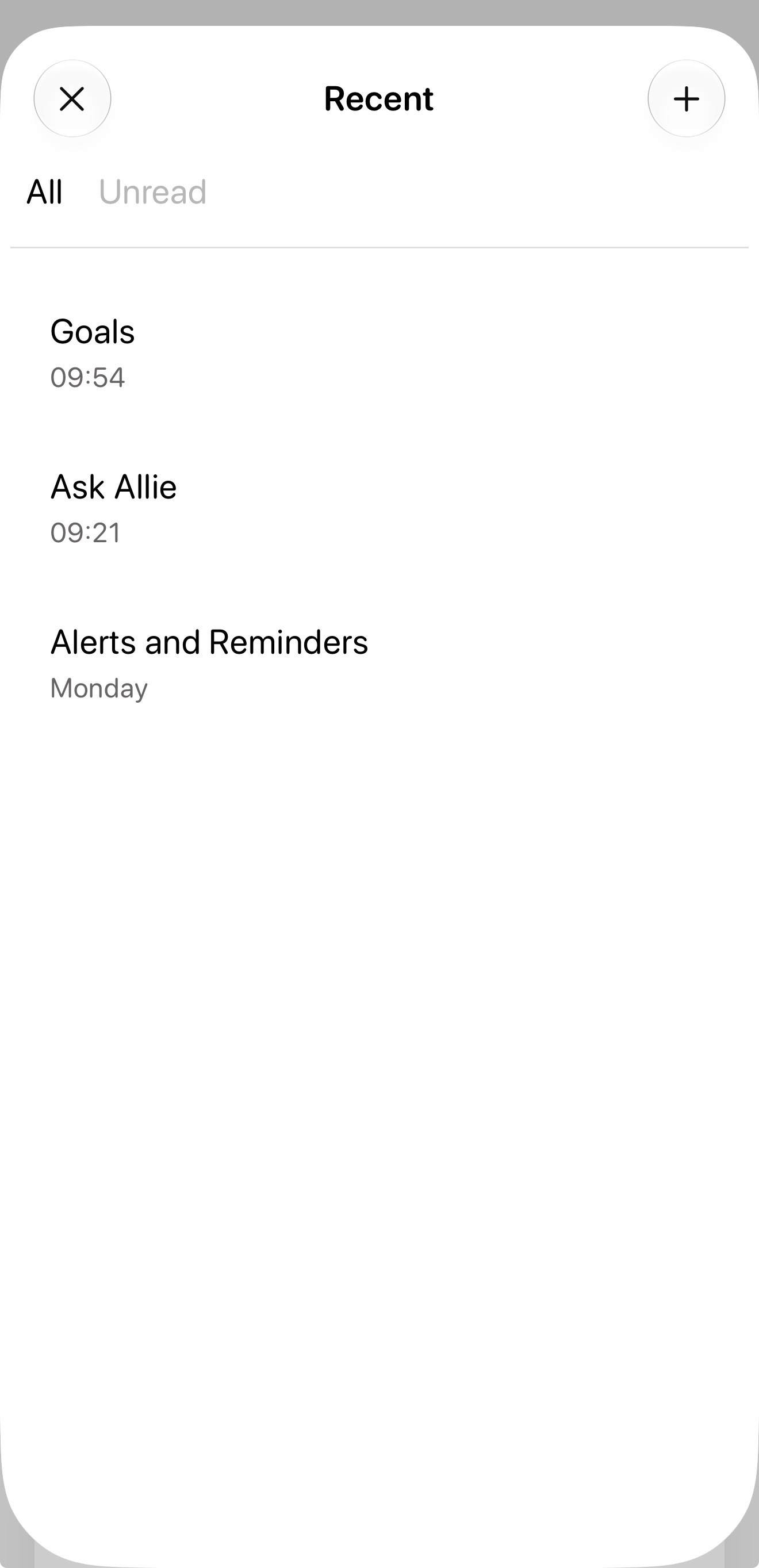 |
From here you can view all your thread, sorted by when the last message was sent. If a thread is marked with a red dot, it means there are new unread messages for you to review. You can also tap "Unread" and only view threads that have unread messages.
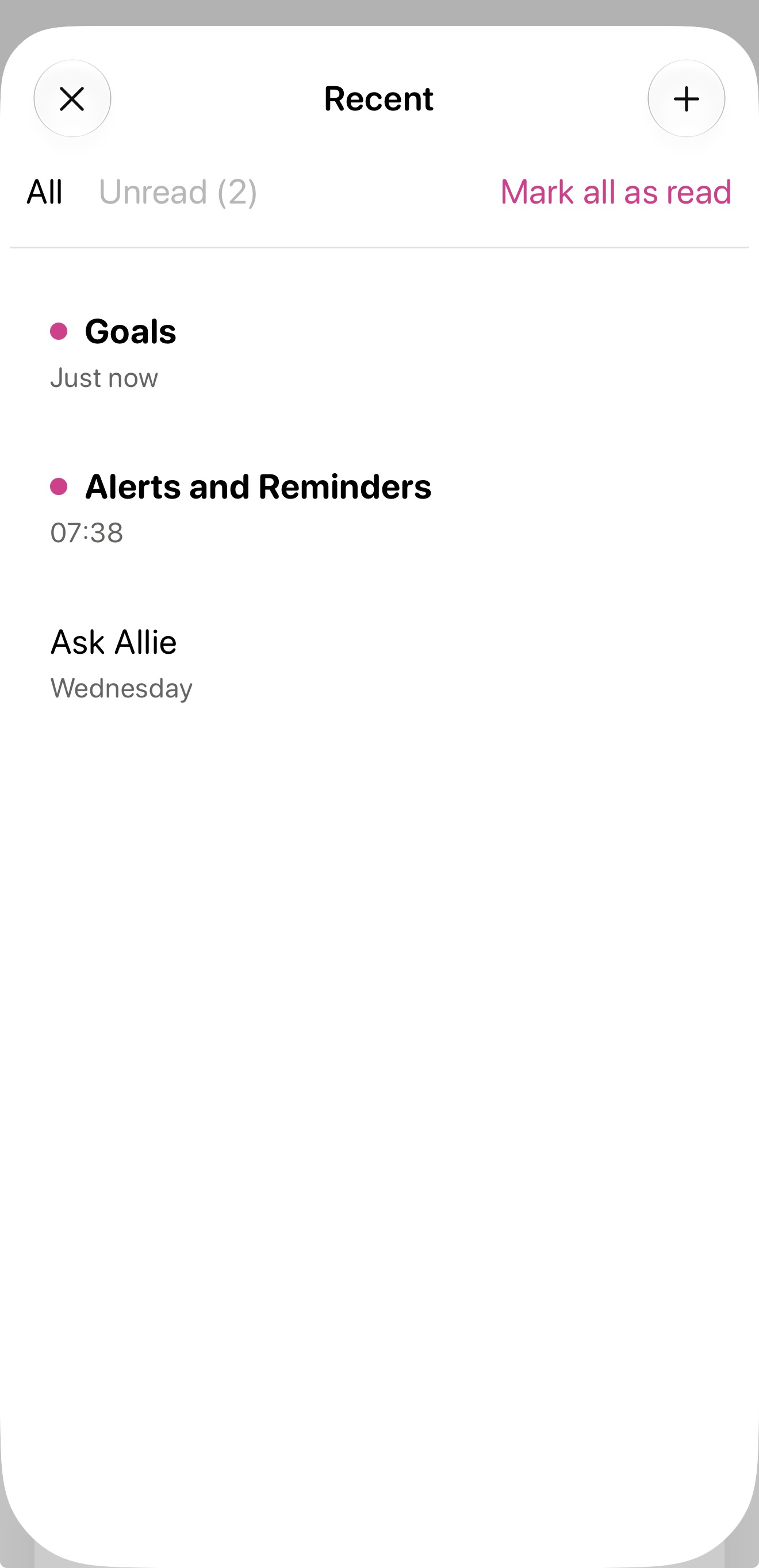 | 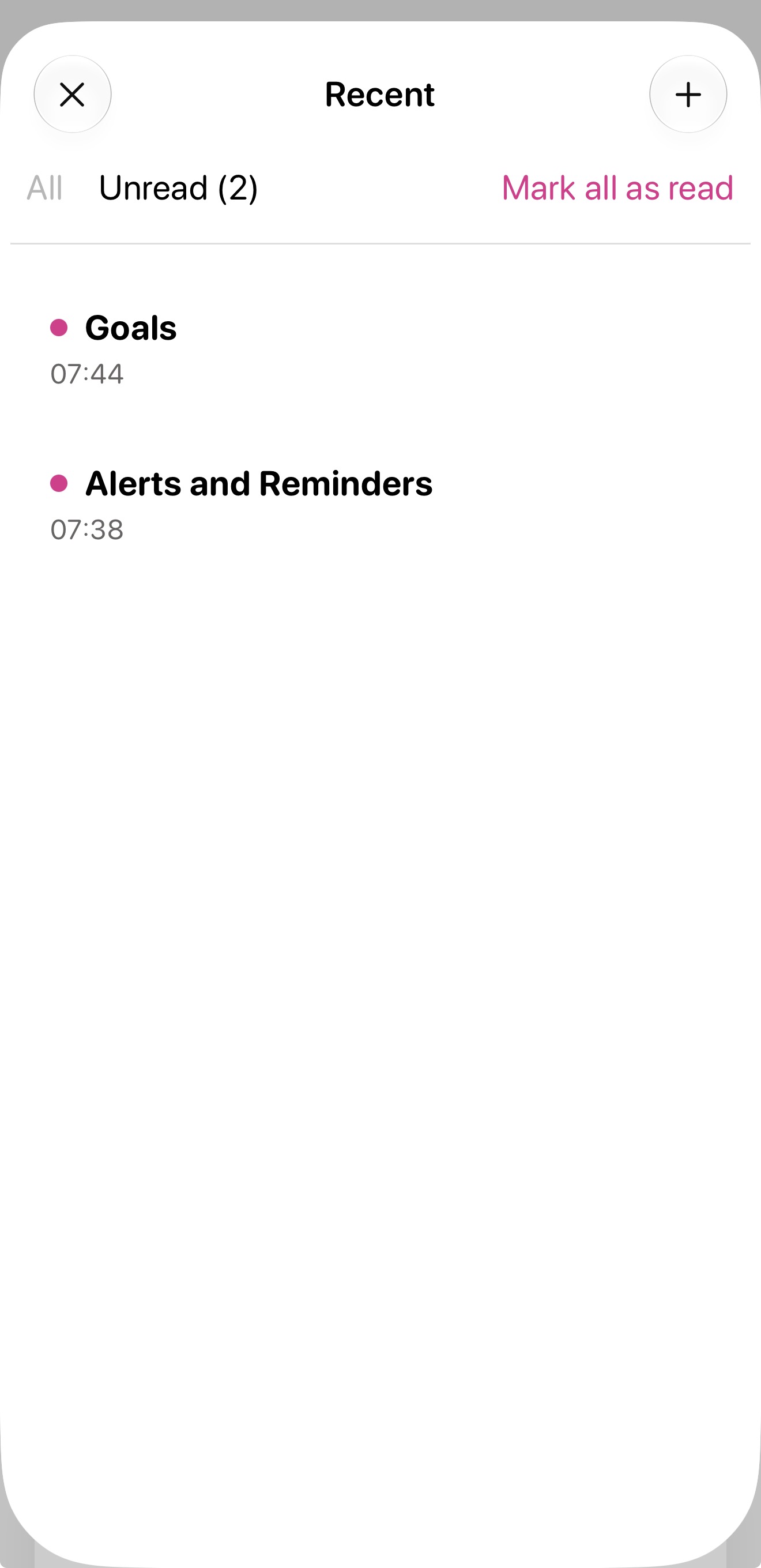 |
Unread threads will be marked as read after viewing the new unread messages or alternatively you can tap "Mark all as read" in the top right corner (only visible when there are one or more unread threads).
Create
To create a new thread, start by opening Ask Allie (tap the Allie icon in the bottom right corner of the app). Then tap the plus button in the top right corner.
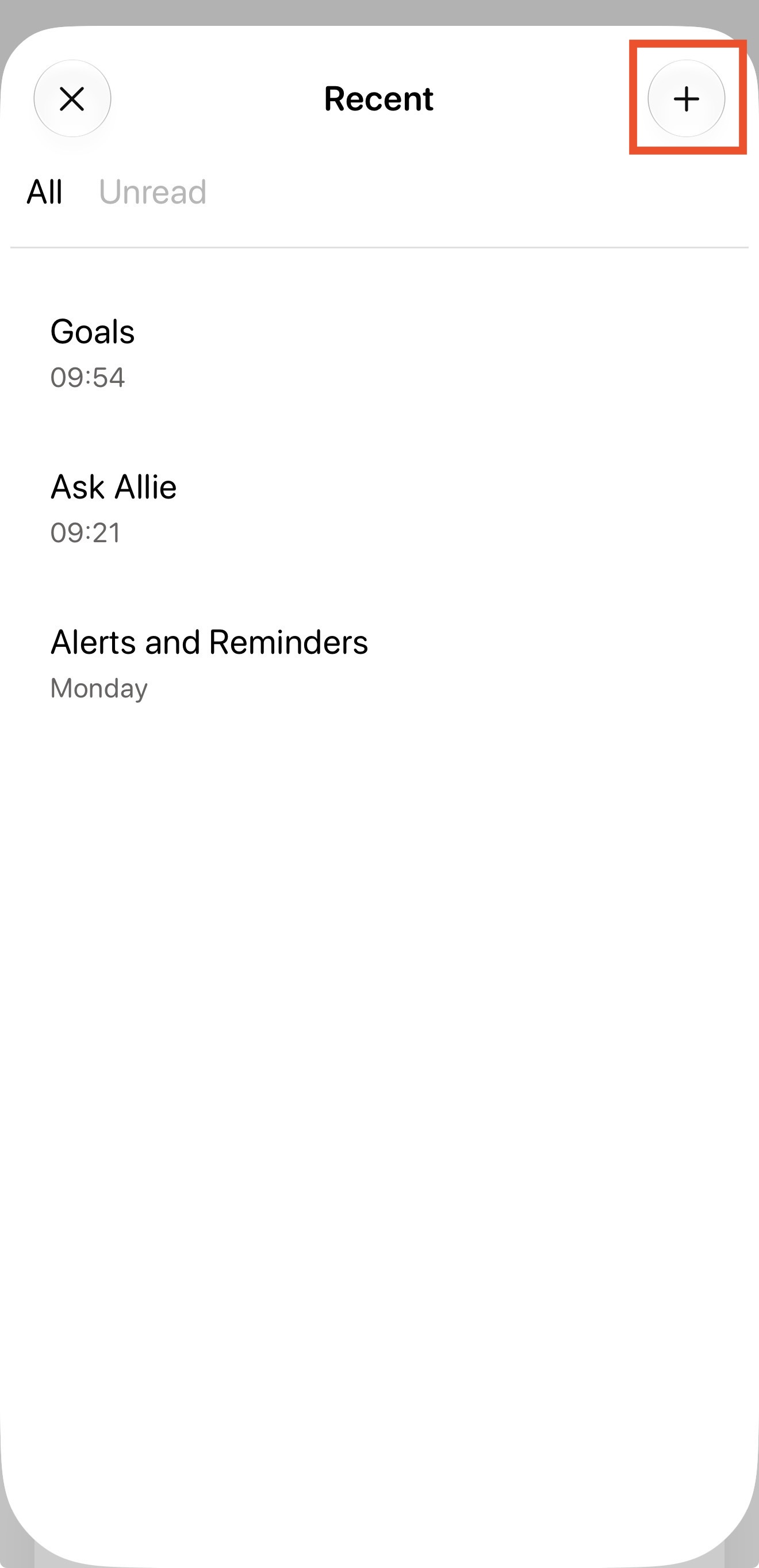
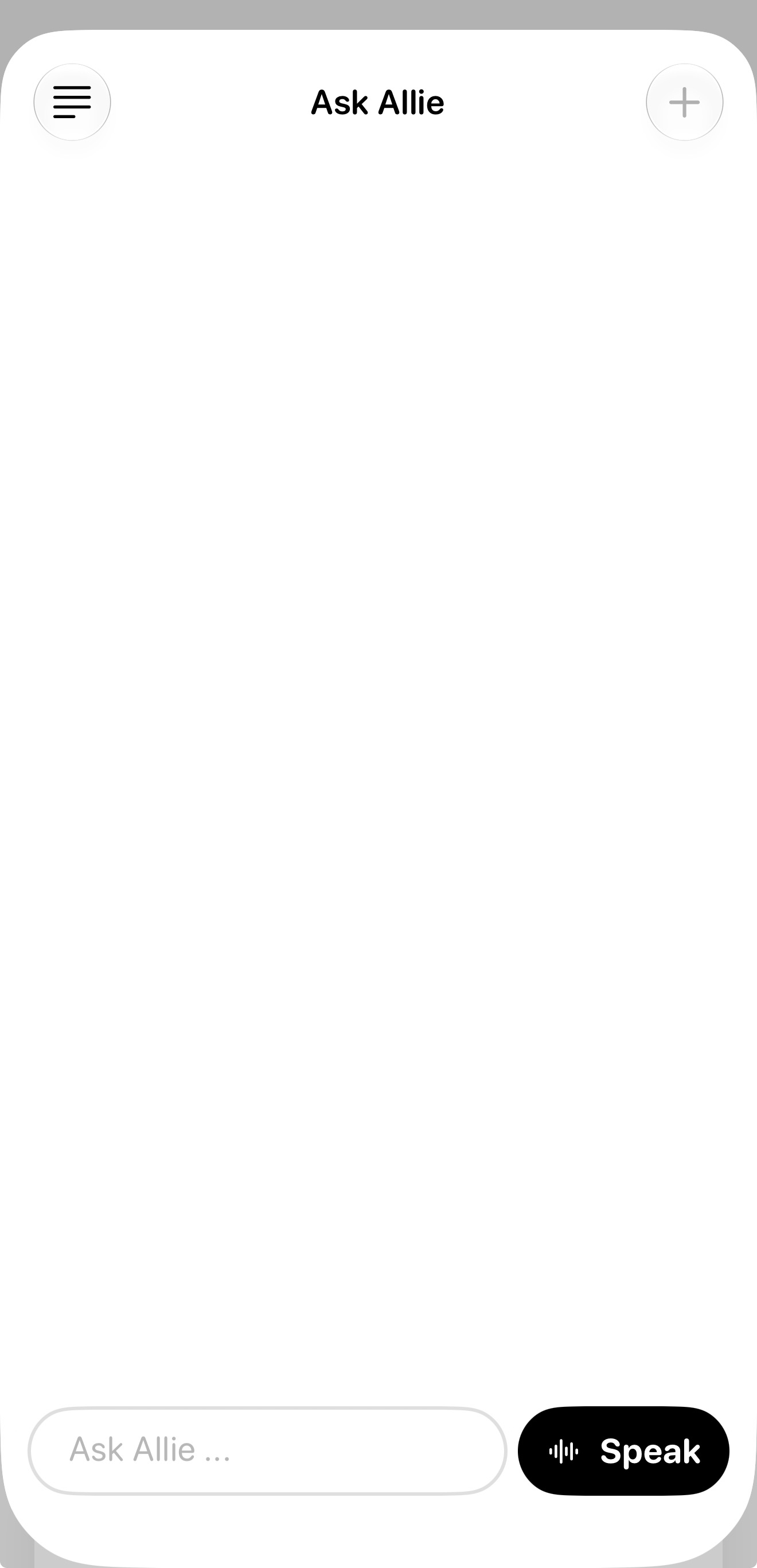
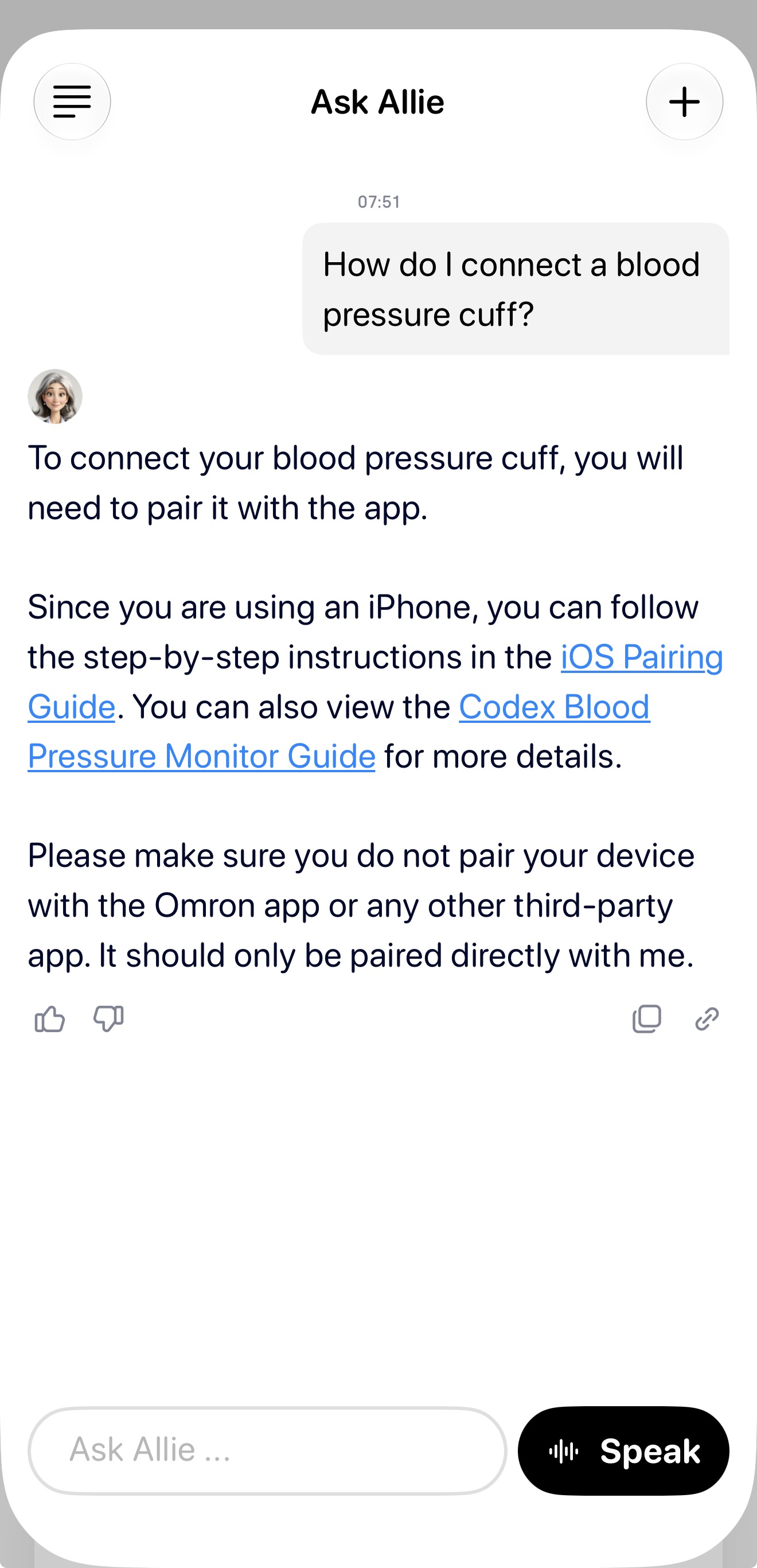
This opens a new empty conversation thread, from where you can then type and send a message (if you do not send a message the thread is deleted).
 |  |
Rename
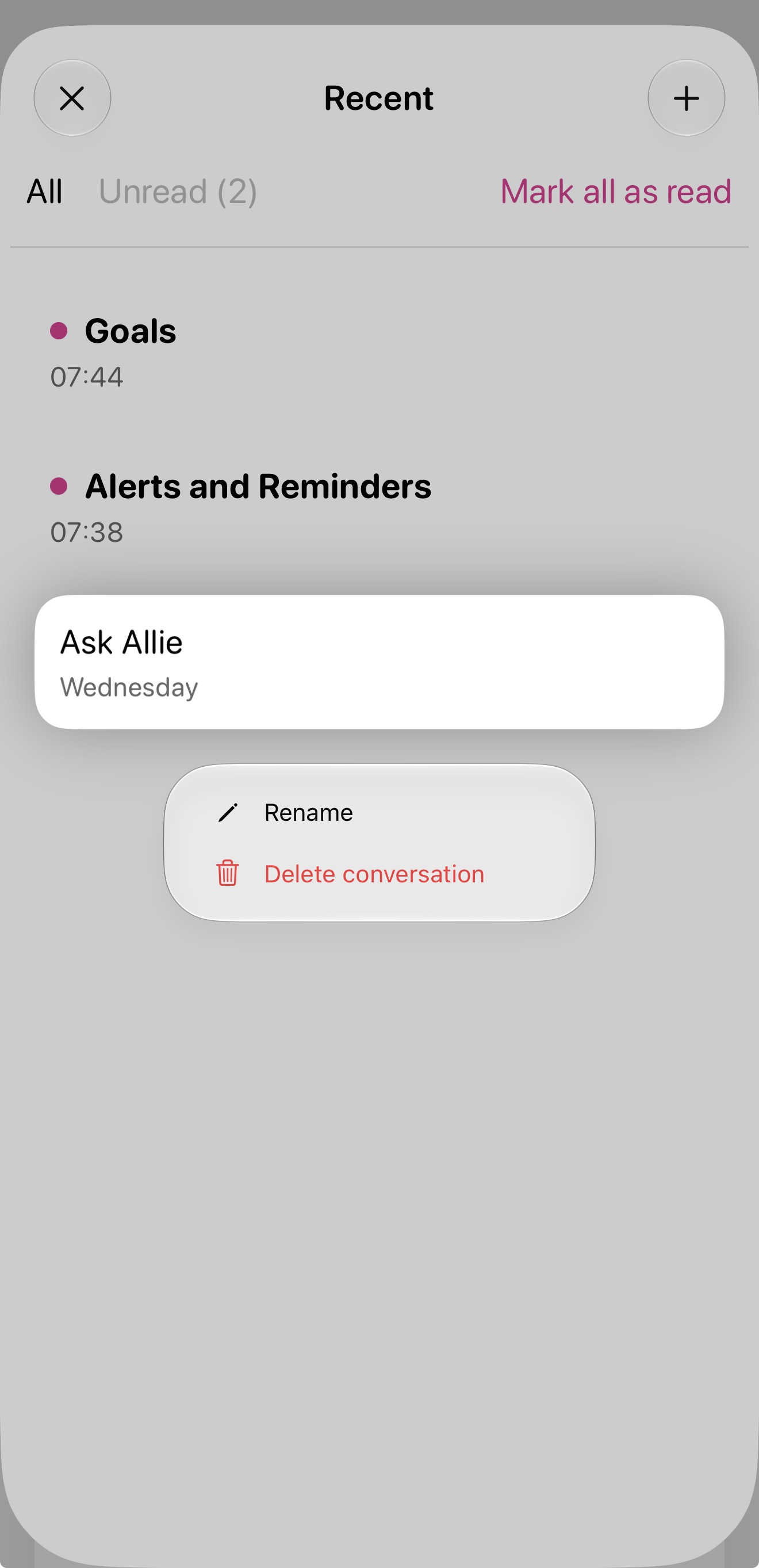
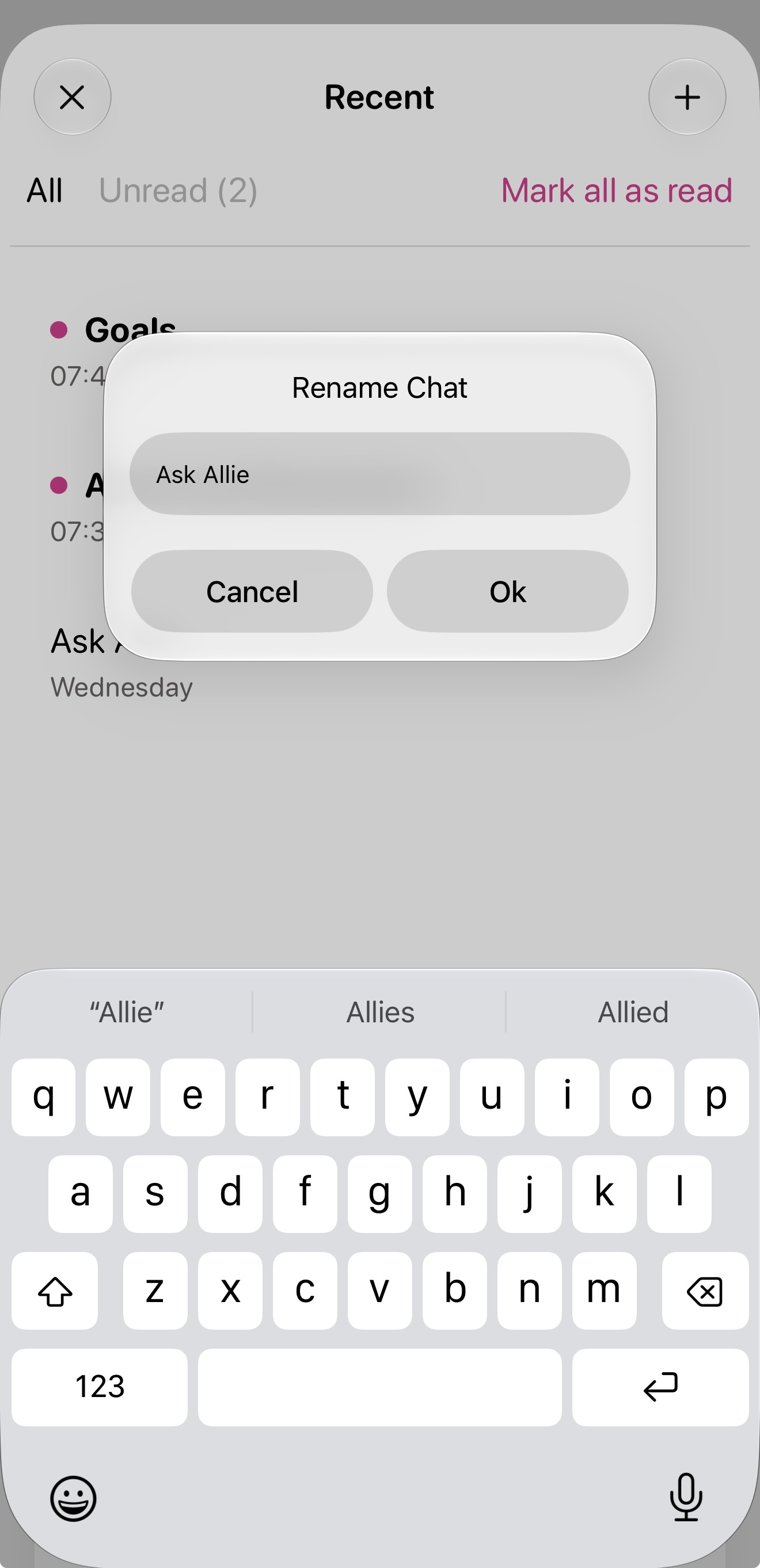
A new thread can be renamed at any time. To do so simply, tap and hold on the thread from the thread overview. Then tap "Rename", followed by entering in the new desired name and then finally tapping "Ok".
 |  |
Delete
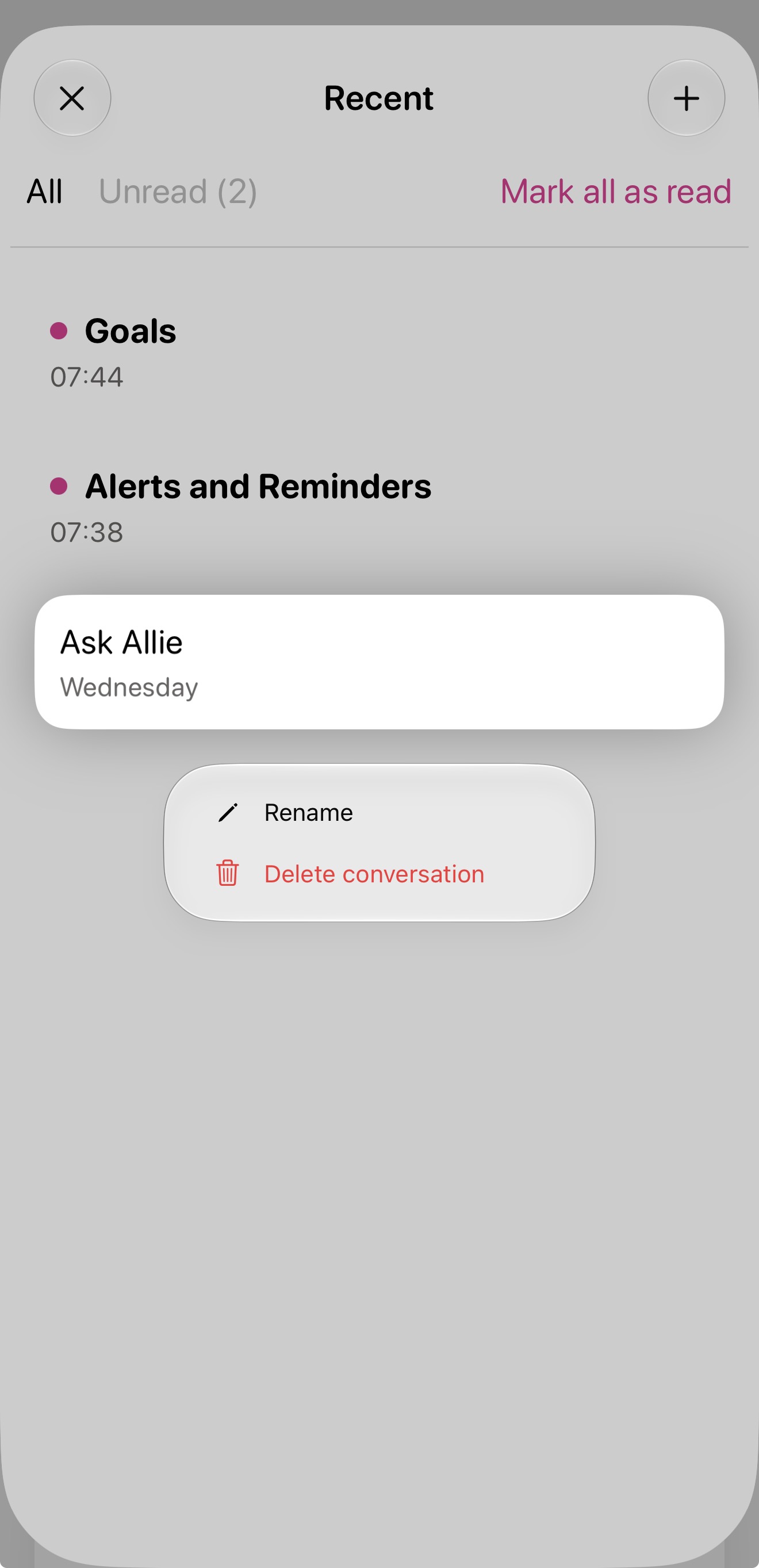
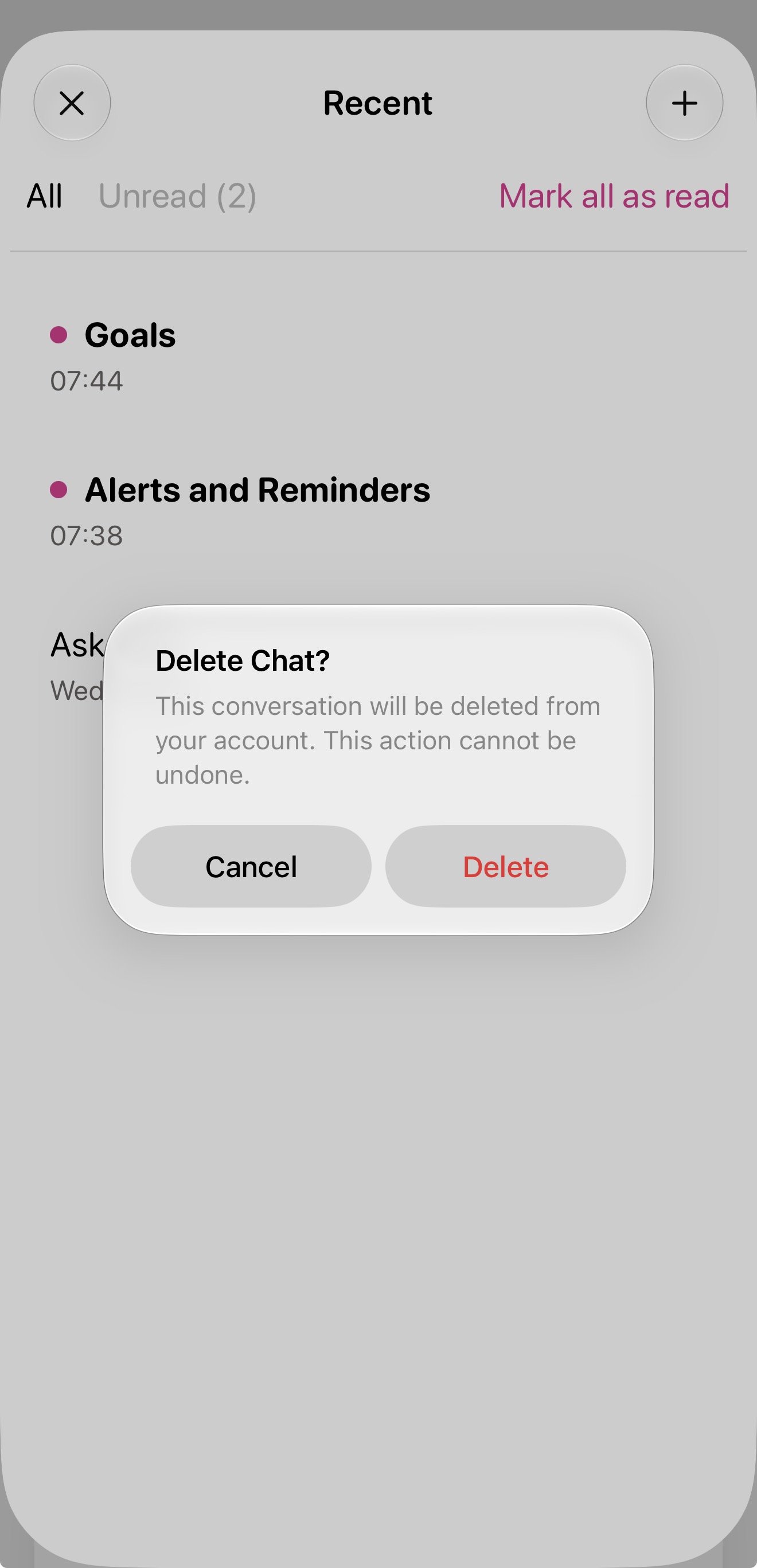
Threads can be deleted, which permanently deletes the thread itself and all it's messages. To do so, find the specific thread from the threads overview and tap and hold on it's name. Then tap "Delete" to remove the thread and all it's messages.
 |  |
FAQ
How do I close/stop viewing Ask Allie once I am done? How do I go back to the app?
To close Ask Allie and stop viewing threads, simply swipe down from the top of the app.
What does the top left "X" button do?
This operates as a back button for you. So tapping it navigates back to the previous Ask Allie page (either the threads overview or the last conversation thread you were viewing).
Can I copy a message?
Yes, but you can only copy Allie's messages (not your own). To do so, simply find the message from Allie and tap the copy button located to the bottom right of the message. This automatically copies the whole message content and then you can paste it anywhere else in your mobile device.
What are the thumbs by Allie's message? Can I like or dislike a message?
You can like or dislike only Allie's message. The thumbs up and thumbs down icons to the bottom left of every Allie message is for you to rate the message. If you felt that Allie did a great job, give it a thumbs up! If you felt that Allie didn't help you and could do better, tap the thumbs down.
What are message references?
Messages references are useful documents that Allie has shared with you. They are verified, safe links to sites which can help provide more specific information.
Only some Allie messages have references (when it is available and helpful). To view them, find an Allie message with a link icon in the bottom right corner (next to the copy icon). Tap the link icon and then you can see the one or more sites referenced by Allie for you to tap into and view.
Why are there links in messages?
Sometimes Allie directly quotes links in it's message (instead of putting them in the message reference) when it determines it is important to directly share with you. These links are verified by the clinical team and safe to visit.
Can I delete a message?
No you cannot delete any individual messages. You can instead only delete a thread and all it's messages (cannot be undone).