Meet the New Allie
Last updated: October 16, 2026
Allie helps you keep track of your health between visits. It shows your readings, points out the one thing worth doing today, and keeps you connected to your care team. Everything that matters is one or two taps from the first screen.
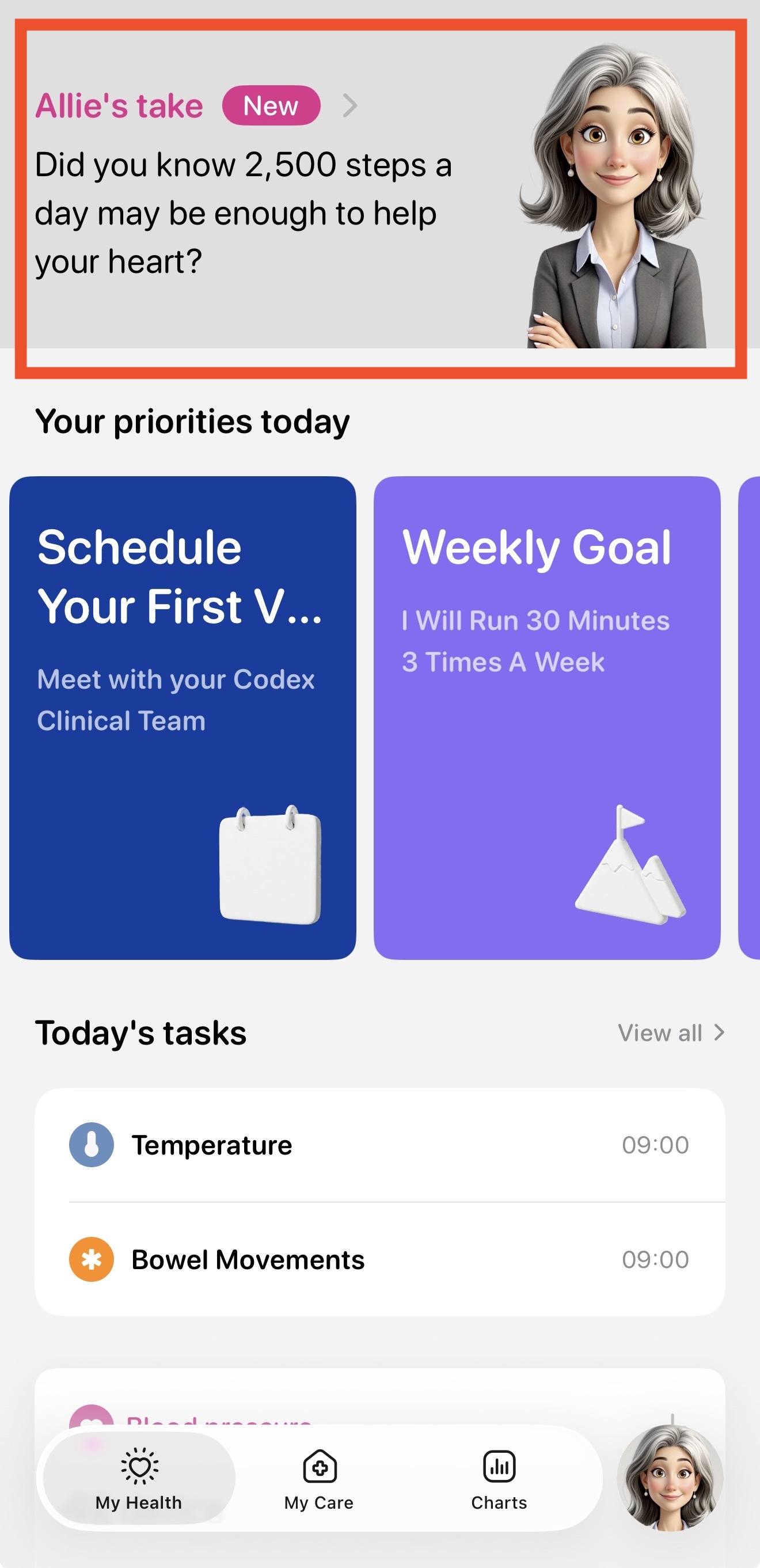
Allie's take
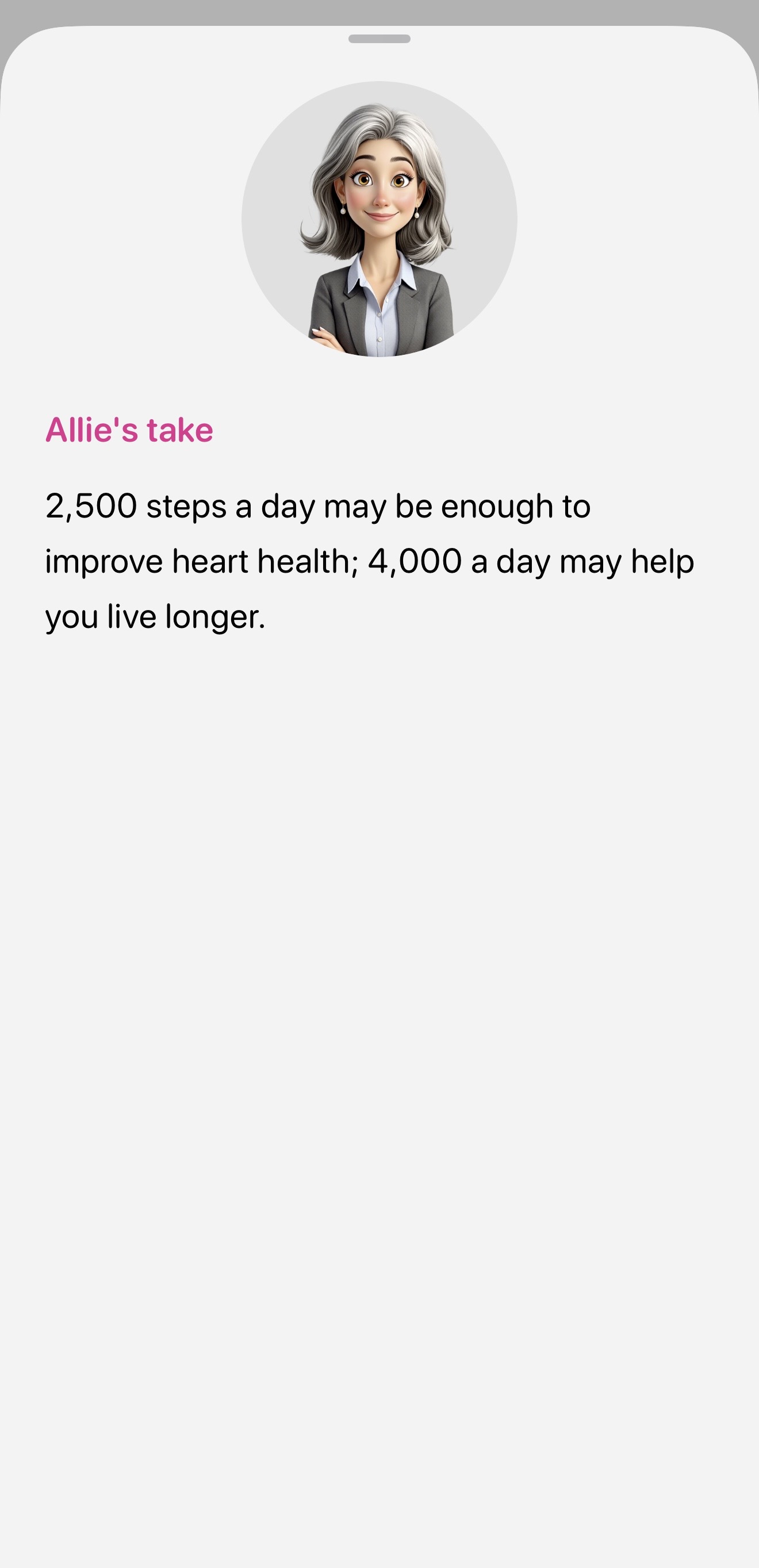
At the top of My Health, Allie leaves you one short note each day: this will be tuned to whatever is most relevant to you at this moment. Tap it for more detail.
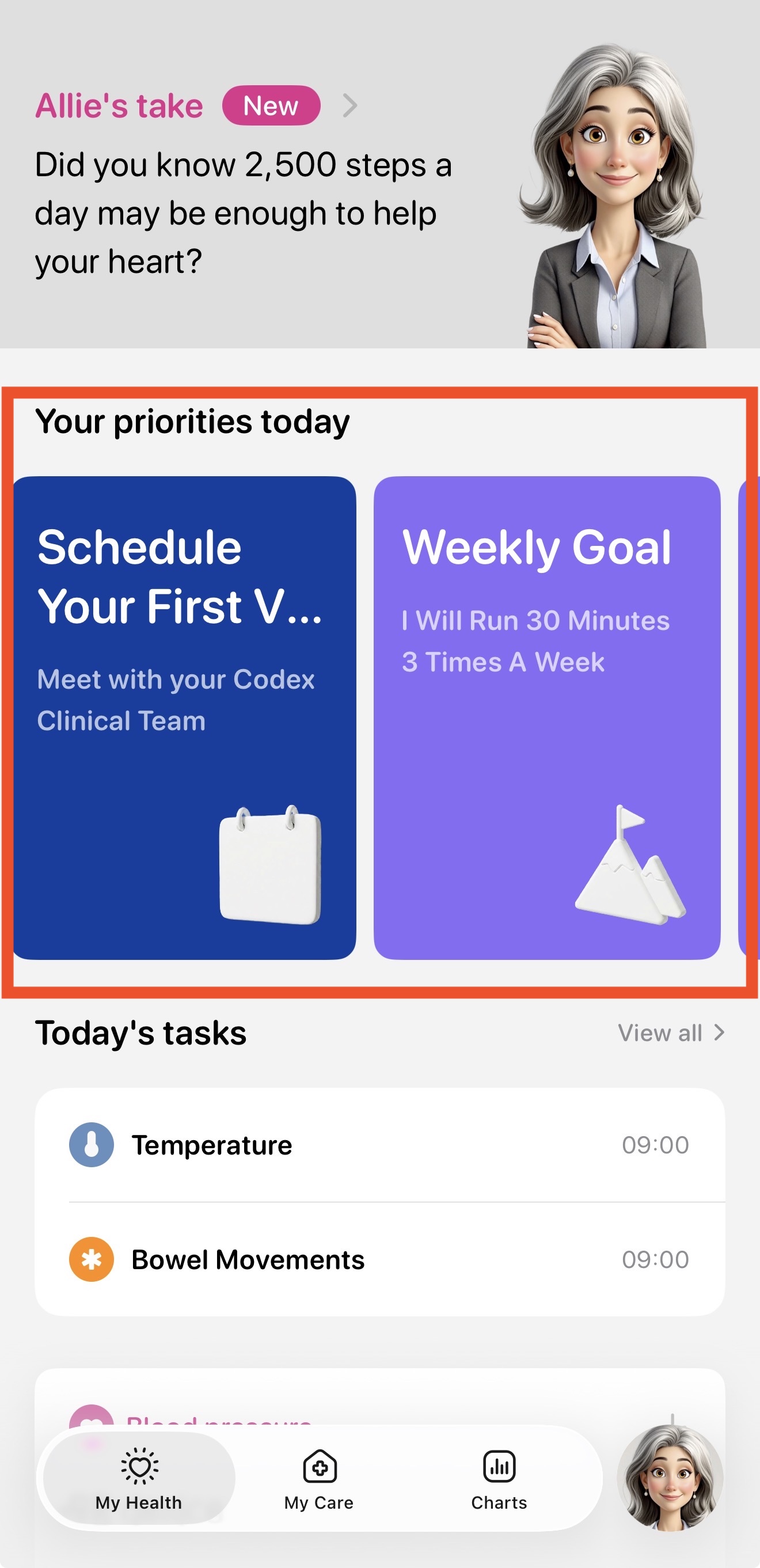
Your priorities today
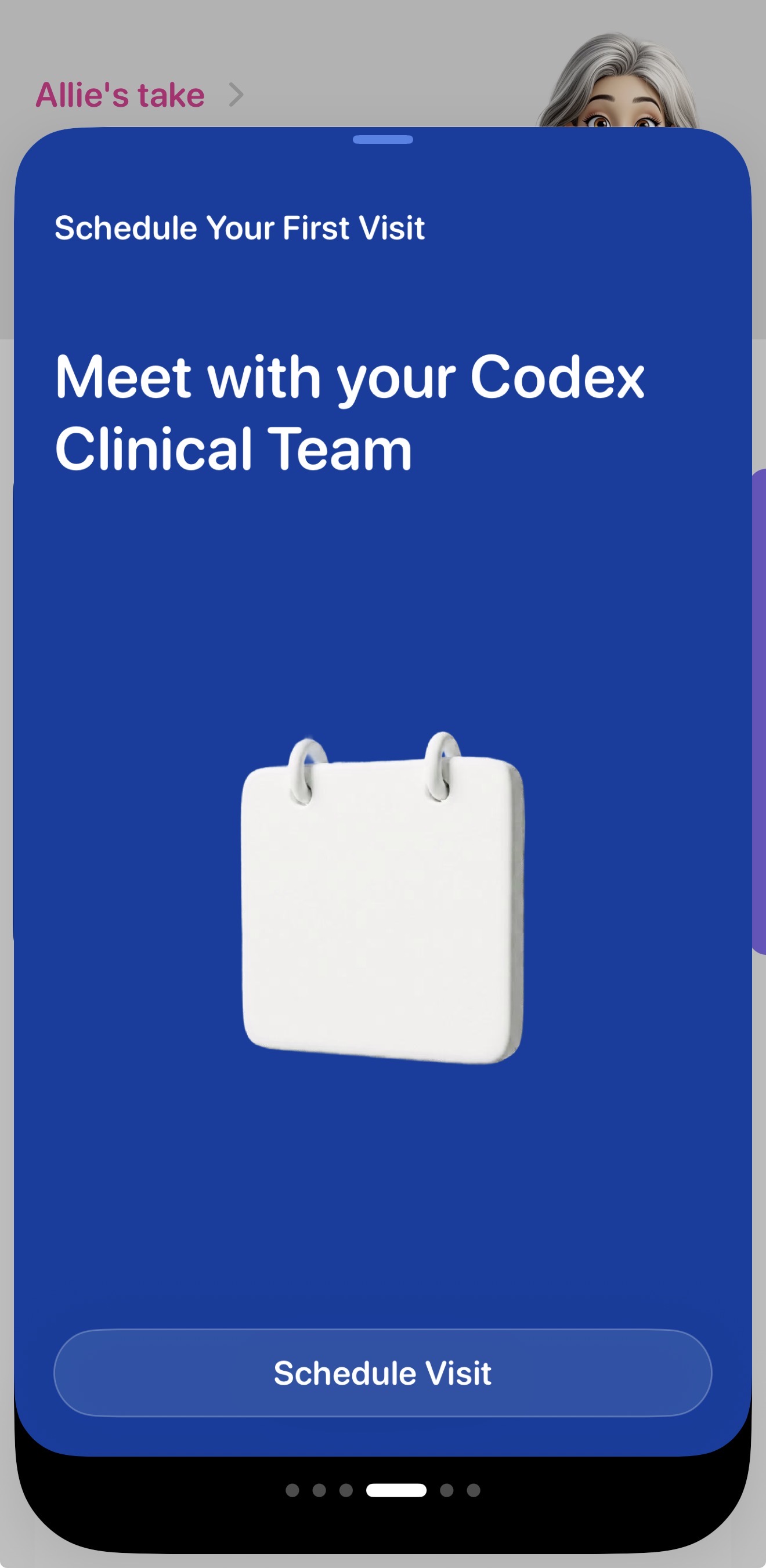
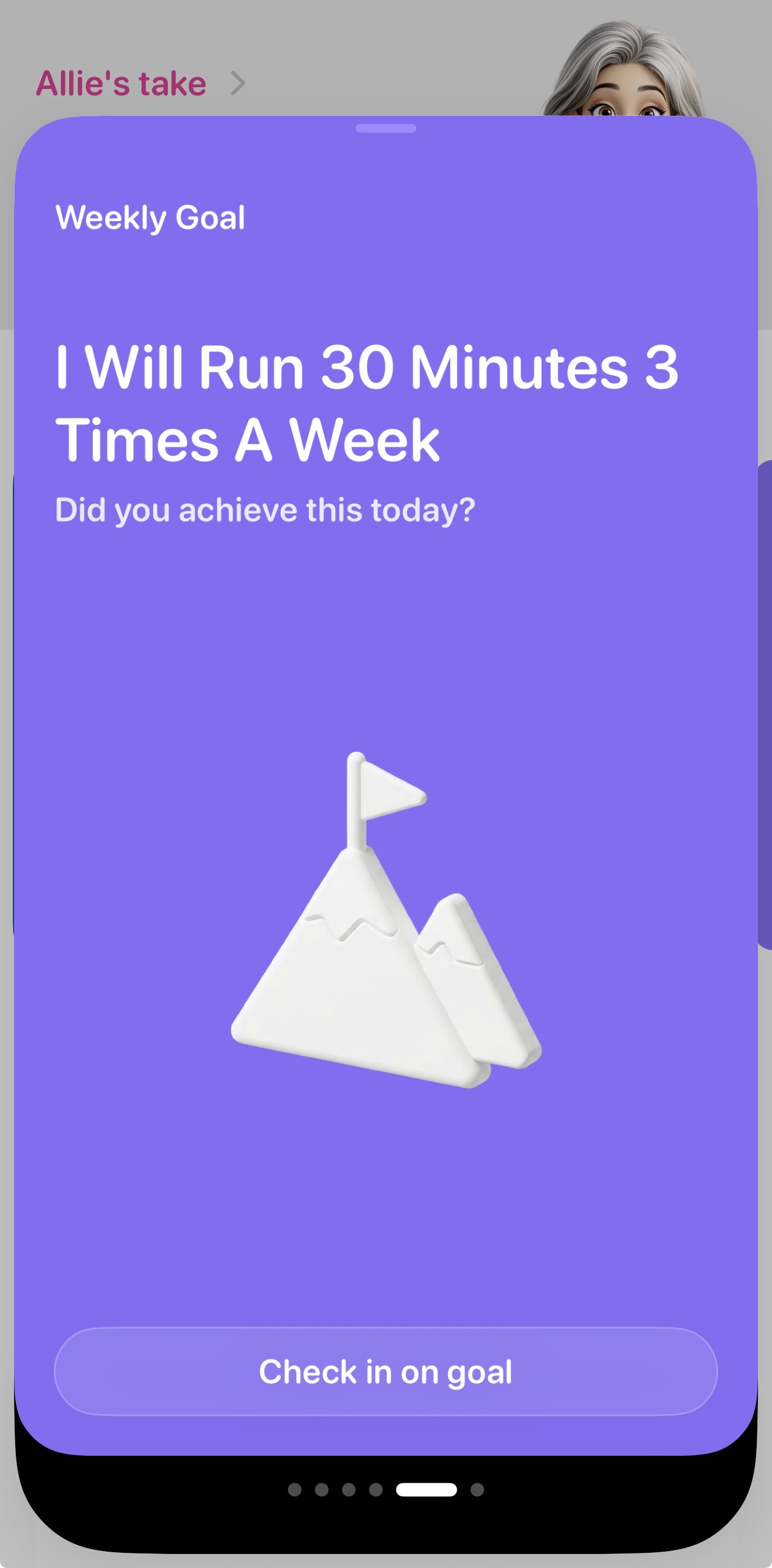
Under Allie's take is a small row of cards. Tap any to go full screen and browse. A card might be a reminder to take a reading, book and appointment, or set a goal. If it needs doing, it will show up here.
Your readings
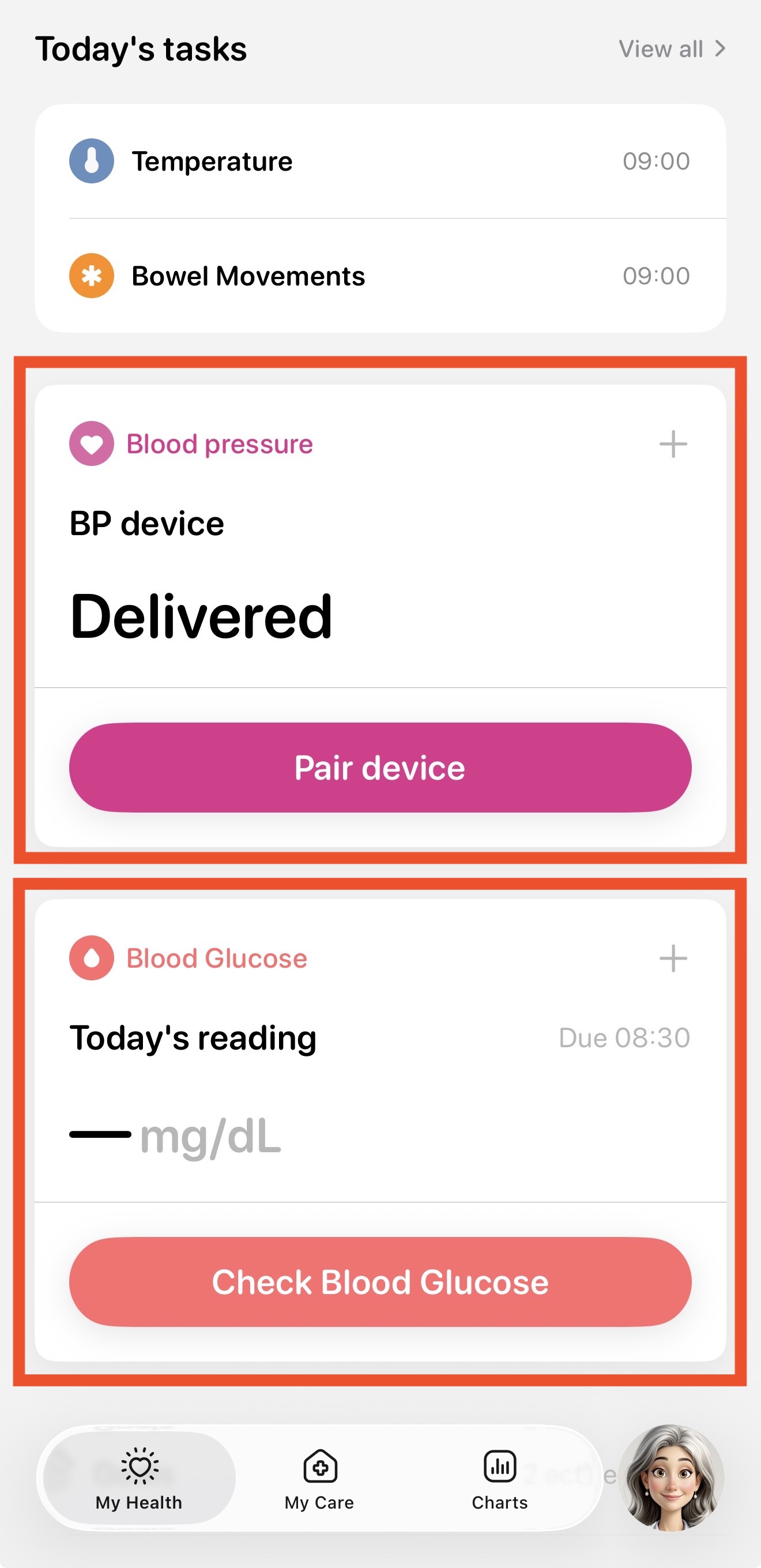
Further down, each thing you track has its own panel: blood pressure, glucose, weight. Whatever is relevant will be shown. If a reading is due, it will let you know.
Goals
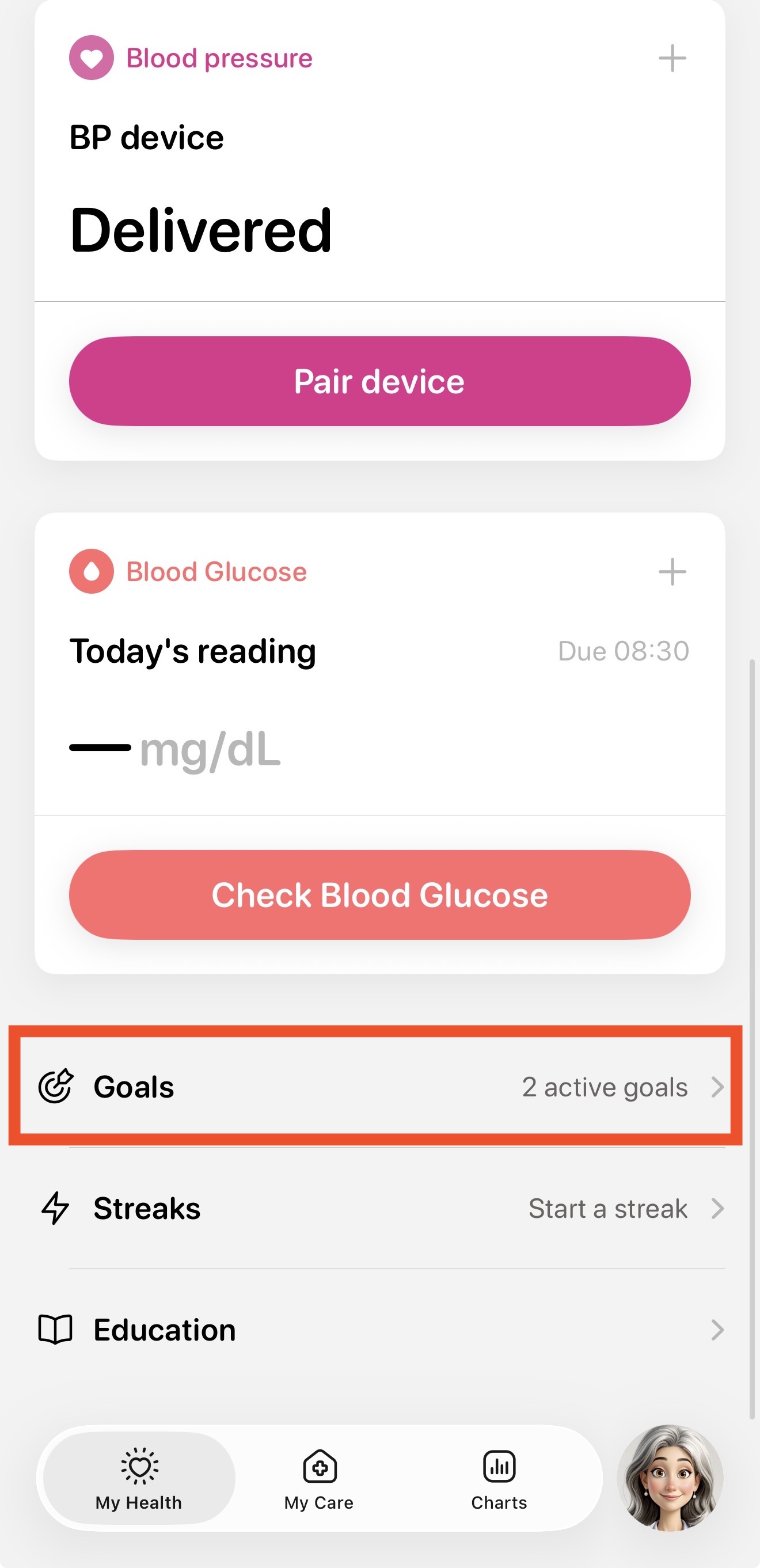
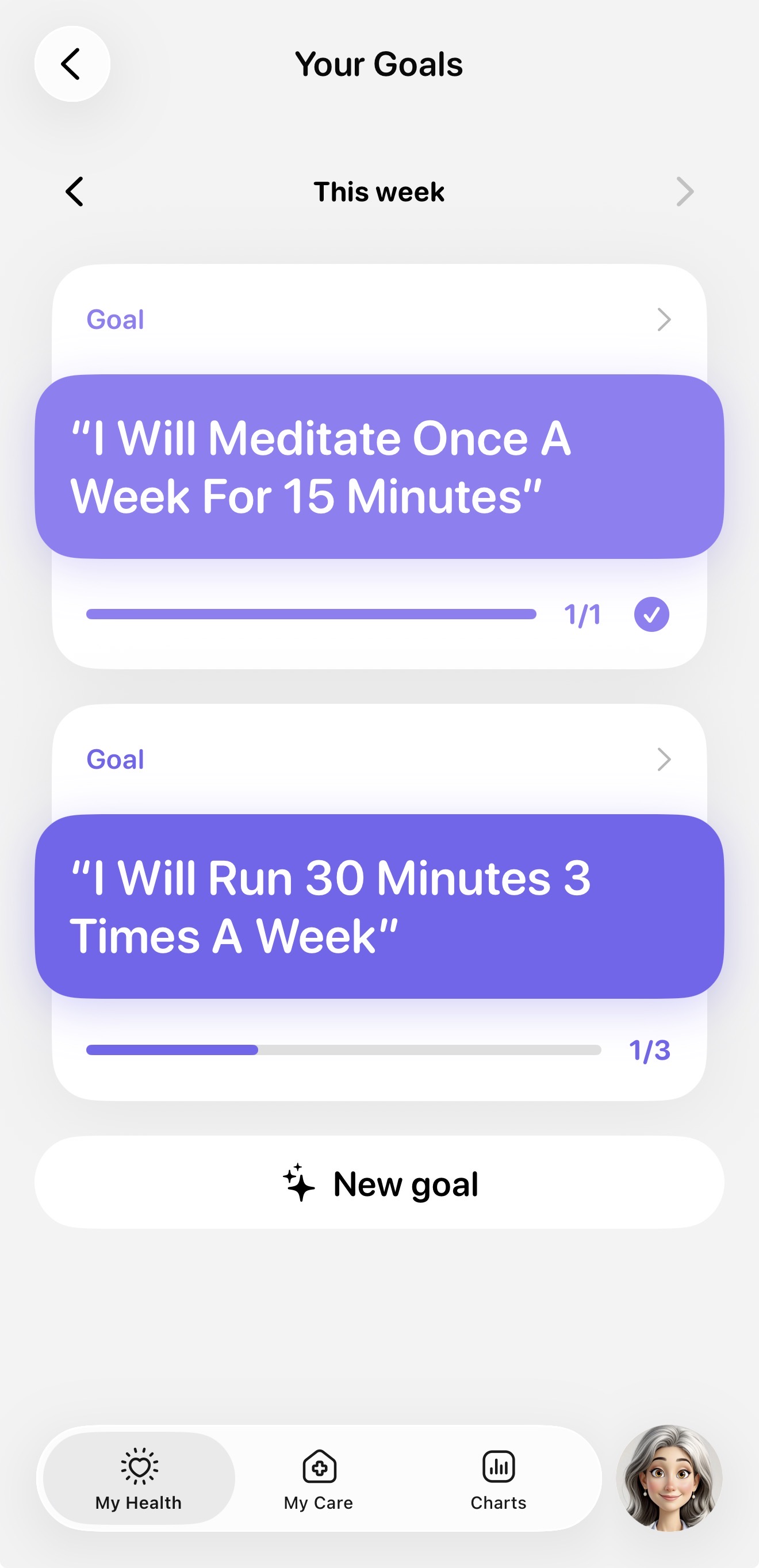
We have a new page for your goals. They are now much easier to track and interact with. More than one goal? No problem, you can see them all here.
My Care
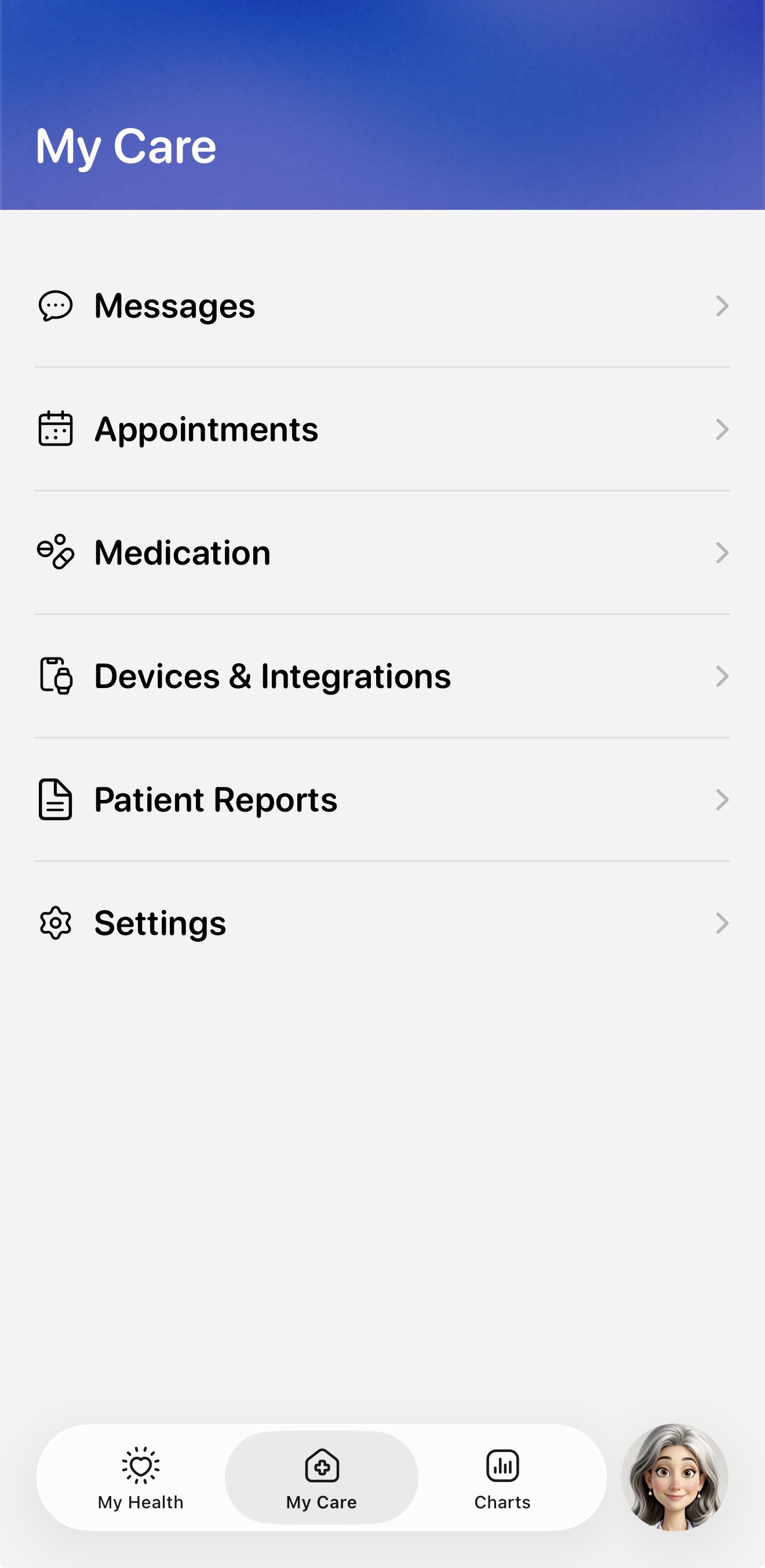
My Care holds the people side of your program: your visits, your messages with the care team and the more technical aspects of your care such as devices and integrations. Your numbers and your care are two different questions, so they get two different tabs. You always know which one to open.
Ask Allie
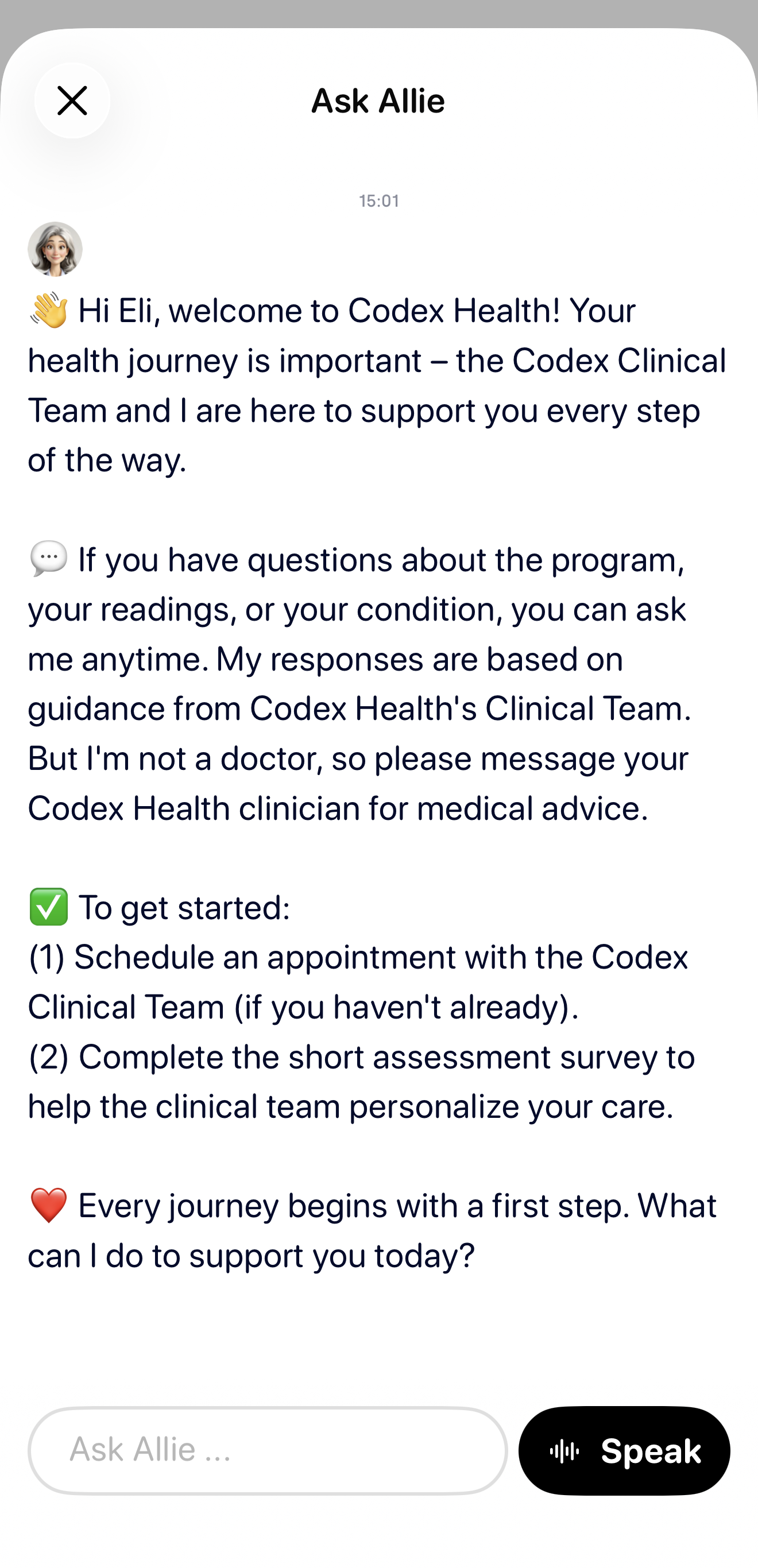
Tap Allie at the bottom of the screen to start a conversation. You can type or use your voice, but you don't have to do either. Allie offers a few replies to choose from, and tapping one is a complete answer. Allie has all your context, your readings, your medications even the advice given from your care team. Allie is a great place to ask anything.
The rhythm of the week
Mondays are for goals. Saturdays are for a short weekly check-in. The rest of the week, Allie stays quiet unless something needs you.
Need help?
If you need assistance or have questions, please refer to the following steps:
Visit the My Care > Settings.
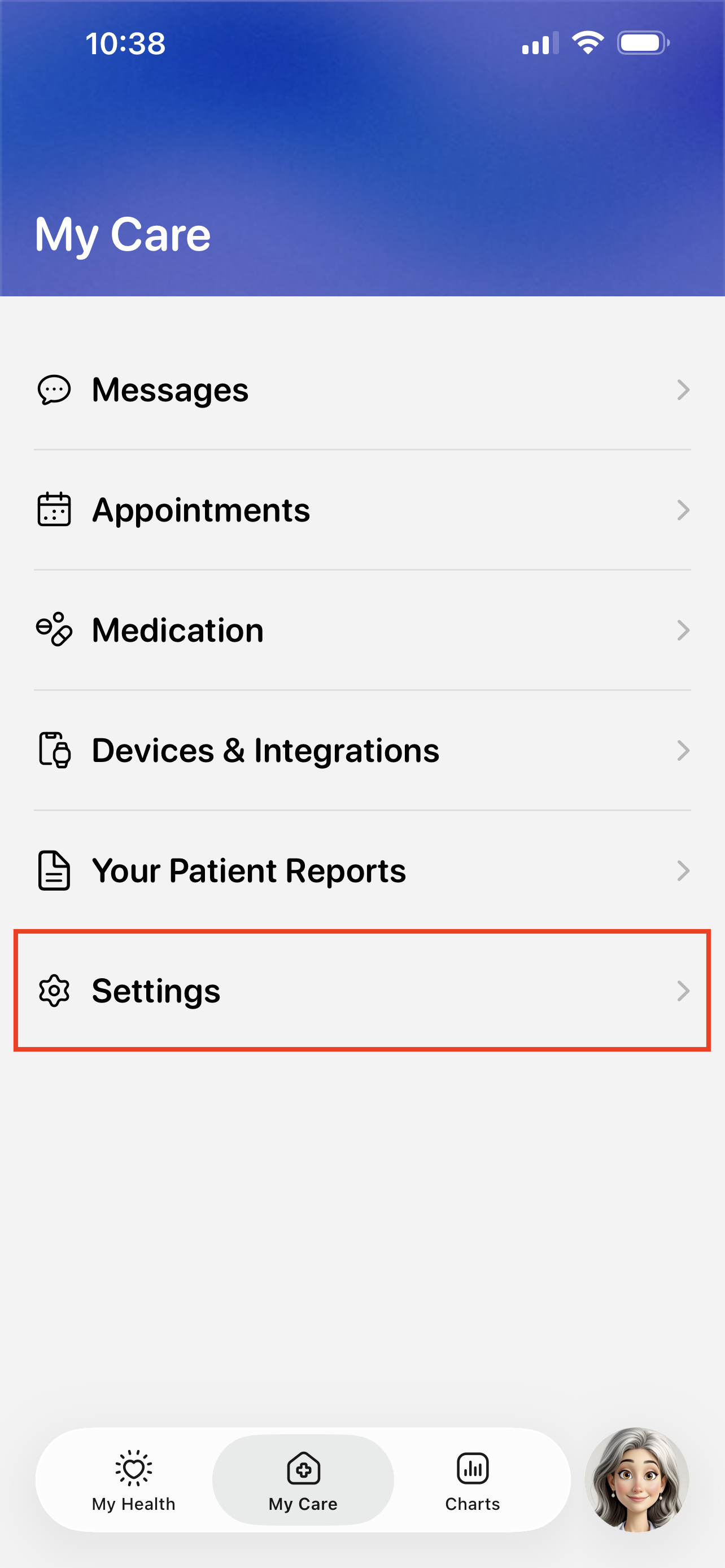
Tap the Technical Support button.
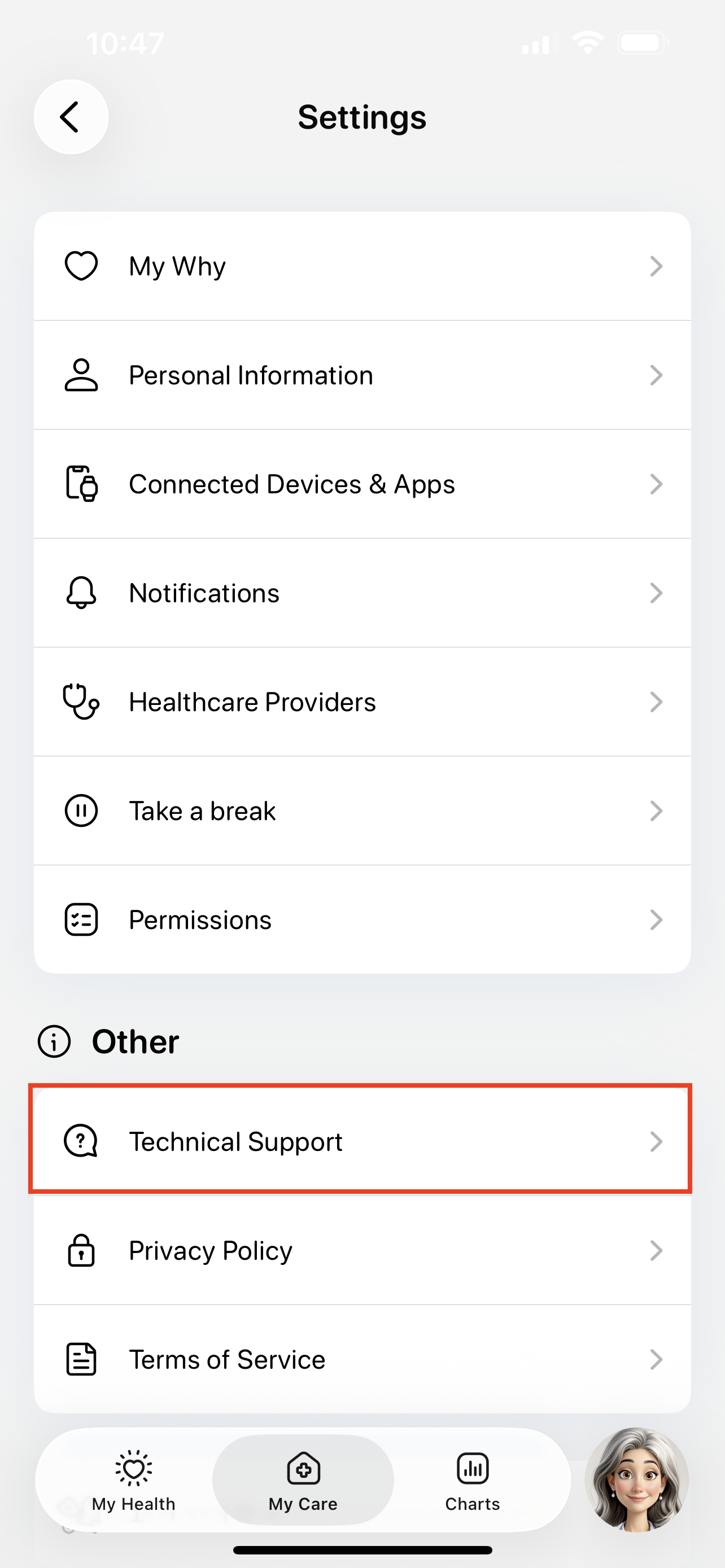
Tap the Issue button to start submitting a support ticket.
You can also use this page to search for existing guides, like how to troubleshoot device errors.

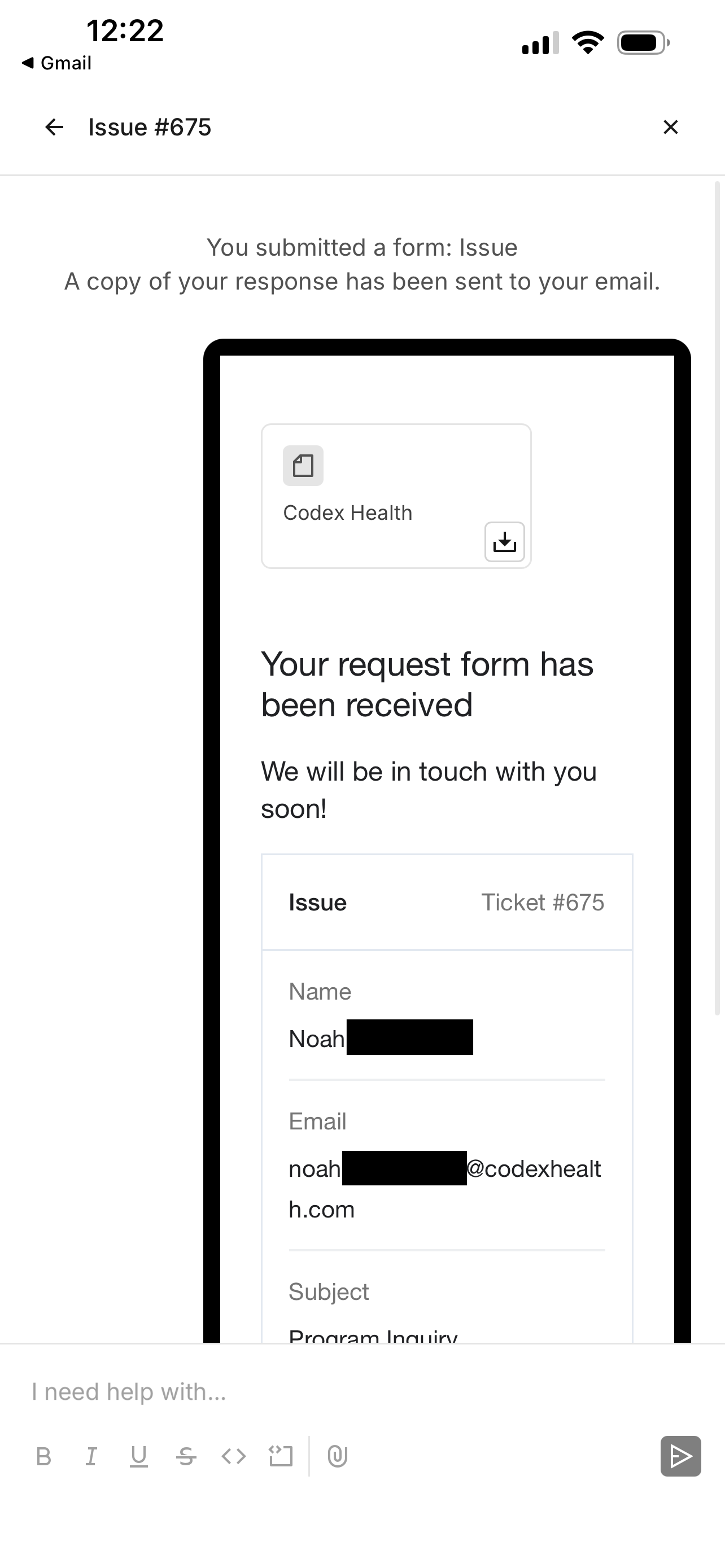
Fill out the support ticket and tap Submit.
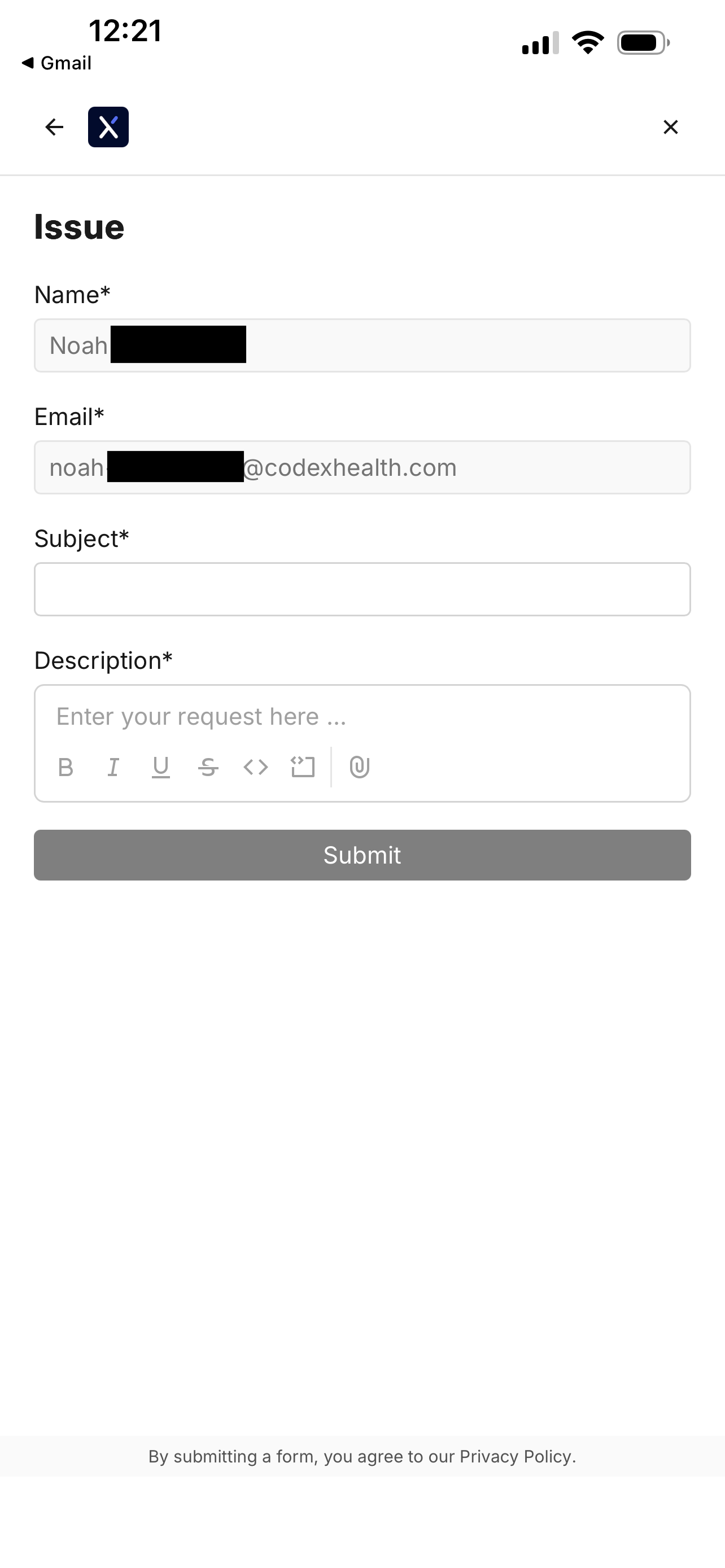
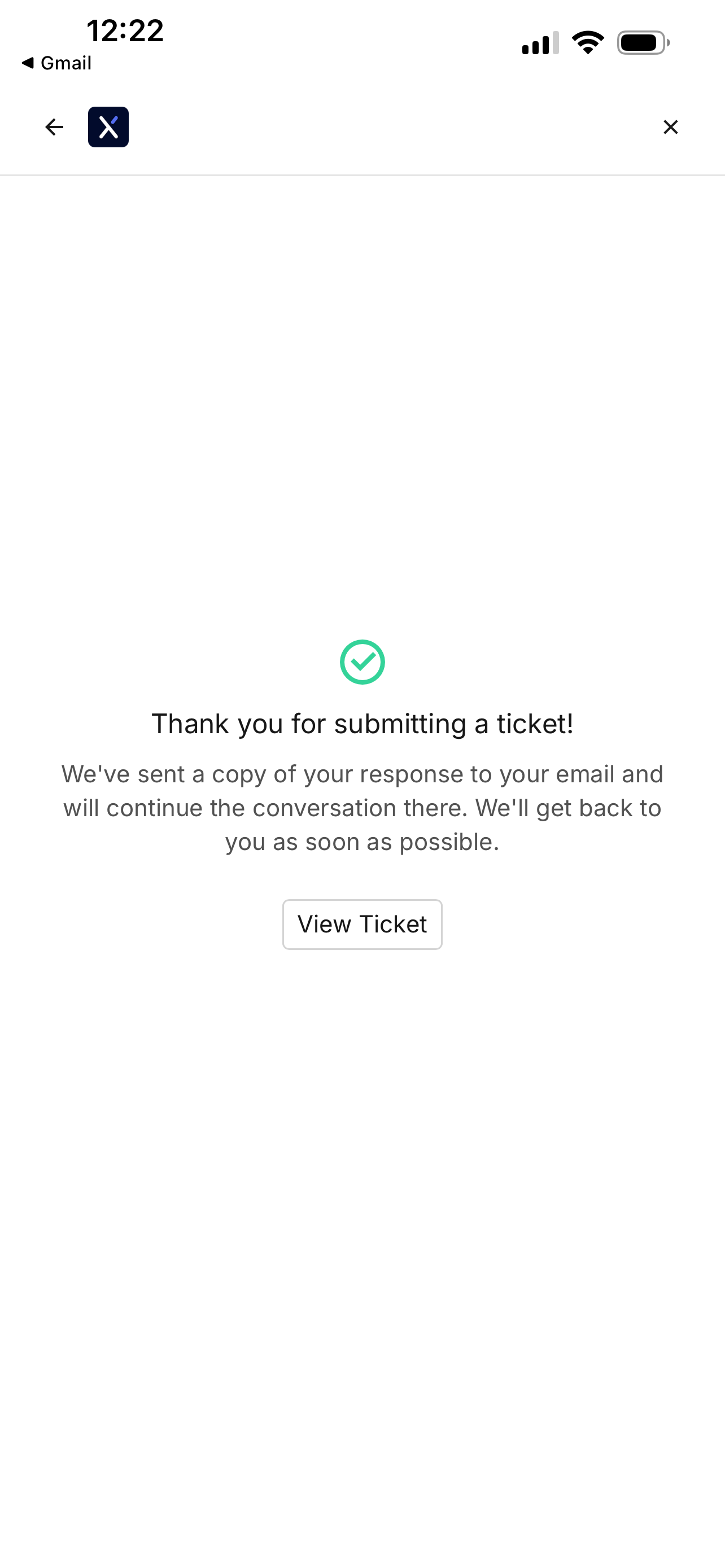
You will see a confirmation screen when your ticket is filed.
Revisiting the file ticket page will show your previous support tickets.

Tapping on a ticket will show any updates.