How To Update Allie
Last updated: October 14, 2026
Updating on Android (Google Play)
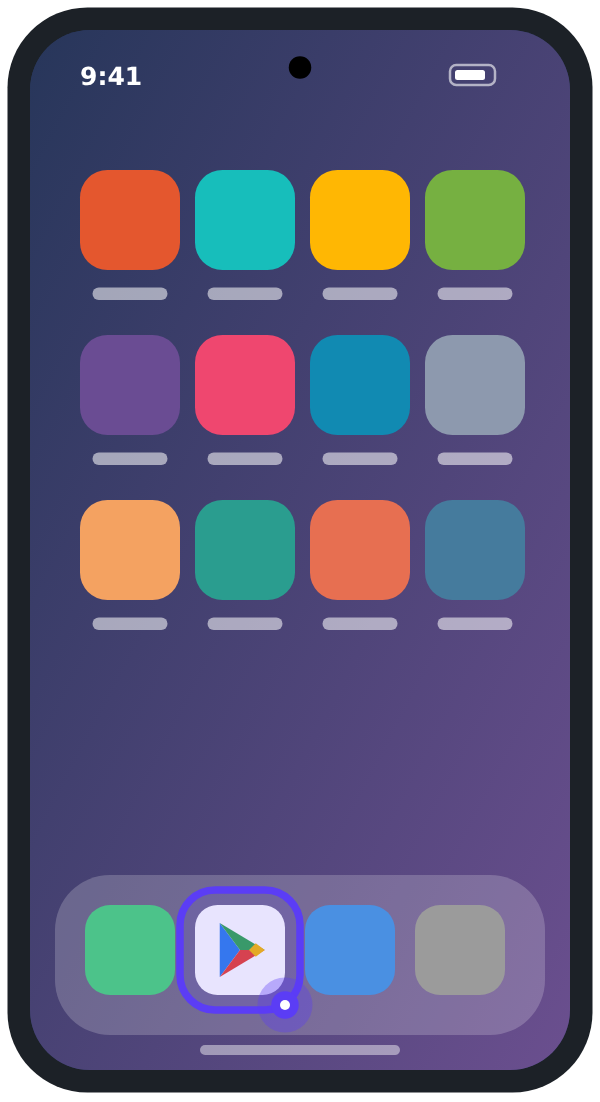
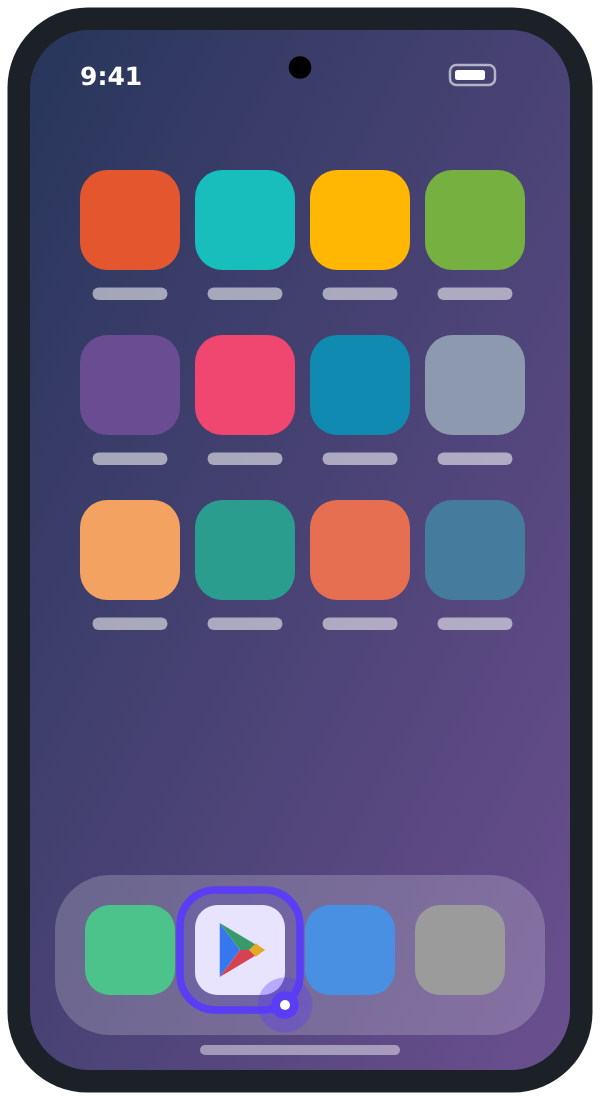
Open the Google Play Store on your Android device. It looks like a colorful triangle icon.
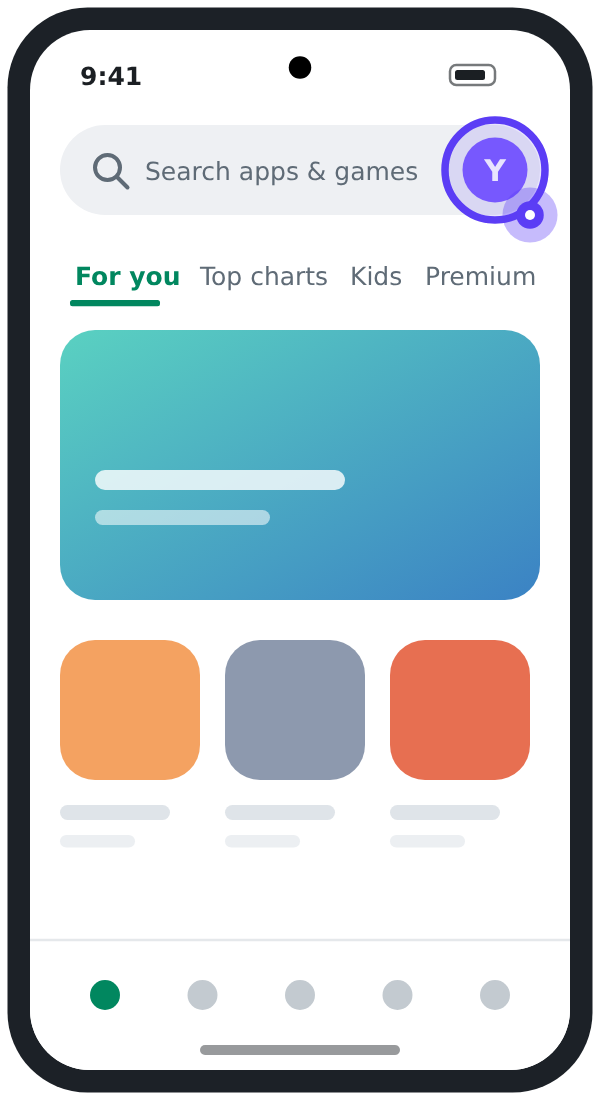
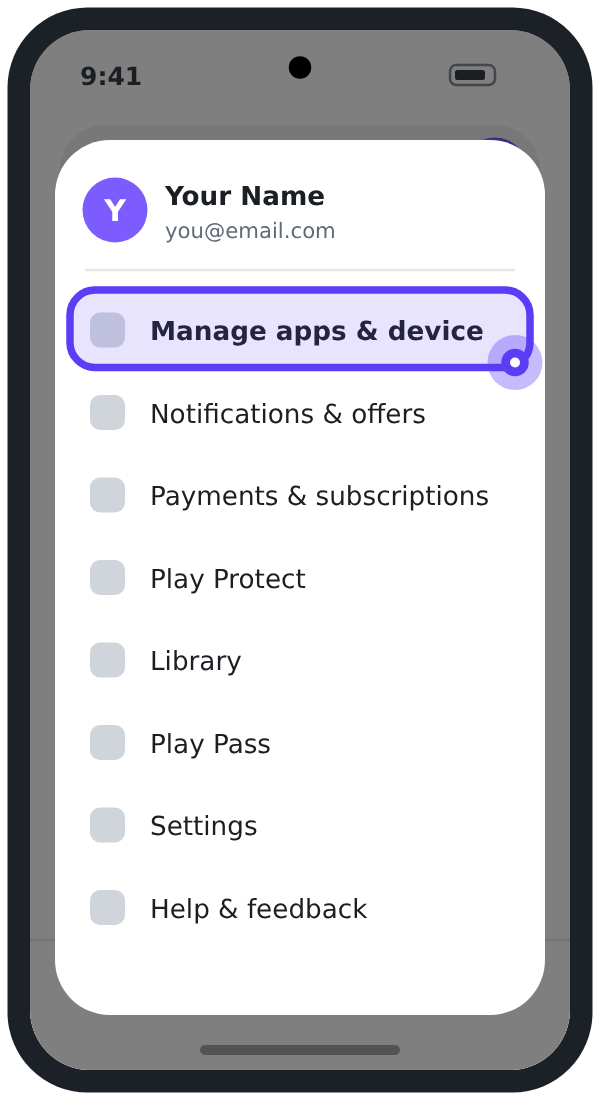
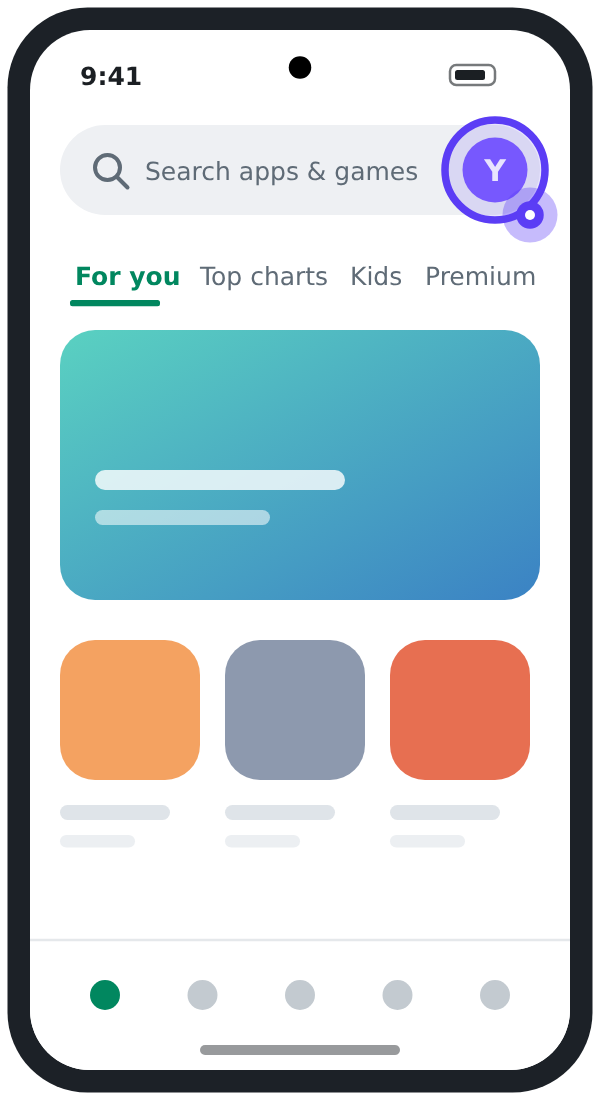
Tap your profile picture in the top right corner of the screen.
Tap Manage apps and device.
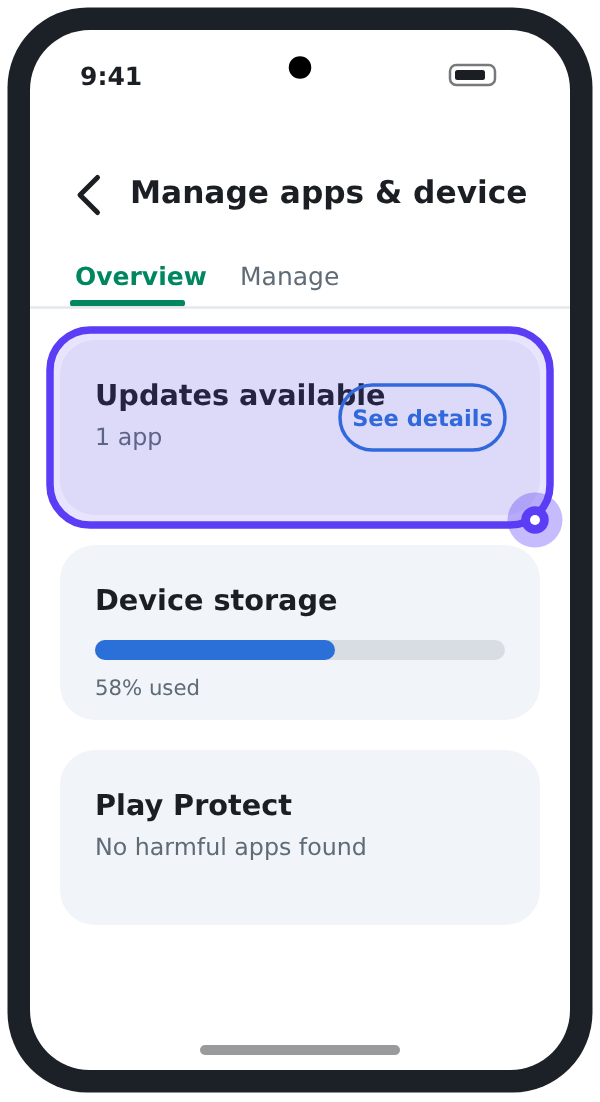
Tap Updates available to see which apps have updates ready.
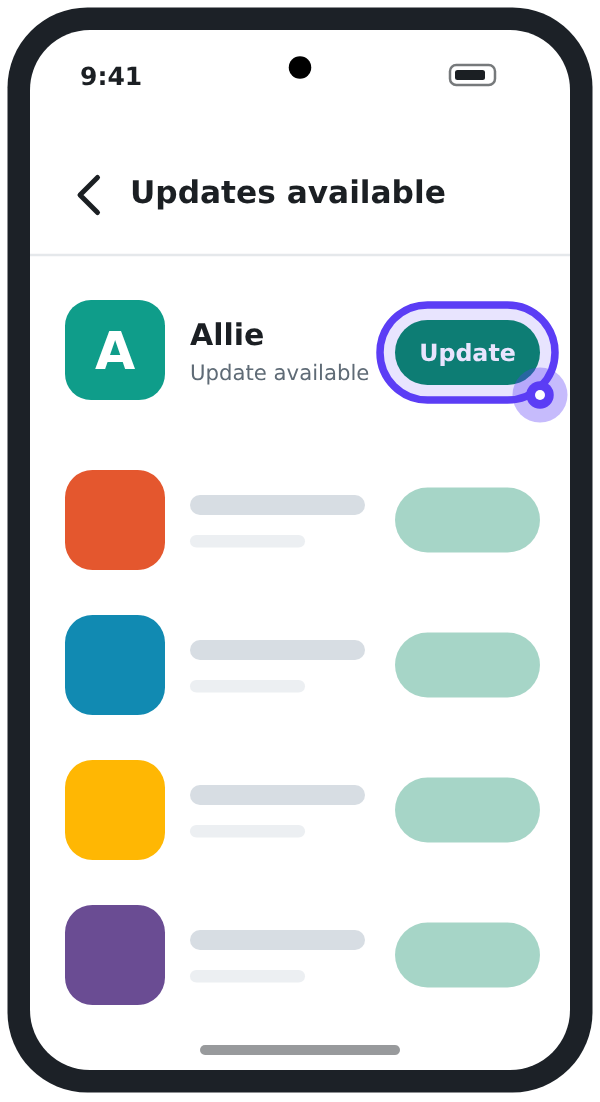
Find Allie in the list and tap Update next to it.
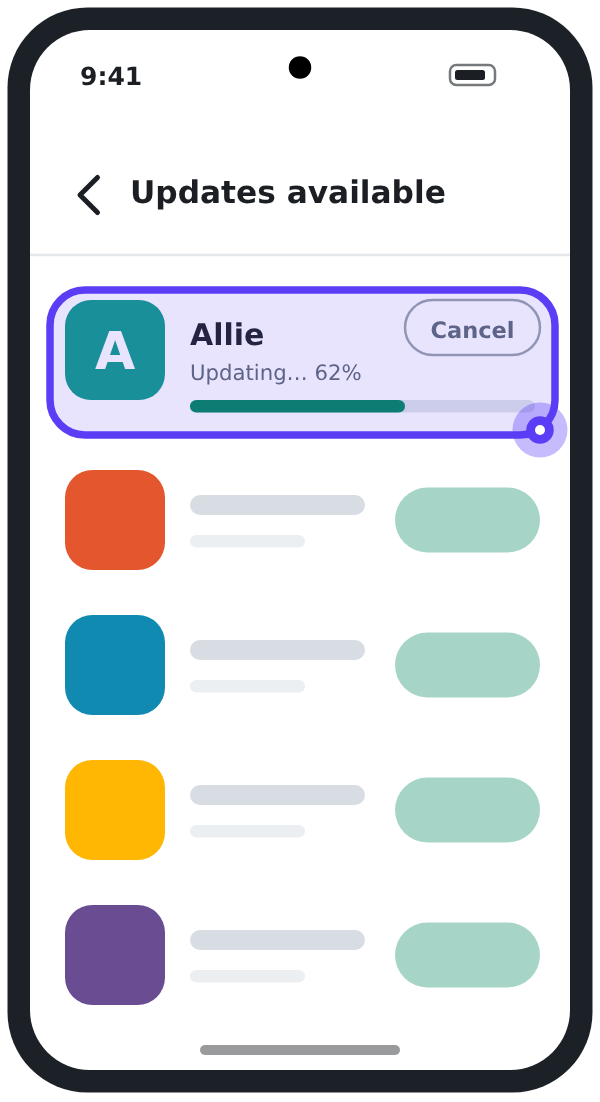
Wait for the update to download and install. When it’s done, tap Open to launch the updated app. You’re all set!
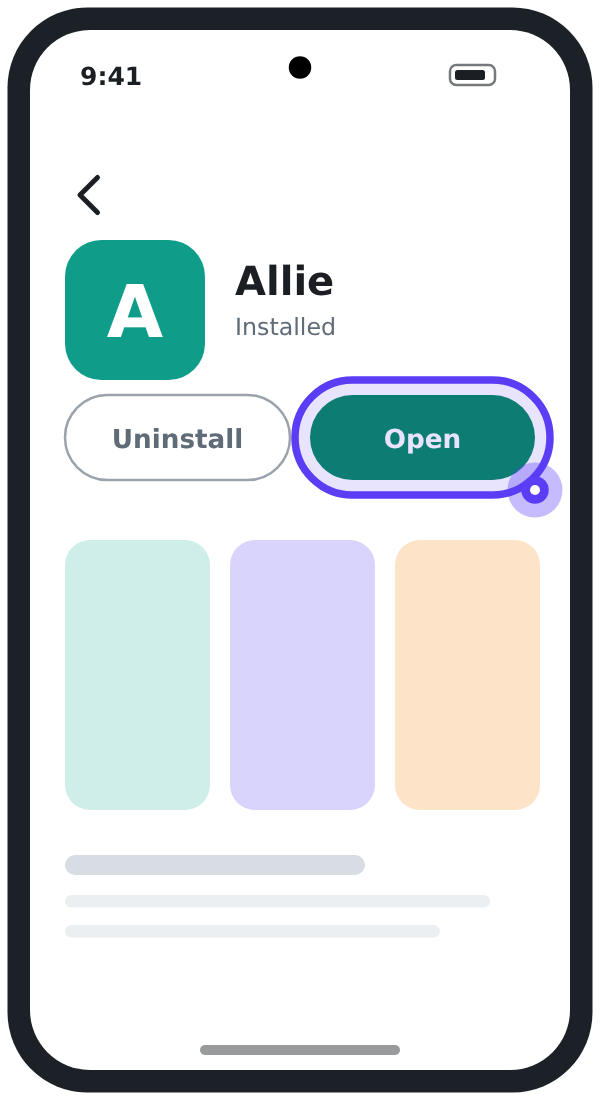
Don’t see Allie in the list? That means your app is already up to date. No action needed!
Turn On Automatic Updates
Want to skip this process in the future? You can set your phone to update apps automatically so Allie always stays current.
On iPhone
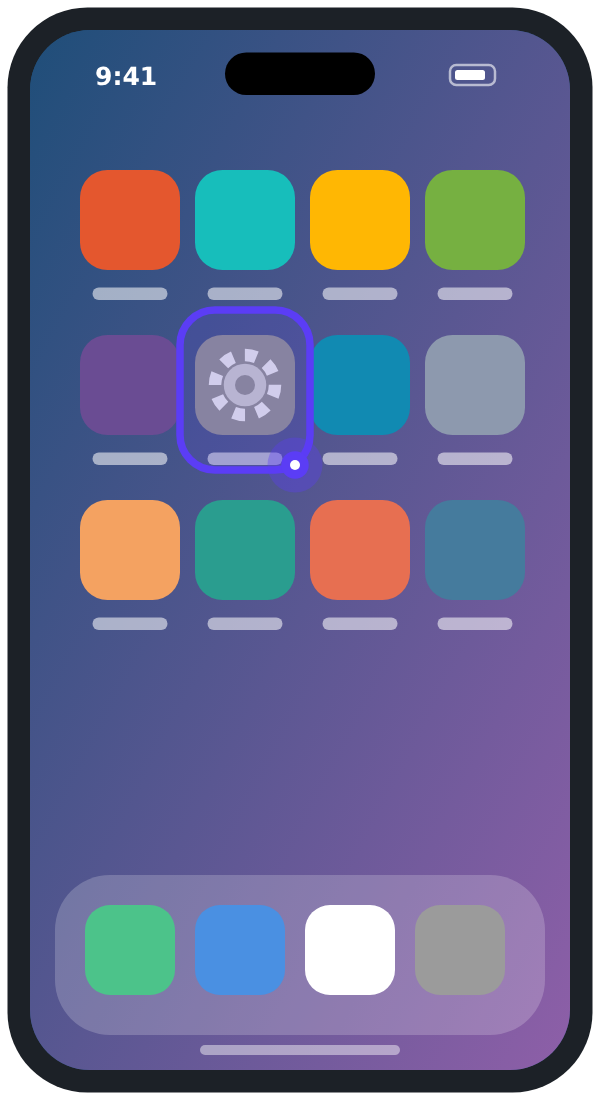
Go to Settings.
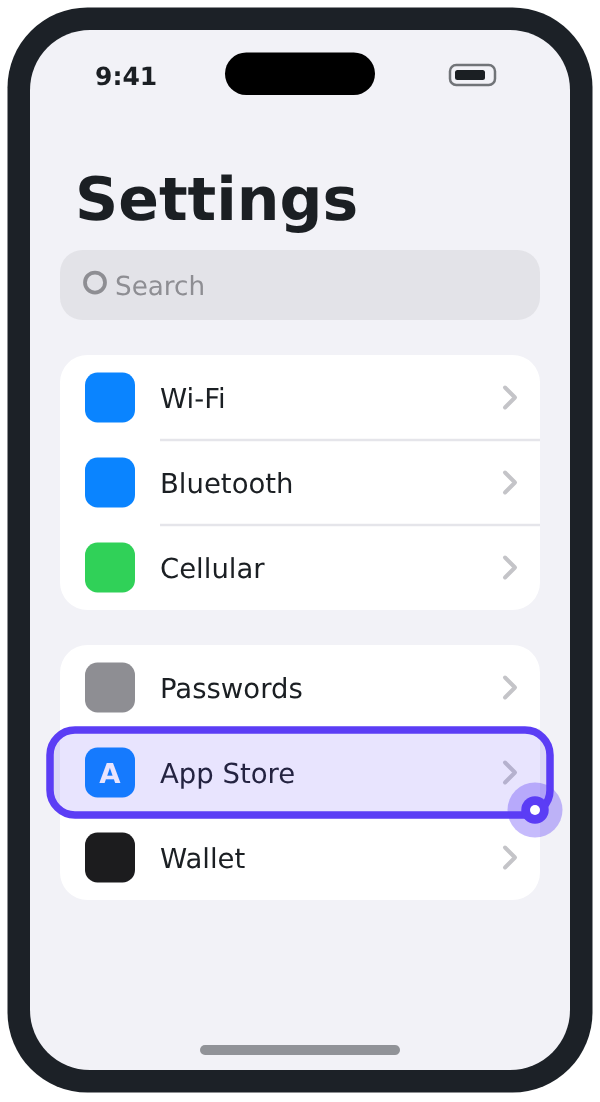
Tap App Store.
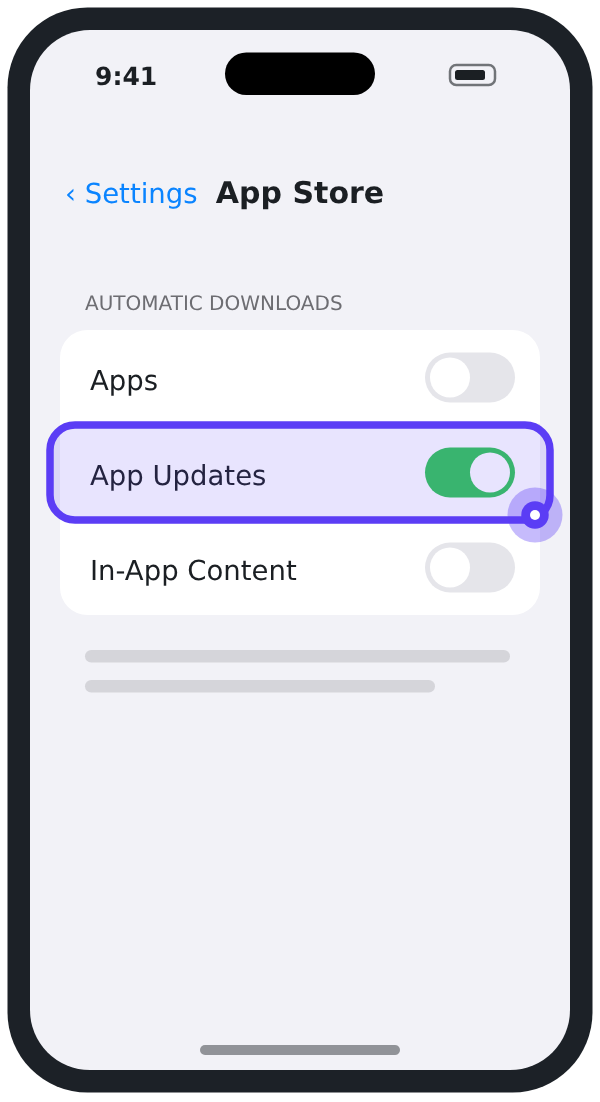
Toggle on App Updates under Automatic Downloads.
On Android
Open the Google Play Store.
Tap your profile picture.
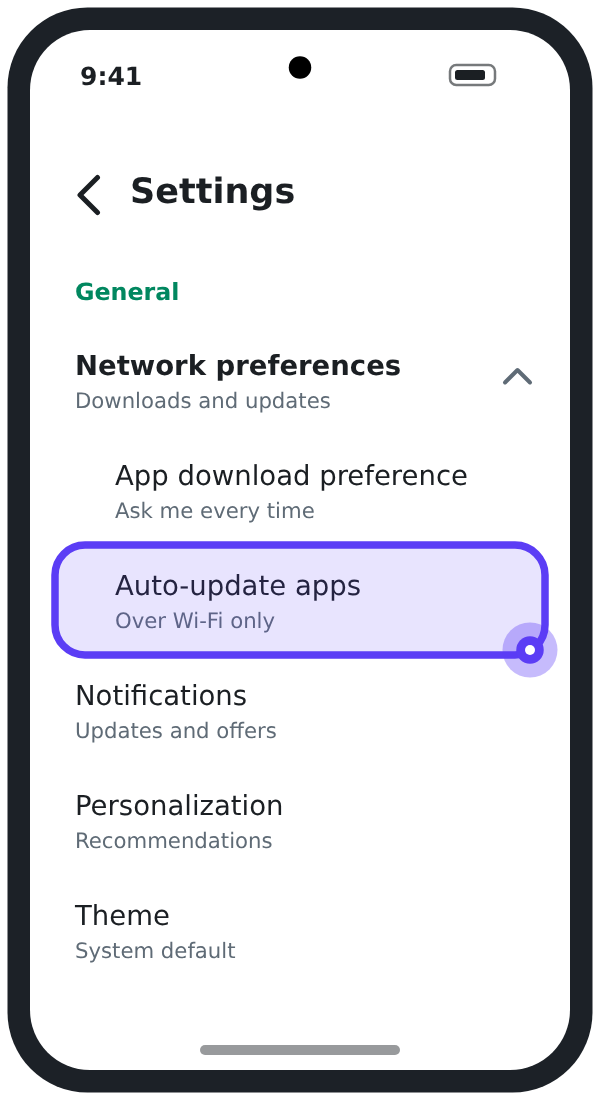
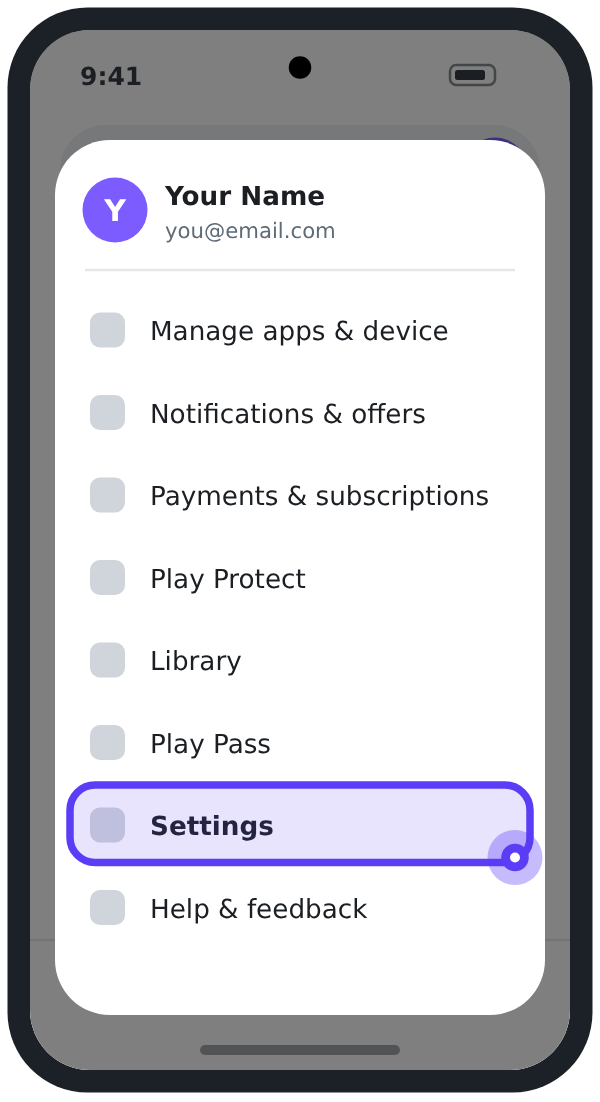
Tap Settings, then Network preferences.
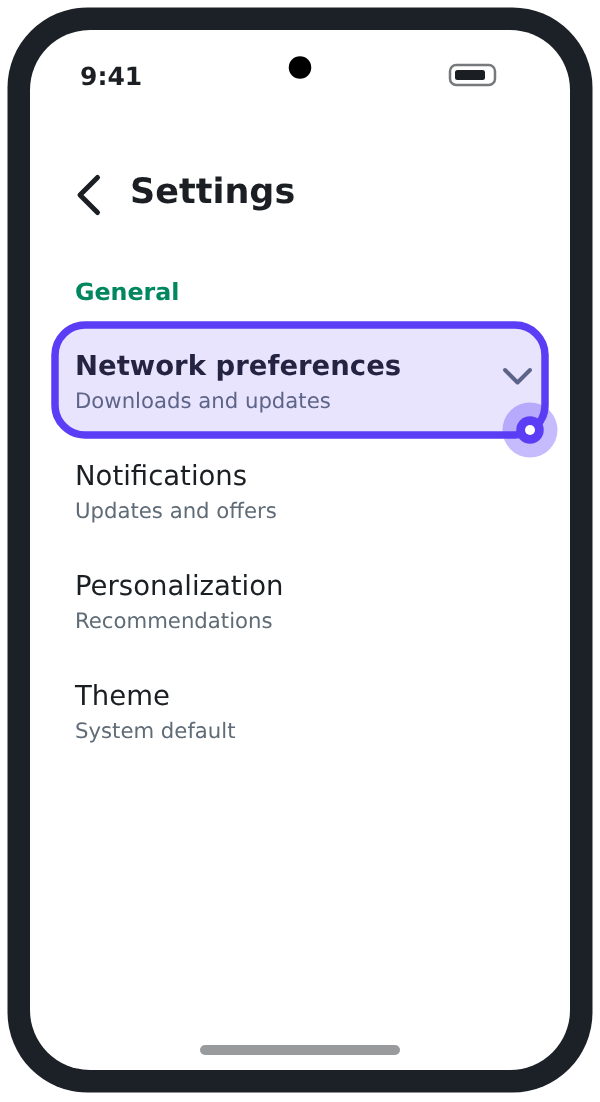
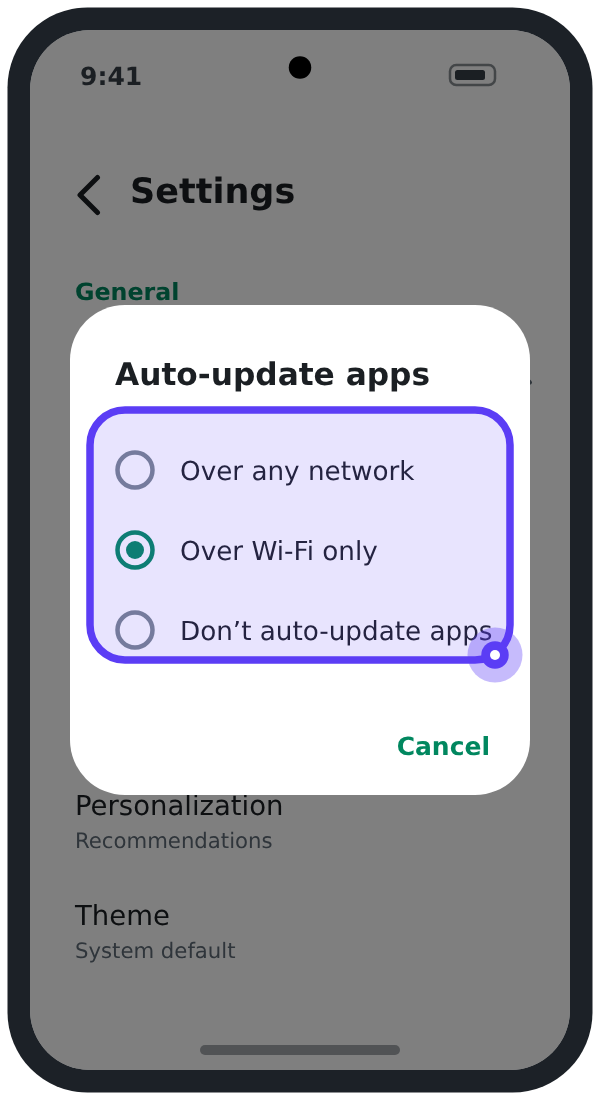
Tap Auto-update apps and choose your preferred option.