Connecting the Contour Blood Glucose Meter to Allie on Android
Last updated: October 16, 2026
Allie features Bluetooth integration with the Contour Next One Blood Glucose Monitor. This guide provides best practices to ensure seamless transfer of blood glucose data from the monitor to the Allie Android application.
Background
In order to pair the device, please make sure you have done the following during the installation process, completing all of the following:
Allowed Allie to turn Bluetooth on
Given Allie access to ""Location", Nearby Devices", and "Physical Activity"
Confirmed that Bluetooth is turned on for your phone
Note: If you have previously used the Contour Next One application, you will also need to delete that application from your phone. Then go to your Bluetooth settings and "Forget" the previously connected device. We also recommend restarting your phone before proceeding with the pairing.
For best results, we recommend making sure that you are using the most recent versions of Allie and that your phone's operating system is up to date. More information on checking your settings/updating Allie can be found here.
You will also need to make sure you see the blood glucose widget under My Health in Allie.
If you do not see this, please call us creating a support ticket in Allie: My Care -> Settings -> Technical Support (recommended). You can also try to send us an email support@codexhealth.com.
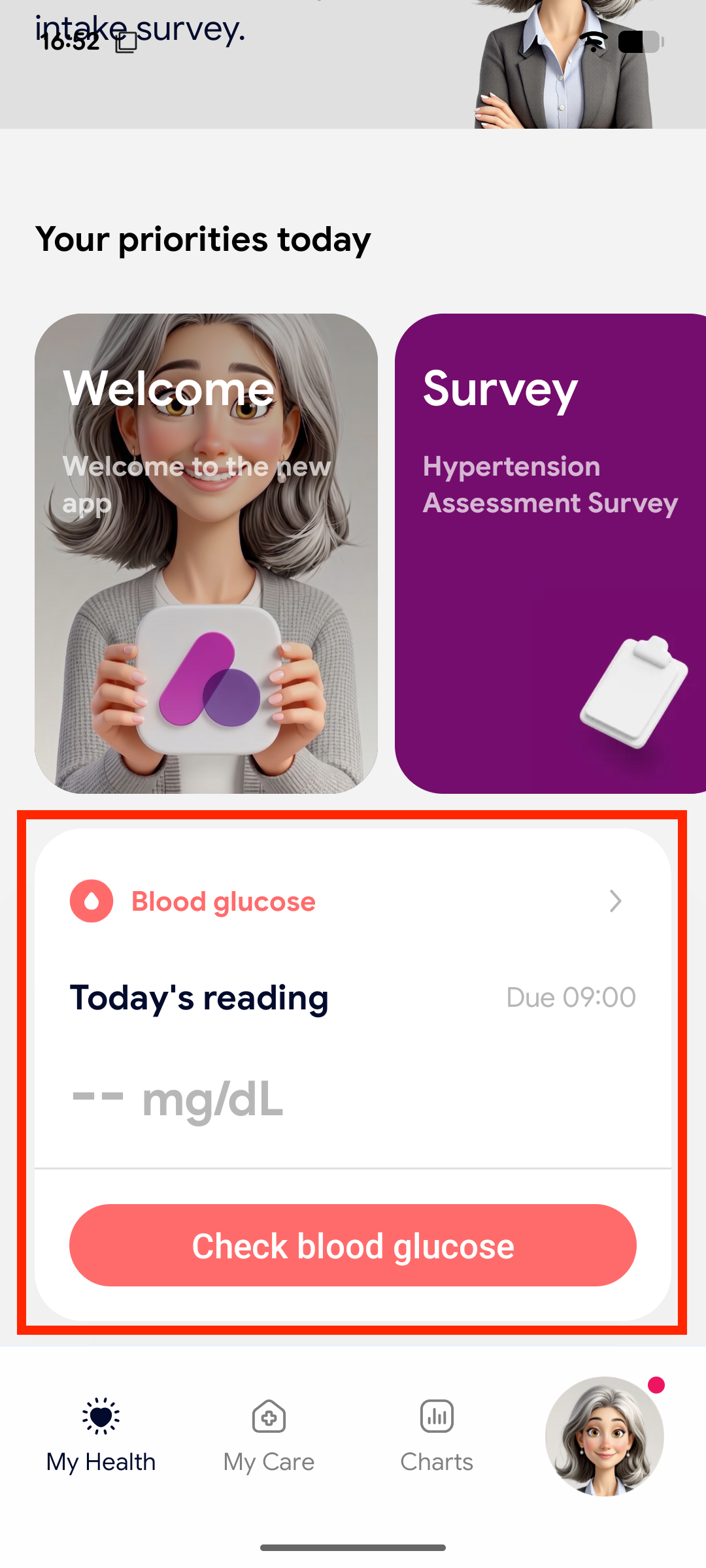
Pairing Contour BGM with Allie App
To get started, please make sure the Contour Blood Glucose Meter is turned off. If it is on, hold the button down until it beeps and the screen goes blank.
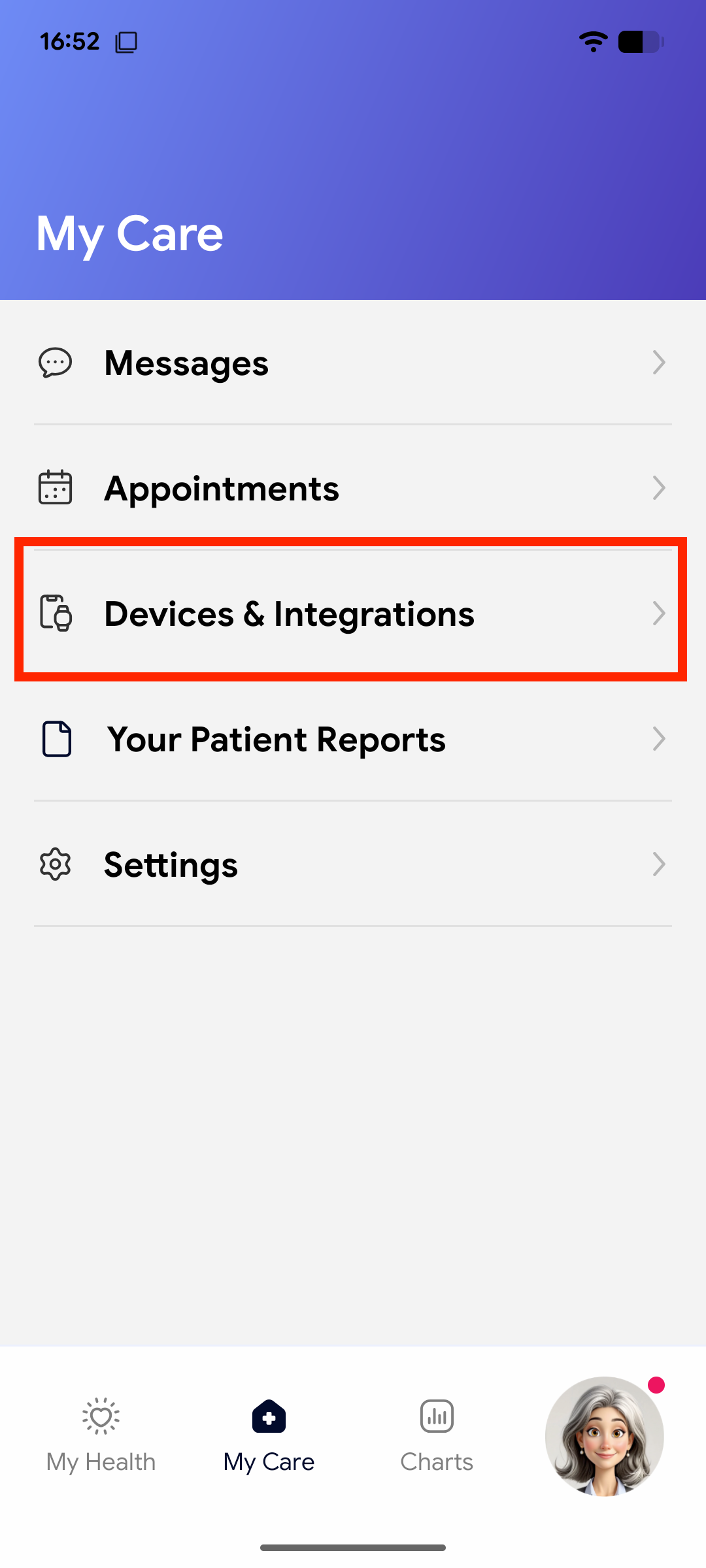
Then, open your Allie app, and go to the My Care tab using the bottom navigation bar.
Select Devices & Integrations
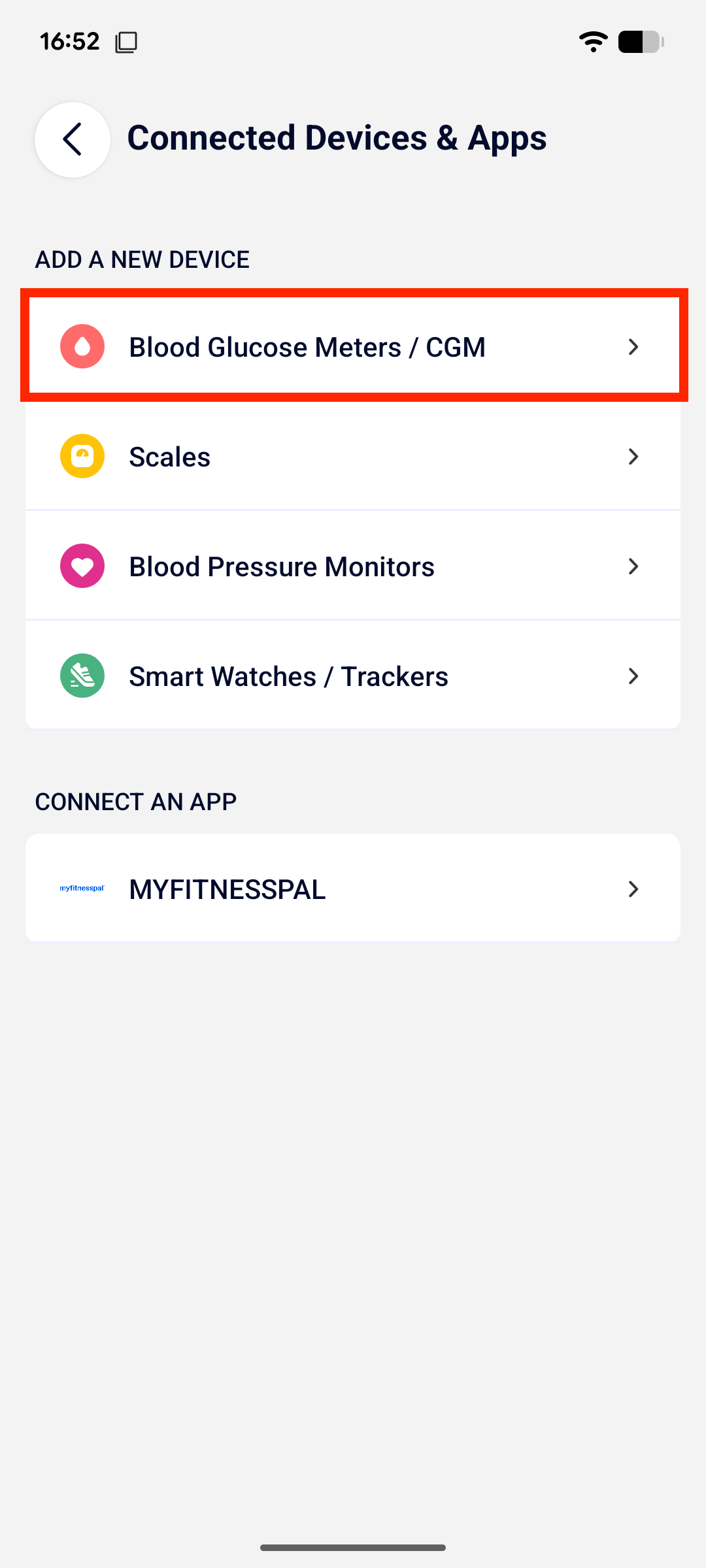
Then choose Blood Glucose Meters / CGM
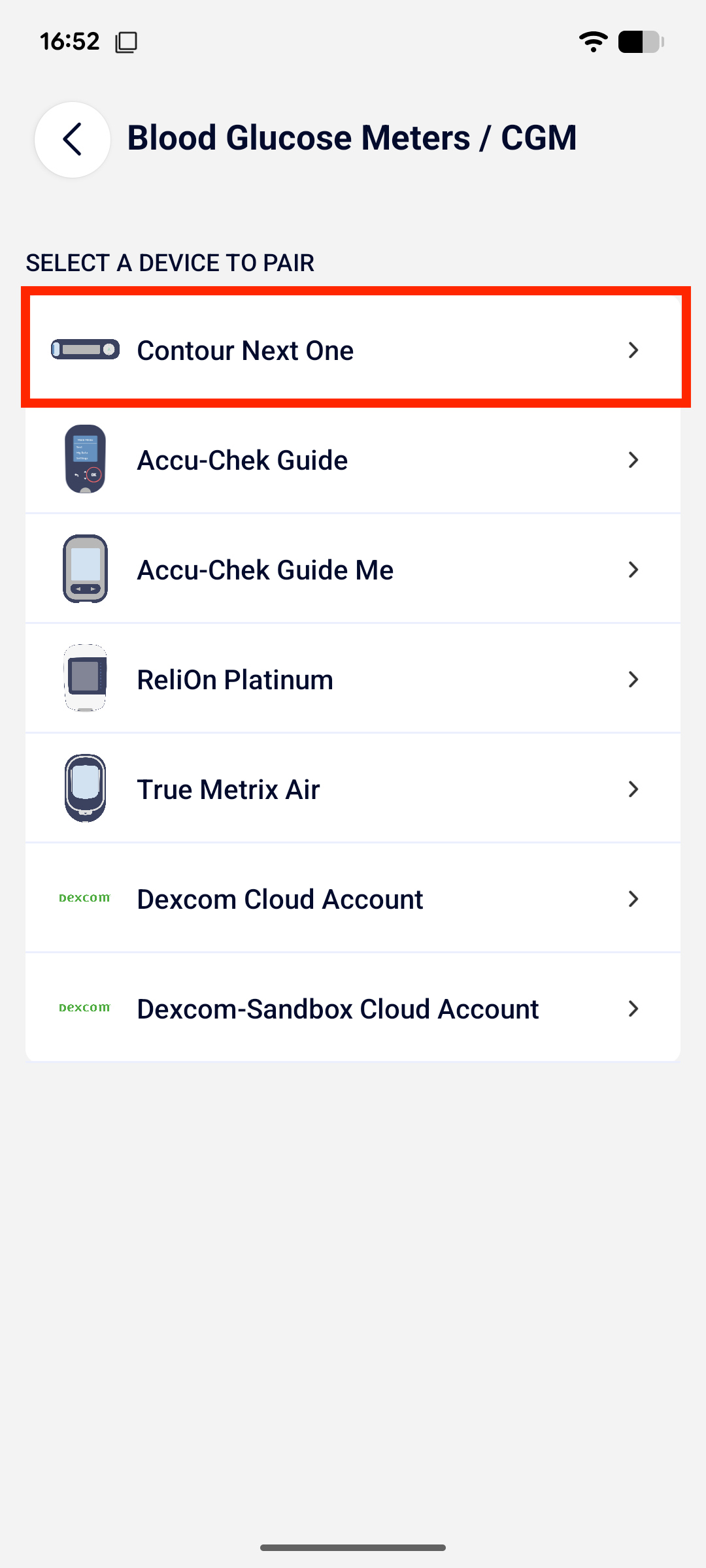
Select Contour Next One
This will bring you to Step 1 - Make sure your meter is off and keep it near your mobile device.
Tap "Continue" to be brought to Step 2 - Press and hold the center button for 6 seconds until you see the blinking Bluetooth symbol. A blue light should blink when you are in pairing mode.
Go ahead and press/hold the button on your Contour until it looks like this image:
When you see the blue blinking light on the contour, tap "Continue" in Allie
You should see a notification on your phone asking you to "Pair and Connect". Tap that
and then confirm you wish to pairYou should see a "Success" page in Allie shortly afterwards. You can tap "Done" to leave the pairing process


This will return you to the Devices & Integrations screen and you will now see the Contour Next One in a new Blood Glucose Meters / CGM section. You can now take your first reading.
Uploading Blood Glucose Readings to Allie
Now that the Contour is paired to Allie, your future readings will be automatically sent to Allie. They will then be visible for your healthcare provider.
To upload a reading
Make sure that you have Allie open
Insert a strip into the Contour. You should then see this screen indicating it is waiting for you to take a reading:
If you do not see this screen when inserting a strip, please make sure your Contour is connected per the instructions aboveApply blood/control solution to edge of strip. Try to use a single drop and make sure it is applied to the edge as best you can
If the device beeps and shows you this image, it needs more blood/control solution to take a reading
If the device is starting to take a reading, it will beep and show you a countdown
Your current Blood Glucose will then be displayed on the Contour screen
Next, choose your meal context using the arrows on the contour. Tap the button when you have chosen the appropriate meal context
You'll see the saved reading with a light indicating which range your reading is in


Note: If you do NOT have context enabled in the Contour, Allie will ask you to add context instead.
Troubleshooting Issues with the Contour Next One
For general troubleshooting, please see here.
Cannot Take a Blood Glucose Reading
When you add your blood (or the control solution) to a strip that is inserted into the Contour, you should see a screen prompting you to add a small drop of blood to the strip.

In some cases, the amount of blood may be insufficient, in which case you'll see the following:

This indicates you need to add another drop of blood until you see the countdown which confirms the Contour is measuring your glucose levels. If you do not add enough blood within a minute, you'll see an "E1" error message indicating to try again with a new strip.

Additionally, if you see an E2 code when inserting a strip for the first time, this indicates there is an issue with the strip you've used.

Simply try another strip and you should be prompted for a reading.
Not Prompted When Inserting Strip into Contour
If the process appears to have been successful, but when you insert a strip in the Contour you are NOT prompted to take a reading and instead only see the "Bluetooth" symbol pairing appears successful, but you are NOT prompted to take a reading, and only see the "Bluetooth" symbol, please call us directly at: (650) 449-6616 or send us an email support@codexhealth.com. Our staff will follow-up to schedule a troubleshooting session, as this issue can likely be addressed by the following:
Unpair the Contour from Allie
Install the Contour Diabetes manufacturer application
Sign in and pair your device with this application
Turn Bluetooth off on your phone
Take a Blood Glucose measurement while Bluetooth is turned on
Uninstall the Contour Diabetes manufacturer application
Turn Bluetooth on for your phone
Go back to Allie and see if the device is listed
If so, refresh and see if the recent reading is uploaded
You can also try taking another reading
For general troubleshooting, please see here.
If you need assistance, please call us directly at: (650) 449-6616 or send us an email support@codexhealth.com