Connecting the Omron SC-150 Scale to Allie on iOS
Last updated: October 16, 2026
Background
Allie features Bluetooth integration with the Omron SC-150 commercial weight scale. This guide provides best practices to ensure seamless transfer of weight data from the scale to the Allie iOS application.
In order to pair the device, please make sure you have done the following during the installation process, completing all of the following:
Given Allie access to Bluetooth
Allowed Notifications from Allie
Turned Bluetooth ON for your phone
For best results, we recommend making sure that you are using the most recent versions of Allie and that your phone's operating system is up to date. More information on checking your settings/updating Allie can be found here.
You will also need to make sure you see the weight widget under My Health in Allie.
If you do not see this, please call us creating a support ticket in Allie: My Care -> Settings -> Technical Support (recommended). You can also try to send us an email support@codexhealth.com.
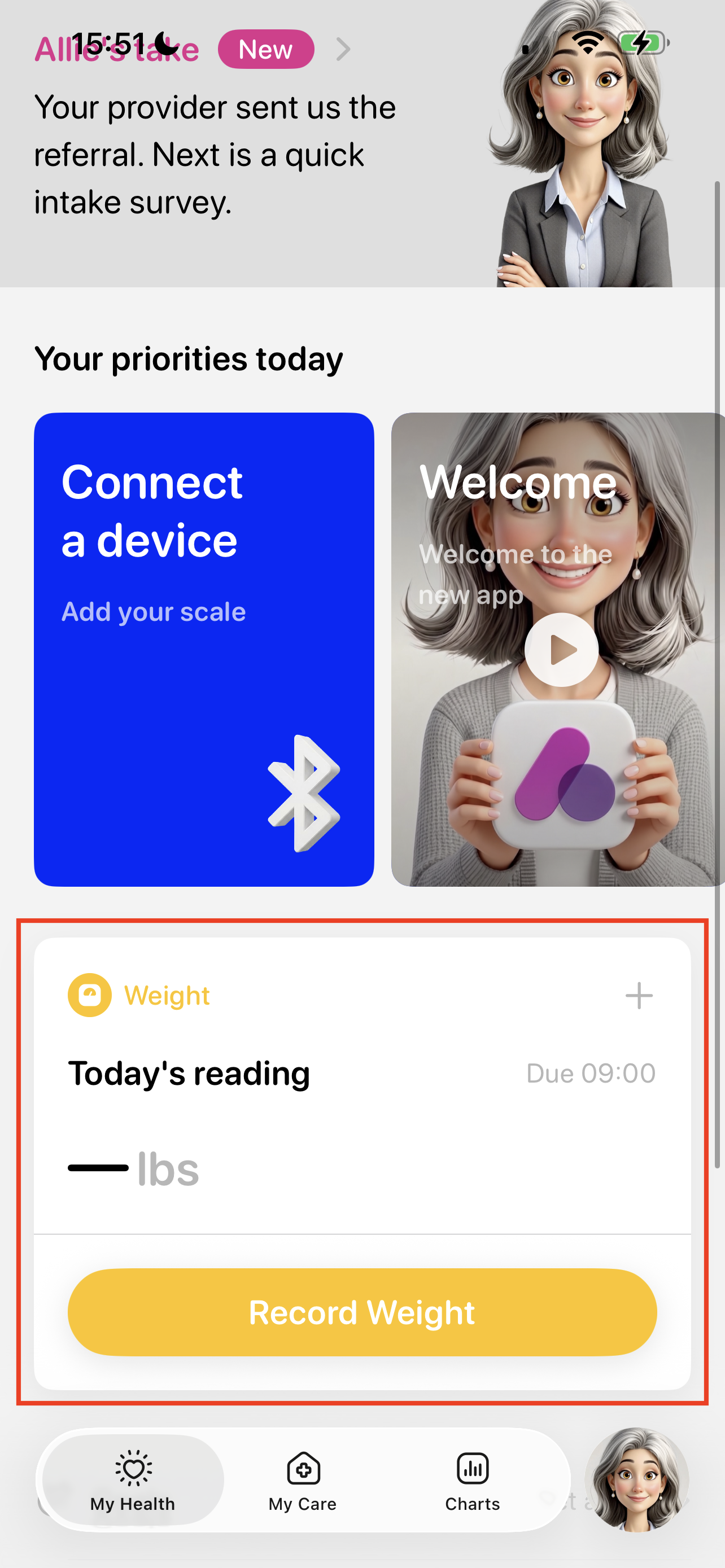
Pairing Instructions
(Optional - Turn the scale over and insert the batteries into the battery compartment.
The scale display will quickly flash and then go blank - you may not see this)
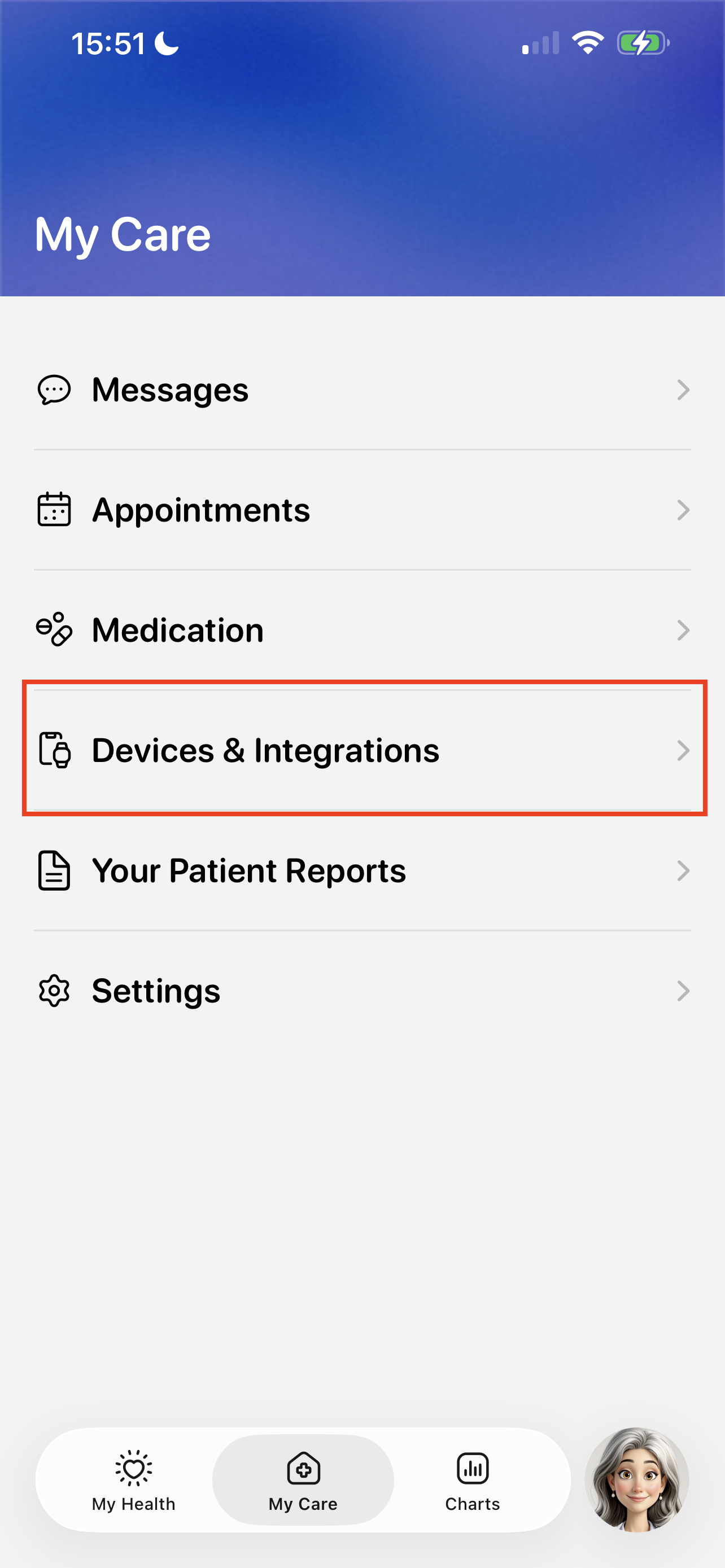
Make sure the scale display is blank. In Allie, go to the My Care tab using the bottom navigation bar.
Select Devices & Integrations
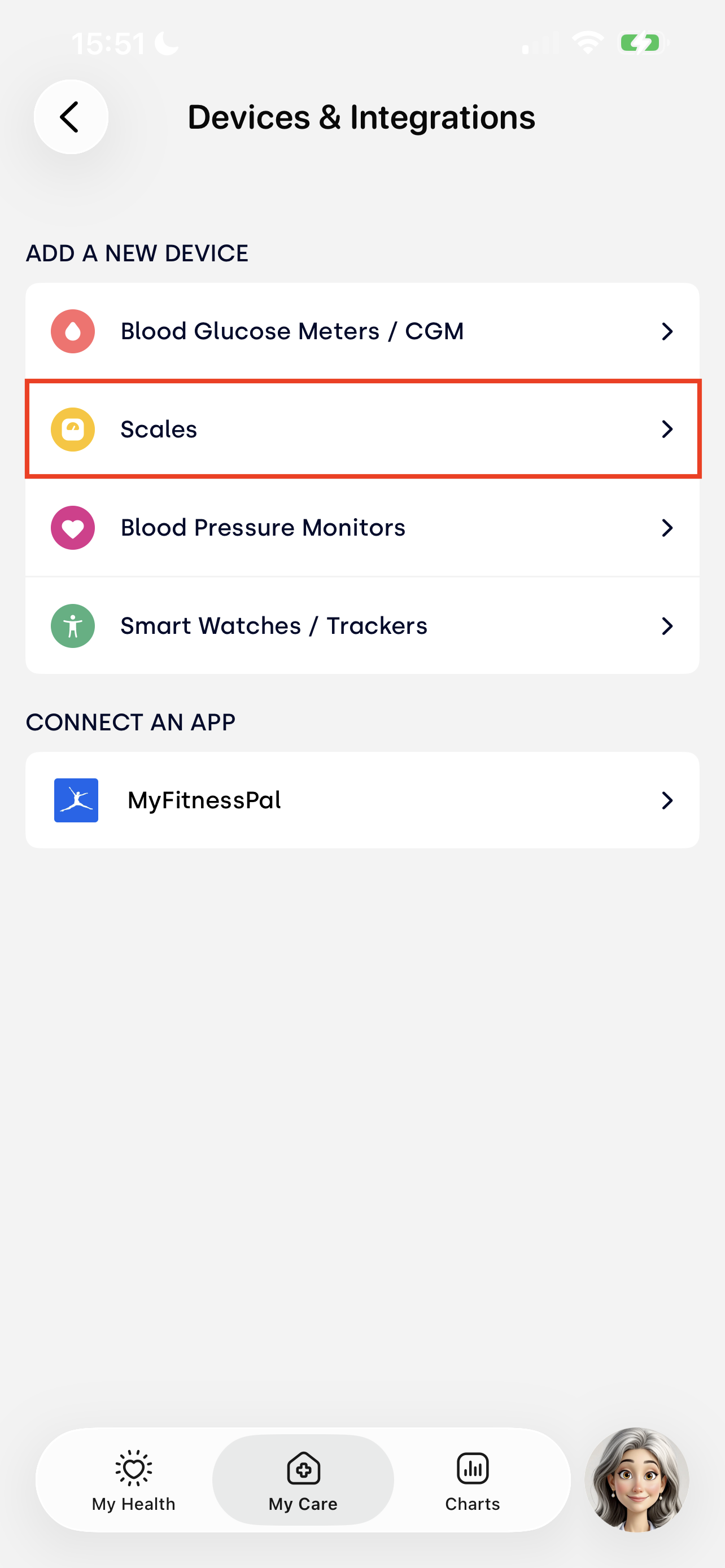
And then choose Scales
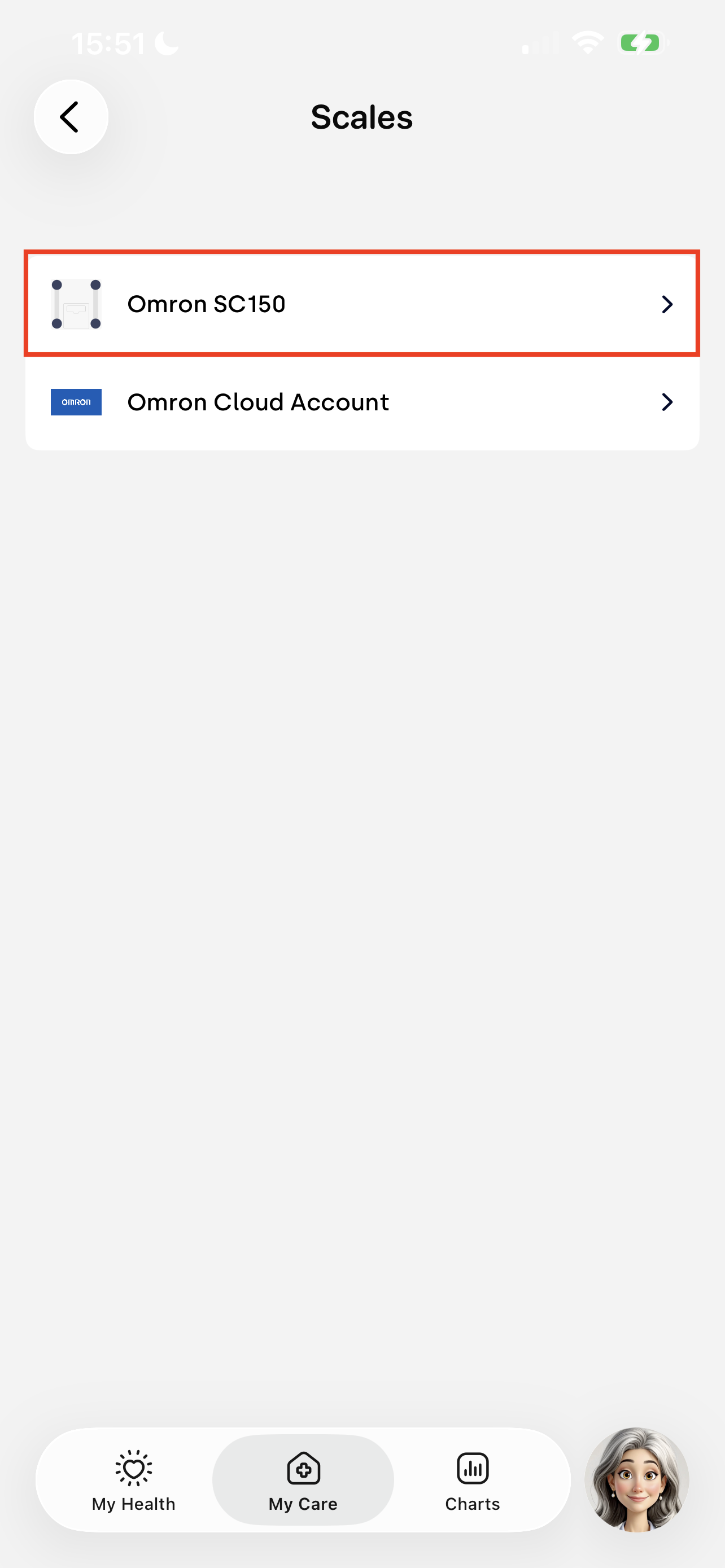
Select the Omron SC-150
This will take you to Step 1 - Insert 4 "AAA" batteries in the back of the scale.
If you have not already inserted the batteries, do so now. The screen will quickly flash and then go blank. Tap "Continue" in Allie to be brought to Step 2 - Press the Bluetooth button for more than 2 seconds. The pairing symbol will flash on the display
Locate the bluetooth pairing button on the scale. It is on the front side of the scale, near the display:
Press and hold the pairing button on the scale until the "P" is flashing
Allie should now update to indicate there is an "SC-150" nearby and give you the option to "Start Pairing"
A prompt will appear - confirm that you wish to "Pair" with the SC-150
The SC-150 screen will display several 0's and the "OK" icon
Shortly after, Allie will update to show you the "Success" screen. You can tap "Done" to leave pairing mode


This will return you to the Scales screen. If you have issues at any point in time with the pairing process, please start over from the beginning.
Please wait for the scale screen to go blank before proceeding with taking your weight.
How to Take a Weight Measurement
Launch the Allie app
Stand on the scale
The display will fluctuate until it determines the weight. At this point it will flash three times.
You should then see the Bluetooth icon below your weight measurement
If you do not see the icon, make sure that Allie is open. If it has closed, open it, and the weight measurement should come through soon
The reading will then be sent to Allie shortly afterwards (it may take a few seconds to synchronize).

If you take your weight but Allie is not currently open, the measurement may not show up in Allie. To address this, open up Allie and tap the Bluetooth button on the SC-150. This should send any recently saved readings from the scale to Allie.
For general troubleshooting, please see here.