Connecting the Omron 5250/7250/7255 Blood Pressure Cuff to Allie on iOS
Last updated: October 15, 2026
Background
Allie features Bluetooth integration with Omron blood pressure monitors. This guide provides best practices to ensure seamless transfer of blood pressure data from the blood pressure cuff to the Allie iOS application. You may follow this guide whether you have received the 5250, 7250, or 7255.
Please note: you must have a care plan set up from your clinical educator in order for your pairing to be successful.
In order to pair the device, please make sure you have done the following during the installation process, completing all of the following:
Given Allie access to Bluetooth
Allowed Notifications from Allie
Turned Bluetooth ON for your phone
For best results, we recommend making sure that you are using the most recent versions of Allie and that your phone's operating system is up to date. More information on checking your settings/updating Allie can be found here.
You will also need to make sure you see the blood pressure widget under My Health in Allie. If you do not see this, please call us directly at: (650) 449-6616 or send us an email support@codexhealth.com.
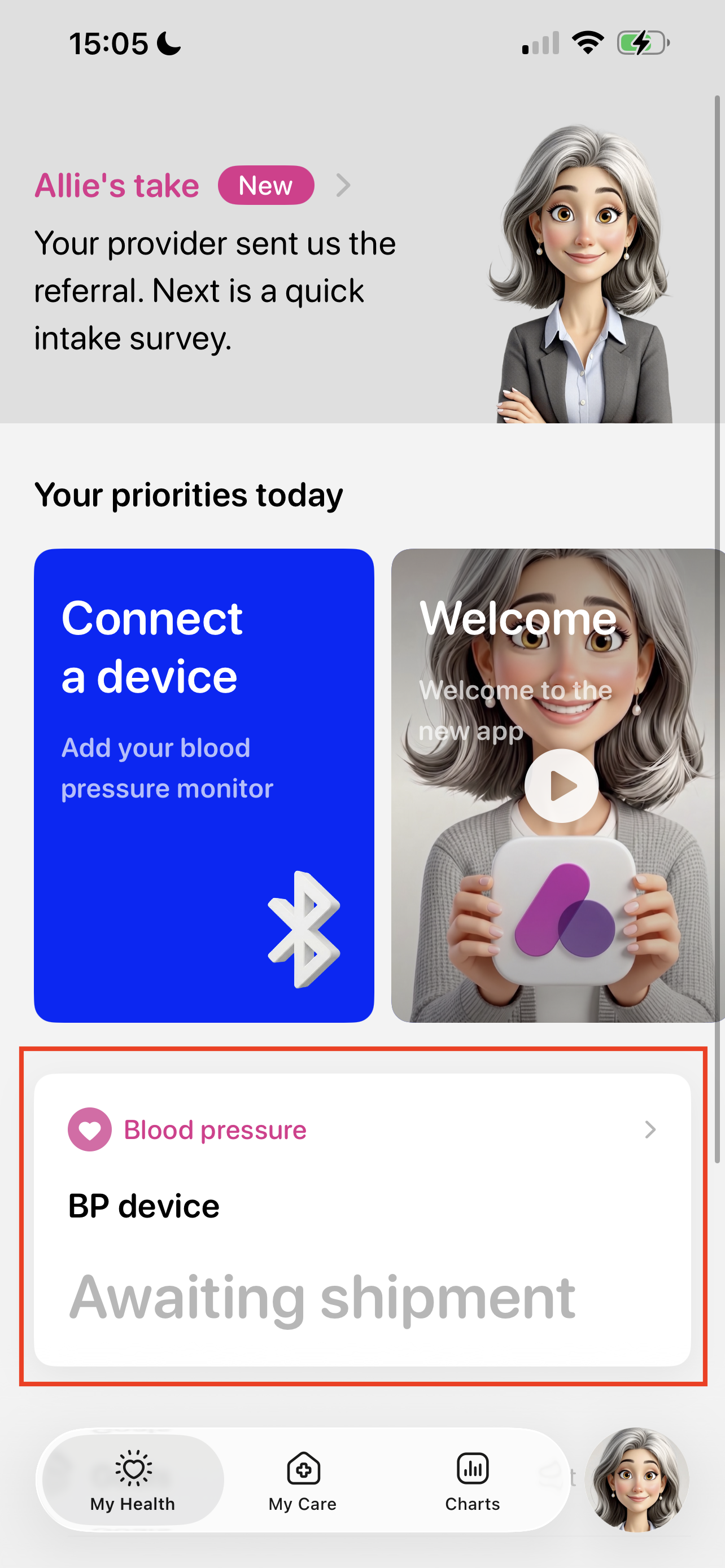
Troubleshooting Steps and Explanations for error messages can be found here.
Pairing Instructions
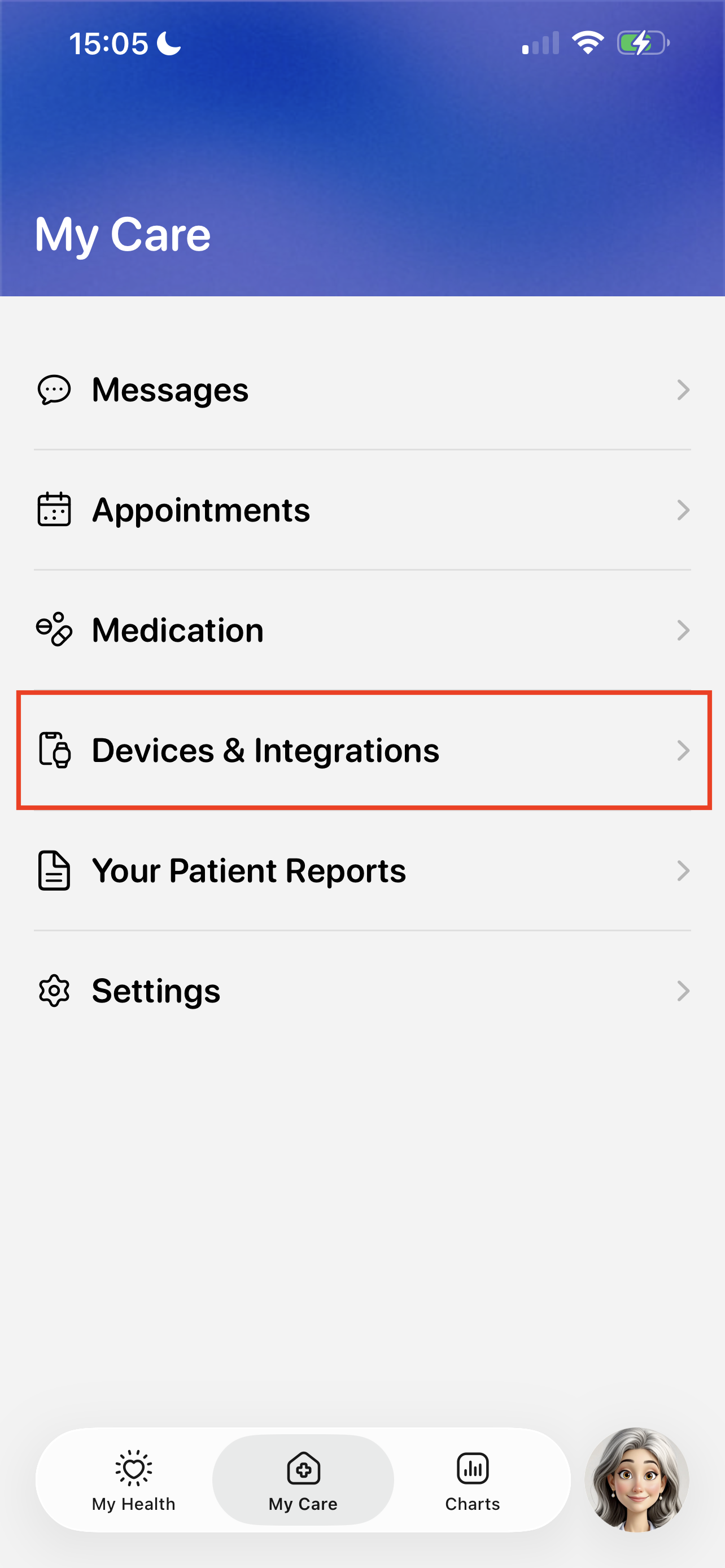
Make sure the cuff is off. Then, open your Allie app, and go to the My Care tab using the bottom navigation bar.
Select Devices & Integrations
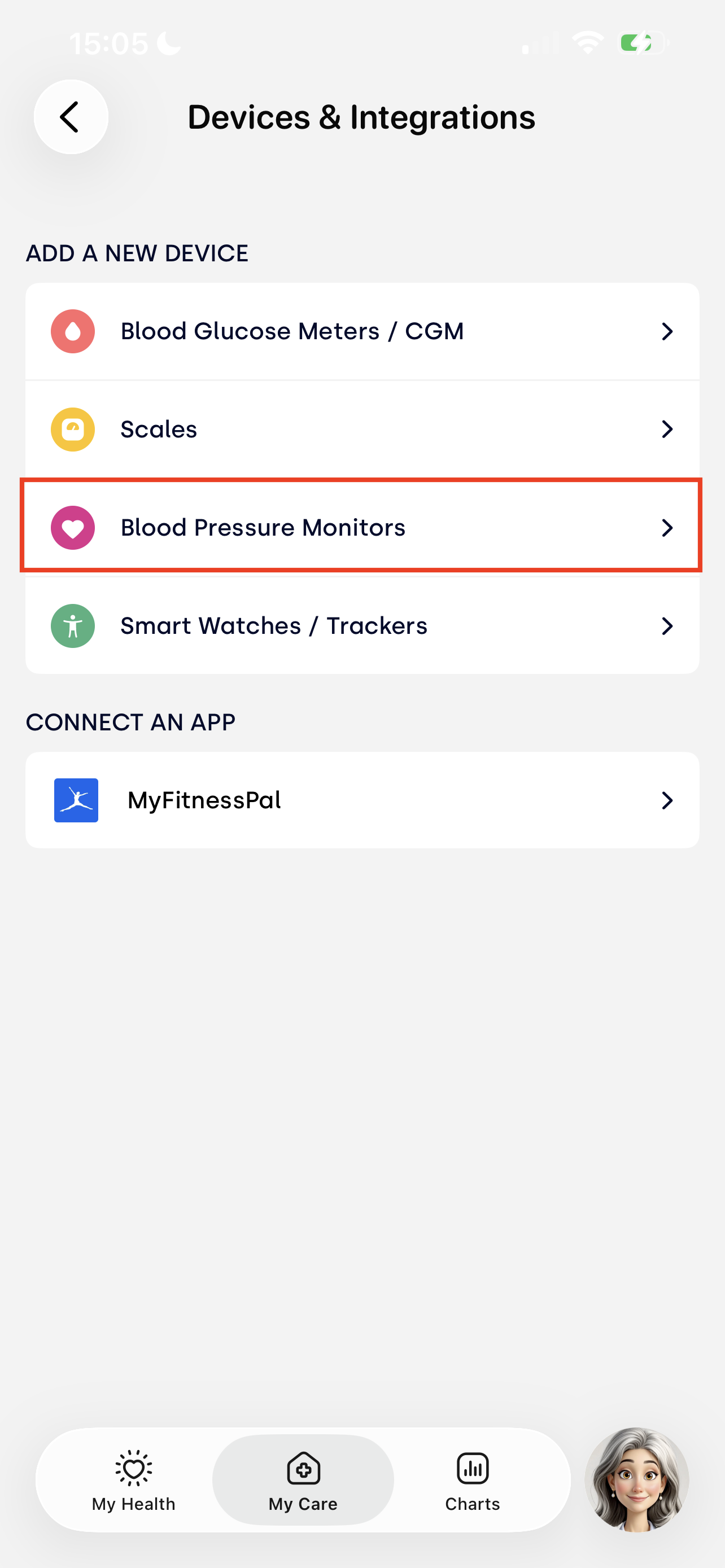
Then select Blood Pressure Monitors
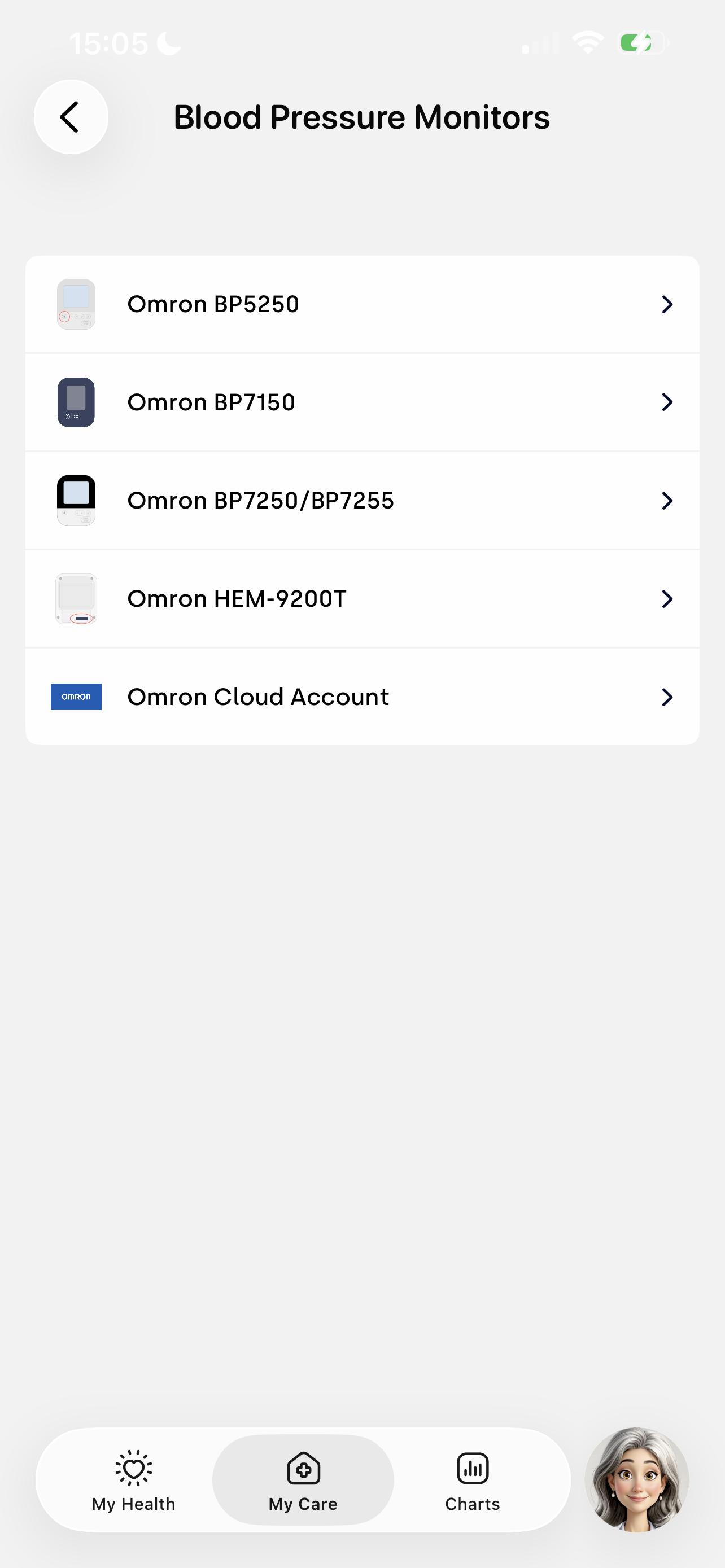
Select the "Omron BP5250, 7250, or 7255" depending on the model you received. If you received a 7255, you may select 7250.
This will take you to Step 1 - Press and hold the transfer or bluetooth button on your device for 3 - 5 seconds, until you see a flashing P on the device screen
Make sure the blood pressure monitor is near your phone. Then, press and hold the button until you see the flashing "P". This indicates the cuff is in pairing mode
Once the cuff is in pairing mode, you will likely automatically be brought to to Step 2 in Allie - You should see flashing pairing symbols and are now ready to pair and will see the "BP5250, BP7250, or BP7255" listed as an Active device near you. (If you are not brought here automatically, tap "Continue" from Step 1)
NOTE: Instead of "BP5250", you may instead see text that reads "BLEsmart_" with a string of text. This is not an issue and you can still continue with the pairing process
In Allie, tap "Start Pairing". You'll see a pop-up Bluetooth pairing request - tap "Pair" to continue
The blood pressure monitor should soon show 4 zeros, the "OK" icon, and the bluetooth symbol
Shortly after, Allie will update to show you the "Success" screen. You can tap "Done" to leave pairing mode


This will return you to the Devices & Integrations screen and you will now see the "Omron BP5250, 7250, or 7255" in a new "Blood Pressure Monitors" section. You can tap the "Start/Stop" button on the cuff to turn it off now and proceed with your first reading.
Uploading Blood Pressure Readings to Allie
When you are ready to take your blood pressure, open Allie and keep it open while you take your blood pressure
Wrap the blood pressure cuff around your upper arm above the elbow
Press the START/STOP button on the blood pressure monitor
The blood pressure cuff will inflate and then deflate. You will see the numbers go up and then back down on the cuff. This process may take up to a minute to complete.
When the cuff is finished, it will display your blood pressure and resting heart rate.
The reading will then be sent to Allie shortly afterwards (it may take a few seconds to synchronize).

If you take your blood pressure but Allie is not currently open, the measurement may not show up in Allie. To address this, open up Allie and tap the Bluetooth button on the blood pressure cuff. This should send any recently saved readings from the cuff to Allie.

For general troubleshooting, please see here.
You can also see this section on troubleshooting specific issues with the blood pressure cuff.